


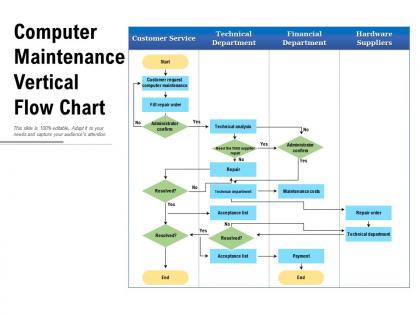
Computer maintenance vertical flow chart




Try Before you Buy Download Free Sample Product
 Impress Your
 Audience
 100%
100% Editable
 Save Hours
 of Time


Our Computer Maintenance Vertical Flow Chart are topically designed to provide an attractive backdrop to any subject. Use them to look like a presentation pro.
People who downloaded this PowerPoint presentation also viewed the following :
Computer maintenance vertical flow chart with all 2 slides:
Use our Computer Maintenance Vertical Flow Chart to effectively help you save your valuable time. They are readymade to fit into any presentation structure.

FAQs for Computer maintenance
Honestly, just do the boring stuff once a month and your computer won't hate you. Run disk cleanup for all those random temp files, update everything, and do a malware scan. Check what's starting up with your computer too - I swear half that stuff is useless bloatware. Don't forget to actually clean the physical parts! Blow out those vents and wipe down your keyboard. Back up your important files regularly. Oh, and restart your computer instead of leaving it in sleep mode forever. If you've got an older hard drive, defrag it sometimes. Set a phone reminder or you'll definitely forget.
Honestly, you probably don't need to worry about it much anymore. Modern computers handle defragging automatically - Windows does it in the background now. If you've got a traditional hard drive, maybe do it every 3-6 months? But here's the thing - if you have an SSD (which most newer laptops do), don't defrag it at all. It'll just wear it out for no reason. Check Device Manager under disk drives to see what type you have. Only time I'd bother is if your computer's been sluggish and you haven't defragged in like a year. Just run it overnight and forget about it.
Definitely grab some compressed air - that's your best friend here. Microfiber cloths and isopropyl alcohol (70% minimum) work great too. Cotton swabs help with those annoying tight spots around ports. Power everything down first, obviously. Then blow out the inside of your case before wiping surfaces with slightly damp cloths. Anti-static wrist straps aren't a bad idea if you're opening things up. Oh, and skip household cleaners completely - learned that one the hard way. I swear I buy compressed air in bulk at this point because dust never stops being a problem.
Okay so first thing - make a restore point before doing anything. Seriously learned this the hard way when I trashed my graphics driver once lol. Windows Update usually handles most stuff automatically, which is honestly pretty convenient. For software, just grab updates straight from the app or the developer's site. You can check Device Manager if you need specific drivers. Those third-party driver tools are sketchy as hell and cause way more problems. Try to do updates when you're not in the middle of something important, and yeah restart after big updates so everything loads right.
Dude, when your computer starts acting up, it's basically telling you something's wrong. Slow startup times are a dead giveaway. Random crashes too. Programs will freeze for no reason, and you'll get these annoying error messages constantly. Listen for grinding sounds from your hard drive - that's seriously bad news. Is your fan running like a jet engine all the time? That means it's overheating. Also, honestly, when's the last time you updated anything? If you can't remember, there's your problem right there. Catch this stuff early before everything crashes and you lose your files.
Dude, seriously - just basic upkeep can make your computer last like 6-8 years instead of dying after 2-3. Dust is honestly the worst enemy here, it'll fry your components way too early. I learned this the hard way with my last laptop lol. Clean out junk files monthly and blow the dust out every few months. Your computer won't have to work nearly as hard for simple stuff, runs cooler, way faster too. Those annoying slowdowns that make you wanna throw it across the room? Most of that's preventable. Trust me, you'll save yourself from computer shopping again anytime soon.
Think of antivirus like having a bouncer for your computer. It's constantly scanning stuff in the background and blocking sketchy downloads before they can trash your files. Most of the time you'll forget it's even there until it pops up saying "blocked this nasty thing for you." Pretty much all of them handle phishing emails and dodgy websites now too. I'd set up automatic scans so you don't have to think about it - mine runs every Tuesday night while I'm asleep. Just don't let the updates pile up or it gets cranky.
Look, I learned this the hard way after losing photos once - follow the 3-2-1 thing. Three copies of your important stuff, two different storage types, one kept somewhere else. Set up automatic cloud backups first (Google Drive, Dropbox, whatever). Then grab an external drive for local copies - they're dirt cheap now anyway. Make it all automatic or you'll definitely forget. Oh, and actually test restoring files sometimes. I know it sounds boring but trust me, finding out your backup is corrupted when you actually need it? The worst.
Ugh, Downloads folders are the worst - mine's always a disaster. I'd start there and dump all the random stuff you downloaded once. Also uninstall programs you forgot you even had. Disk Cleanup is your friend for clearing temp files. Move big video files to external drives or cloud storage, whatever works. There's this thing where once you hit 80% capacity, everything gets sluggish, so don't let it get that full. Set up auto backups so you can actually delete things without panicking. Just check it monthly and you'll be fine.
Go into Settings > Apps on Windows or check your Applications folder on Mac. Honestly, you'll be shocked at how much random stuff is just sitting there. Target the biggest files first - those are your space killers. Hunt down trial software you forgot about, old games, and those sneaky programs that hitchhiked in with other downloads. Don't recognize something? Just Google it real quick before you delete. I always go after duplicate utilities first since they're usually pointless. Oh, and definitely ditch anything you haven't touched in like 6 months.
So first, flip your keyboard upside down and shake out all the crumbs - you'll be horrified at what falls out lol. Then hit it with compressed air for the stubborn stuff. Wipe the keys with a slightly damp microfiber cloth, just don't soak it. For screens, microfiber cloth only! Paper towels will scratch the hell out of them. Mix equal parts water and rubbing alcohol, or just use distilled water. Always spray the cloth, never directly on the screen - learned that one the hard way. Do this once a month and you won't deal with that nasty buildup.
Honestly, just split it up or you'll go insane trying to do everything at once. Daily stuff is easy - shut down properly, keep your desk area clean. Every week I run antivirus and clear my downloads (that folder becomes a nightmare). Monthly is the real work: software updates, clearing temp files, driver updates. Also restart more often if you're guilty of leaving everything running 24/7 like I used to. Oh and actually set phone reminders because you'll definitely forget otherwise. Trust me on that one.
Oh man, dust is such a pain for computers! Your CPU and GPU basically choke when they can't breathe properly, then they throttle themselves down to avoid frying. That's why everything feels slow and laggy. Plus the fans start screaming like jet engines trying to compensate. I swear my old laptop sounded like it was about to take off before I finally cleaned it out. The dust acts like insulation too, which makes the heat problem even worse. Just grab some compressed air and blast it out every few months - you'll be shocked how much crud comes out.
Dude, these tools are lifesavers - they catch problems before your whole system goes to hell. CPU, memory, disk space, network stuff... all gets tracked so you're not dealing with 2am crisis calls (trust me on this one). Set alerts when RAM hits like 85% or you're down to 10GB disk space. Honestly, monitoring is way less stressful than I thought it'd be. Just start with the basic metrics first. You can always add more fancy stuff later once you figure out what actually matters for your setup.
Dude, backup your data first - I learned this the hard way once. Never use those sketchy "PC cleaner" programs that claim they'll fix everything, they're basically digital snake oil. Power down completely before cracking open your case. Water and harsh chemicals are obviously a no-go on components. When you're putting screws back in, don't overtighten them - finger tight plus a quarter turn is usually enough. Oh and get yourself an anti-static wrist strap or at least touch something metal first. Work slow and methodical. Trust me, it's worth taking your time.
No Reviews