

Rj linear arrow with six text boxes and icons flat powerpoint design





Try Before you Buy Download Free Sample Product
 Impress Your
 Audience
 100%
100% Editable
 Save Hours
 of Time


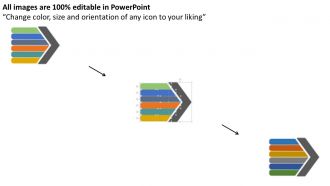
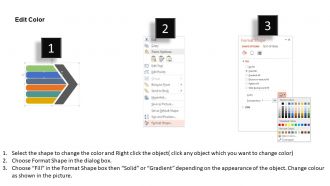
Add value to you PPT presentation example slides by using our linear arrow with six text boxes and icons flat PPT sample presentations slide. It is a ready to download PPT slide that helps the viewers to hone in on the objectives and strategies that presenter of the slide tries to convey. This PPT sample slide houses lots of different icons/objects which are amendable according to your liking. Add vibrant colors from the color palette. Move the objects up and down. Add important text in the text areas provided. Most of the elements of the slide are highly customizable. The text boxes help you in adding more information about the point mentioned and its associated icon. This slide is particularly important for target selection. Just click and start experiencing the power of a well-made customized PowerPoint slide. Use this PPT slide in various scenarios, from business activities, presentation to large audience, in the education sector, project management and many more. Add to the apples in your basket. Our Rj Linear Arrow With Six Text Boxes And Icons Flat Powerpoint Design will build up your assets.
People who downloaded this PowerPoint presentation also viewed the following :
Content of this Powerpoint Presentation
Description:
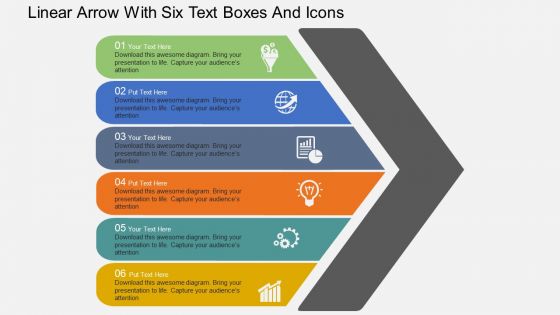
The image illustrates a PowerPoint slide titled "Linear Arrow With Six Text Boxes And Icons," which is a visual representation typically used to describe a sequence of steps, stages, or events. The slide contains a large, central arrow pointing to the right, segmented into six parts, each with a different color. Alongside each segment is a circular icon and space for text, indicating different phases or points of discussion. Each segment is numbered from 01 to 06, suggesting a progression or workflow.
The icons represent different themes or ideas, typically found in business or organizational contexts:
1. A lightbulb for ideas or innovation.
2. A globe for international or global aspects.
3. A bar chart for data or analytics.
4. A gear for processes or operations.
5. A factory for production or manufacturing.
6. An upward trend graph for growth or success.
Use Cases:
This slide can be utilized across a wide range of industries for various purposes:
1. Consulting:
Use: Outlining a project workflow or strategy.
Presenter: Business Consultant
Audience: Clients, corporate teams
2. Education:
Use: Describing steps in a learning process or curriculum development.
Presenter: Educator
Audience: Students, faculty
3. Marketing:
Use: Presenting a marketing campaign's life cycle.
Presenter: Marketing Manager
Audience: Marketing team, stakeholders
4. Technology:
Use: Illustrating phases of software development.
Presenter: Project Manager
Audience: Developers, investors
5. Healthcare:
Use: Detailing patient care pathways.
Presenter: Healthcare Administrator
Audience: Medical staff, hospital management
6. Manufacturing:
Use: Showing the production timeline.
Presenter: Plant Manager
Audience: Operational staff, engineers
7. Finance:
Use: Explaining a financial product's lifecycle.
Presenter: Financial Advisor
Audience: Clients, investment teams
Rj linear arrow with six text boxes and icons flat powerpoint design with all 4 slides:
Our Rj Linear Arrow With Six Text Boxes And Icons Flat Powerpoint Design aim to be culturally aware. You will acquire cross border acceptability.

FAQs for Rj linear arrow with six text boxes and icons
You'll love how these templates create this super clean visual flow - everything just moves in one direction so your audience knows exactly where to look. The arrow elements aren't just decoration (though they do look slick). Each slide focuses on one main idea, which prevents that overwhelming wall-of-text thing nobody wants to sit through. Spacing and fonts are already dialed in perfectly. They're basically foolproof for good design. Perfect for walking through processes or proposals step-by-step. I used one last week for a client presentation and it made everything feel so much more polished than my usual scattered approach.
So those RJ Linear Arrow templates are actually pretty clutch for storytelling. They connect your slides in sequence so you're not randomly jumping around - think problem to solution, or showing a timeline. The arrows literally guide people through your narrative, which honestly makes you look way more put-together than you probably are! I love using them for case studies. You can reveal each point progressively too, which keeps people hooked instead of zoning out. Works great for project timelines or anything where you need that step-by-step flow to really sell your point.
So these RJ Linear Arrow templates are everywhere - project management, manufacturing, supply chains, you name it. Software teams use them for deployment stuff, hospitals map patient care with them. Schools love them for showing how curriculum flows. Honestly, consultants are obsessed with these things (probably because they look professional in presentations). Healthcare and education use them tons too. They're perfect when you need to show step-by-step processes or timelines. I mean, if you're mapping any sequential workflow, they'll definitely save you hours of formatting headaches.
For your RJ Linear Arrow slide, start with a clear beginning point and map out logical steps that connect to your end goal. The arrows between stages should be visible but not distracting - honestly, I've seen people go overboard with fancy arrow designs that just look messy. Don't stuff too much text in each box or it defeats the whole visual purpose. Keep labels short and format everything consistently. Quick test: have someone trace the path with their finger. If they pause or get confused anywhere, that transition needs work. The whole thing should flow like you're telling a story from point A to point B.
Honestly, those RJ Linear Arrow templates are pretty solid for keeping people engaged. The arrows basically do the heavy lifting - your audience just follows the visual flow without getting confused. Way better than those messy slides where everything's scattered around (you know the ones I'm talking about). People can actually jump in with questions at natural break points instead of sitting there lost. Plus you can reveal sections one by one, which builds some decent suspense. Break your next presentation into arrow chunks and see what happens - I bet you'll get way more interaction than usual.
Yeah, totally! Those RJ Linear Arrow templates are super flexible. Start with your brand colors and logo - that'll make the biggest difference right away. You can tweak pretty much everything though - fonts, spacing, even the arrow designs themselves. Default styling looks kinda bland honestly, but once you customize it, you're golden. The background elements are adjustable too. Oh, and most people say the customization process isn't too complicated, which is nice since some template systems are a total nightmare to work with.
Stick with your company colors and fonts - consistency is key. Each arrow should focus on just one concept or step. I swear, half the presentations I see try to squeeze everything onto one slide and it looks terrible. White space between segments actually helps a lot for readability. Make your text big enough that people can read it on video calls too (learned that one the hard way). The arrows should flow left to right logically. Honestly, start simple with maybe 3-4 steps first. See how your team likes it before you go crazy with complex versions.
Okay so RJ Linear Arrow templates are actually pretty genius for messy data. They force you to put everything in order - like step 1, step 2, step 3. Instead of random bullet points everywhere, you're creating this clear path your audience can follow. The arrow thing works because people's brains love following a sequence. I used one last month for this crazy complicated project breakdown and it made such a difference. Your readers won't get lost jumping around trying to connect dots. Takes complex stuff and turns it into "do this, then this, then that." Way better than those overwhelming slide decks everyone hates.
Honestly, people rave about RJ Linear Arrow presentations. The whole linear flow thing really works - keeps everyone engaged instead of losing them halfway through. Complex stuff suddenly makes sense because it builds logically. You know how most PowerPoints are torture? This actually fixes that problem. Takes a minute to figure out at first (what doesn't though?). But once you nail the format, it's pretty much foolproof. Forces you to think through your content structure too, which is nice. Try it on your next quarterly review - you'll see what I mean.
Those RJ Linear Arrow designs are so much cleaner than regular slides - they actually point your audience in one direction instead of having their eyes bounce all over the place. Perfect for showing processes or step-by-step stuff. Regular presentations just dump bullet points everywhere (honestly, who has time for that?). The arrows create this smooth visual path that keeps people hooked. Only weird thing is they suck for complex comparisons where you need multiple focus areas. But seriously, try one for your next workflow thing - people will actually follow along instead of zoning out on text walls.
Keep it super simple with those RJ Linear Arrow templates. Basic icons work great, maybe some clean charts if you need data. I'd avoid anything too fancy - seriously, I've watched people completely wreck their slides by cramming in complex graphics that fight against the arrow flow. Your visuals should just follow that linear path you're already creating. Stick with one consistent icon style throughout. Limited color palette too. The arrow structure is doing the heavy lifting for organization, so let your graphics support that instead of making things cluttered. Think minimal charts, basic shapes, stuff like that.
Honestly, those RJ Linear Arrow templates are great for remote stuff. The linear flow just works better when everyone's staring at tiny Zoom windows - nobody gets lost trying to figure out where to look next. I've seen too many presentations where people are squinting at busy slides going "wait, what are we looking at?" Arrow templates fix that. You can reveal info step by step, which actually keeps people awake during virtual meetings (miracle, right?). Works especially well for breaking down complicated processes. The suspense thing is real too - people stay tuned to see what's next in the sequence.
Hey! For your RJ Linear Arrow, definitely add alt text to visual stuff and bump your font to 18pt minimum. High contrast colors help too. During the presentation, verbally walk through the arrow flow - some people process info differently, you know? If there's audio, toss in captions or a transcript. I'd also make a text handout showing the linear steps. Oh, and test it with screen readers first! That's saved me before. When you send meeting invites, just ask if anyone needs accommodations. Honestly, most people appreciate when you think ahead like that.
Adobe Illustrator is probably your best bet for RJ Linear Arrow templates - those are vector graphics so you need something that can handle that. Inkscape works great too if you don't want to pay for Adobe. Honestly, Figma's become my go-to lately, especially if other people need to mess with the file. Canva's fine for quick stuff but you can't really tweak the details much. Just avoid anything that'll turn your arrows into pixelated garbage when you resize them. Oh, and if you've got Creative Suite already, definitely go with Illustrator first.
Here's the thing about color schemes - they totally make or break your RJ Linear Arrow presentations. High contrast is your friend here. Dark arrows on light backgrounds work great, or flip it around. I swear, people get carried away with like 6 different colors and it's just a mess to look at. Stick with 2-3 complementary colors tops. Save your boldest color for the most important arrow or decision point - that's where you want eyes to go first. The whole point is guiding people through your process smoothly. Quick test: step back across the room and see if it still makes sense visually.
-
Great product with effective design. Helped a lot in our corporate presentations. Easy to edit and stunning visuals.
-
It saves your time and decrease your efforts in half.