

Cost Center Dashboard For Effective Budget Management




Try Before you Buy Download Free Sample Product
 Impress Your
 Audience
 100%
100% Editable
 Save Hours
 of Time


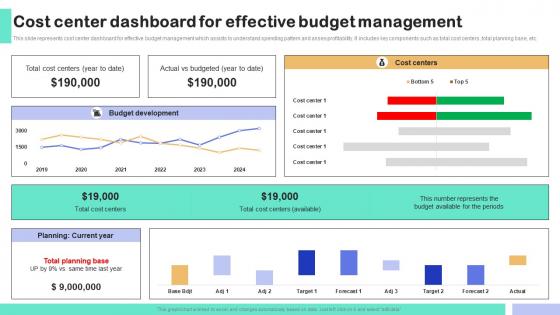
This slide represents cost center dashboard for effective budget management which assists to understand spending pattern and asses profitability. It includes key components such as total cost centers, total planning base, etc.
People who downloaded this PowerPoint presentation also viewed the following :
Cost Center Dashboard For Effective Budget Management with all 10 slides:
Use our Cost Center Dashboard For Effective Budget Management to effectively help you save your valuable time. They are readymade to fit into any presentation structure.





FAQs for Cost Center Dashboard For
So budget vs actual is a must-have, obviously. I'd throw in monthly trends and cost per unit if that applies to your department. Headcount usually burns through most budgets anyway, so track that separately. Year-over-year comparisons help you catch weird patterns - like why did Q2 always spike last year? Break down your top expense categories too so you can actually see what's causing overruns. Oh, and add some kind of forecast so you're not flying blind the rest of the year. Start simple though, you can always get fancier once everyone's used to checking it.
Honestly, charts and graphs are game-changers for budgets. You can spot trends and problem areas right away instead of getting lost in spreadsheet hell. I started with just tracking monthly variances - way easier than diving into everything at once. Visual dashboards let you compare actual vs planned spending super quickly, plus you'll catch seasonal patterns that mess with your allocations. I'm probably weird about this, but I genuinely get excited seeing cost center data laid out visually now. It just clicks better than raw numbers. Trust me, once you see your budget data as visuals, going back to spreadsheets feels impossible.
Honestly, most people mess up by cramming way too much stuff on one screen - it's just overwhelming. Ask your cost center managers what decisions they're actually making day-to-day first. Then build around that. Skip the fancy visualizations that look cool but confuse everyone. I swear a basic bar chart beats some complicated heat map every time. Make sure you're showing trends and variance, not just static numbers sitting there. Oh, and don't make it update every five minutes - that's annoying. But weekly updates? Usually too slow. Find that sweet spot where it's fresh but not constantly changing.
Dude, the difference is night and day. You'll catch budget problems as they're happening instead of finding out weeks later when it's too late to fix anything. Like, I've watched teams spot weird cost spikes within hours - honestly saves so much headache. No more waiting around for those dreaded month-end reports to tell you bad news. Your data stays way more accurate too since you're not dealing with manual updates or those clunky batch processes that always seem to mess something up. Oh, and start with your biggest cost drivers first - don't try to do everything at once.
Honestly, getting feedback from your users is the difference between a dashboard people actually open vs one that just sits there looking nice. Talk to the folks using it every day - they'll tell you what metrics they care about and what's totally useless. I've watched so many beautiful dashboards get ignored because they didn't solve actual problems. Set up some quarterly check-ins or quick surveys. Your users will help you figure out which KPIs matter and how to make things clearer. The whole thing should grow with what people need, not just what looks good in meetings.
Yeah so basically you can set up different views for each department based on what they actually need to track. HR probably wants headcount costs and training budgets, IT cares more about software licenses and infrastructure stuff. The platforms are pretty flexible once you dig into the settings - you can control which data fields and time periods each team sees. Permission levels are clutch too so departments only access their own numbers. Honestly I'd just start by asking each team what metrics they're obsessing over, then build around that. Way easier than guessing what they want.
First thing - set up some solid validation rules and actually follow them. I'd do monthly reconciliations between your dashboard and source systems, that's probably the sweet spot timing-wise. Get automated alerts for duplicates, missing codes, weird spending spikes. Honestly, catching this stuff early will save you from so many fires later. Also assign people to own specific cost centers - accountability makes a huge difference. Oh and create some kind of routine check system that runs automatically instead of waiting until something obviously breaks. Makes life way easier.
Honestly, cost center dashboards are game-changers for tracking spending. You get real-time views of actual vs budgeted costs, which makes spotting variances so much easier. The visual breakdowns by department or project beat staring at endless spreadsheets any day. Trends show up clearly, helping you predict future costs and adjust forecasts. Set up alerts when spending hits certain limits - trust me on this one. Weekly variance reports are clutch too, saves you from that awkward scramble at month-end when leadership wants explanations for budget overruns. Way better than playing catch-up later.
Start by asking your executives what outcomes they're actually trying to hit - then work backwards from there. Say your company's all about cost efficiency? Track stuff like cost per unit or how much you're over/under budget. Growth is the priority? Focus on productivity ratios and how well you're using resources. Honestly, half the battle is just avoiding those flashy metrics that look good but don't actually matter to leadership. Your dashboard should tell a clear story connecting daily ops to the big picture goals. Don't get caught up tracking vanity numbers that impress nobody.
Honestly, go with Power BI or Tableau for cost center dashboards - they're pretty much the best options out there. Power BI's great if you're already using Microsoft stuff since everything connects easily. Tableau has cooler visualization features though, which your executives will probably love. Both handle financial data really well and let you dig into cost allocations, budget comparisons, variance analysis - all that good stuff. Google Data Studio could work if budget's tight, but it's pretty basic. Oh, and definitely figure out what metrics your stakeholders actually care about first. Then just pick whatever plays nicest with your ERP system.
Honestly, cost center dashboards are pretty brilliant for budget meetings. Everyone's finally looking at the same charts instead of finance people waving around confusing spreadsheets while department heads just nod blankly. Real-time data cuts out all that "wait, I thought we had more left" back-and-forth nonsense. You get clear visuals showing spending trends and where you're going over budget. Makes those awkward overspending conversations way less painful - though still awkward, let's be real. Monthly dashboard reviews keep teams on the same page without the usual drama.
Honestly, the real-time access is a game changer - no more waiting around for those monthly Excel dumps. You can dig into spending patterns instantly and set alerts to catch weird expenses before they blow up. My team loves not having to email spreadsheets around anymore, which was getting ridiculous. Setup's pretty straightforward too, way easier than the old on-premise stuff we used to deal with. Adding new cost centers or users is dead simple. I'd probably test it with just one department first - you'll be shocked how much time it saves on manual reporting nonsense.
So for historical data, throw in some trending widgets - line charts work great for monthly expenses and year-over-year stuff. Custom date ranges are clutch so your team can flip between time periods easily. Sparklines are honestly my favorite for quick trends since they're tiny but super useful. Connect it to your financial systems so everything updates automatically (saves you from constantly updating spreadsheets, which is the worst). You'll start catching seasonal patterns and budget issues way faster. Rolling averages help smooth out the noise too.
Honestly, cost data is super sensitive stuff - salaries, budgets, all that. Only share with people who absolutely need it, like HR, finance, or the relevant managers. Individual employee costs? That's definitely confidential territory. Your company probably has specific rules about this, so I'd start by checking with IT or compliance first. Role-based permissions are clutch here - people should only see their own department's numbers. Trust me, you don't want to accidentally expose someone's salary info. Check your data governance policies before doing anything else.
Progress bars for budget targets are a good starting point. Then maybe add some achievement badges when teams hit their numbers. Leaderboards comparing departments can get competitive (though honestly some people hate that). Points work well too - give them out for expense reports submitted on time or cost reduction wins. Visual dashboards with color-coded stuff make the boring financial data way more interesting. Don't go crazy with it though, I've seen companies overdo the whole gamification thing and it backfires. Start with just one or two elements first, see what sticks with your team before you build out something massive.
-
Slideteam offers pocket-friendly products. As a college student this is a really necessary thing to look at while paying for something.
-
Editable, diversified, compatible with MS PPT and Google Slides, and on top of that finest graphics!! I mean in the words of the famous Ross Geller, “What more do you want!”