

Hourly timeline maker presentation graphics




Try Before you Buy Download Free Sample Product
 Impress Your
 Audience
 100%
100% Editable
 Save Hours
 of Time


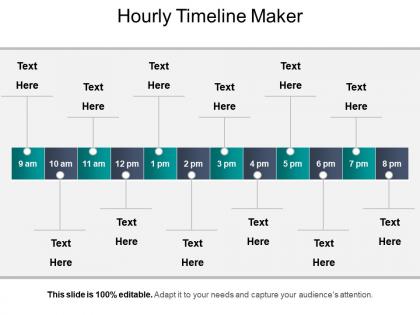
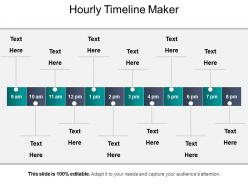
Visualize the hourly business process activities with our hourly timeline maker presentation graphics. PPT template has a wide number of applications. It can help you to keep your finances in order, manage a project or organize the performance of team members. Display hourly plan to accomplish business goals with this hourly schedule template. You can also monitor your team’s performance, develop work strategies with this timeline maker PowerPoint. PPT is ideal for sales and marketing related presentations where you can manage hourly sales target for your team. Most of the business managers, sales and marketing professionals use this intelligently built project timeline diagram to represent project management strategies to their clients, investors, stakeholders or internal team members. Analyze past business process performance to develop future strategies with this history timeline template. So, don’t think too much, download this professional hourly schedule template and use in your upcoming presentations. Leave a remarkable impression on your audience. Insist on compliance with our Hourly Timeline Maker Presentation Graphics. Ensure adherence to directions.
People who downloaded this PowerPoint presentation also viewed the following :
Hourly timeline maker presentation graphics with all 5 slides:
Our Hourly Timeline Maker Presentation Graphics bring about change effectively. They ensure it is acceptable to all.
FAQs for Hourly timeline
Drag-and-drop is huge - saves so much time vs typing everything in manually. Real-time collaboration matters if you're working with others. Check what time intervals they offer too, because some only do 30-minute chunks which honestly gets annoying fast. Templates are super helpful for events or project stuff. Oh, and make sure it plays nice with whatever calendar app you're already using. You'll definitely want export options for PDFs or images at some point. I'd just grab the free versions of like 3-4 tools and see which one feels right - interfaces can be weirdly personal.
Honestly, tracking your project hour-by-hour is a total game-changer. You'll catch problems way earlier instead of everything blowing up at once. Resources get distributed better too - no more guessing who needs what when. The detailed view helps you see which tasks actually drag on longer than planned (spoiler: it's usually more than you think). Your team stays in sync, stakeholders get the visibility they're always asking for, and you can pivot quickly when things go sideways. Try mapping out just one phase hour-by-hour first - the clarity is pretty amazing once you see it in action.
So there's basically a bunch of different types you can choose from. Daily schedules are probably the most common - just mapping out your day hour by hour. Then you've got project timelines for breaking down bigger tasks, event planning ones for coordinating stuff. Meeting agendas, production schedules, shift planning - the usual suspects. There's even weird niche ones like content calendars or study schedules. Honestly, I'd just grab a basic daily template first and mess around with it until it works for your situation. Way easier than starting from scratch.
Hospitals are probably the biggest one - they're tracking patient meds, shift changes, all that critical stuff by the hour. Manufacturing too, since delays there cost a fortune. Oh and logistics companies live by hourly schedules for deliveries and warehouse ops. Construction sites use them constantly. Really, if you're coordinating tons of people or resources with tight deadlines, you'll want hourly timelines. Event management's another big one I almost forgot. Honestly, try mapping one out for your next project if there's any time pressure involved.
Honestly, color-coding is a game changer for timelines. Your brain just picks up on the colors way faster than having to read through everything. I usually do like blue for meetings, green for deep work, red for admin stuff - whatever makes sense to you. You'll start noticing patterns super quick, like "wow I had zero focused work time on Tuesday" or seeing how all your meetings bunch up. Don't go crazy with colors though, maybe 3-4 max or it just looks like a rainbow threw up on your calendar. Trust me on that one!
Honestly, Lucidchart and SmartDraw are your best bet - their timeline templates let you get really granular with hours. Canva's prettier but you'll be doing more work from scratch. Don't sleep on Excel or Google Sheets though, they're actually pretty solid for this if you don't mind tweaking the formatting yourself. TimelineJS is cool for web stuff where people need to click around and explore. What's it for exactly? Like presentations or project tracking? I'd probably just start with whatever you already know how to use decently well before jumping into something completely new.
Oh totally! Color coding is a game changer - group similar stuff together or show different task types. Your brain just scans it way faster. Keep descriptions short but clear, and throw in little icons when you can. They're like visual shortcuts that just work better than words sometimes. Bold text or bright colors for deadlines are clutch so they actually stand out. Honestly the whole thing should be readable in like 30 seconds max. I'd probably test it on someone else first though - you'll be surprised what confuses people that seems obvious to you.
Yeah, most timeline tools let you export stuff pretty easily. PNG or JPG files work great for dropping into PowerPoint or Google Slides. You can also do PDFs if you just need to share them around. Some have embed codes for websites, and a bunch now connect directly to Canva or Notion - which is actually super handy. Just double-check what formats your tool supports before you get too deep into building something. Oh, and always export at the highest resolution you can. Trust me on this one - pixelated timelines look awful on big screens, learned that the hard way.
Oh man, the worst thing you can do is cram way too much detail into each hour - it becomes this unreadable disaster. Keep it simple, just hit the big stuff. Time zones will absolutely wreck you if you're not careful (trust me on this one). Don't make it super rigid either, give yourself some wiggle room between things. Honestly? Just throw together a messy first version with real data and see how it actually looks. You can always clean up the spacing later. Most people overthink these things from the start.
Dude, they're like a game changer for keeping everyone synced up. Basically shows who's doing what hour by hour, so no more "oh I thought Sarah was covering that" disasters. Handoffs become way less messy too since people know exactly when to step in. Remote teams especially benefit - you can't exactly walk over and check on someone's progress when they're working from their kitchen table, right? We started using them for our sprints and honestly, cut down on so many pointless status meetings. Way less timing confusion overall.
Yeah, so pretty much all the decent timeline tools let you export as PDF, PNG, JPEG - the usual suspects. PDF's probably your safest choice since it looks good on any device. Some fancier ones do PowerPoint or Google Slides too, which is clutch if you're presenting. Oh, and SVG if you might need to resize later without it getting all pixelated, though honestly most people just go with PDF anyway. PNG works fine for dropping into emails or whatever. I'd just poke around your tool's export menu and see what options pop up - might surprise you what's there.
Honestly, I just make different versions for different people. Executives want the big picture stuff - key milestones and outcomes. They don't care about every little 30-minute task, you know? Your project team though? They need all the messy details and dependencies since they're the ones actually doing the work. I've learned the hard way that one timeline doesn't fit all. Switch up your language too - business speak for leadership, technical terms for your team. Figure out who needs what level of detail first, then customize from there. Way easier than trying to make one perfect version that pleases nobody.
So here's the thing - people hate boring timelines. You want to turn yours into an actual story they'll care about. Start with the end result, then show how each hour led to that moment. Like "the product launch that almost failed" or whatever fits your situation. Connect the dots between events so it feels like watching something unfold, not just reading a schedule. Honestly, it's pretty much the difference between a grocery list and a good movie. Each time point should build on the last one. People get hooked when they can see where things are heading.
Dude, real-time updates are seriously worth it. Your schedule actually stays useful when meetings drag on or you finish stuff early. Instead of being stuck with some outdated plan, you can shuffle things around and see how it affects everything else. Static schedules? They're basically trash the second anything changes. Your team stays in the loop too since they see the live updates. Oh, and sync it with your calendar app first - that's probably the easiest way to get started. Trust me, it'll save you so much headache.
Honestly, less is more with these things. Focus on the big milestones and skip the tiny details - people zone out fast in meetings. I made this mistake once and literally watched everyone's eyes glaze over! Use bigger fonts so folks in the back can actually see what you're talking about. Walk through it step by step, but stop at the important parts to ask if anyone's confused. Oh, and definitely pad your timeline with extra time. Discussions always run longer than you think they will, and there's nothing worse than rushing through the end because you're behind schedule.
-
Excellent Designs.
-
Good research work and creative work done on every template.