
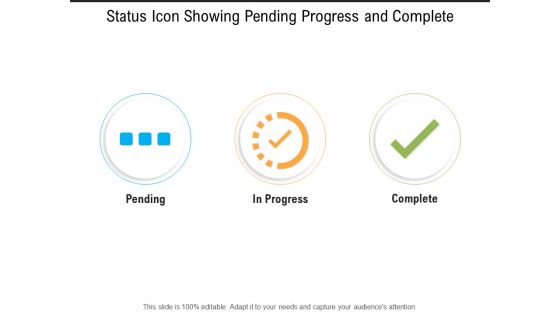
Status icon showing pending progress and complete




Try Before you Buy Download Free Sample Product
 Impress Your
 Audience
 100%
100% Editable
 Save Hours
 of Time


Our Status Icon Showing Pending Progress And Complete ensure you don't turn a hair. You will display abundant confidence.
People who downloaded this PowerPoint presentation also viewed the following :
Content of this Powerpoint Presentation
Description:
The image features a PowerPoint slide with three circular status icons, each representing a different stage of task completion.
1. Pending: The first icon on the left has three horizontal blue lines, typically indicating a task or process that is yet to start.
2. In Progress: The middle icon shows a partial orange circle with a clock-like hand and a checkmark, suggesting that a task is currently underway.
3. Complete: The last icon on the right displays a green checkmark, universally recognized as a marker of completion.
Use cases:
1. Software Development
Use: Tracking feature development and deployment stages.
Presenter: Software Project Managers.
Audience: Development Team, Stakeholders.
2. Construction
Use: Monitoring various construction phases of a building project.
Presenter: Construction Managers.
Audience: Contractors, Investors.
3. Education
Use: Displaying progress of curriculum development or administrative initiatives.
Presenter: Academic Program Coordinators.
Audience: Educators, Institutional Leadership.
4. Marketing
Use: Outlining stages of campaign execution.
Presenter: Marketing Team Leads.
Audience: Marketing Department, Clients.
5. Event Management
Use: Tracking preparation phases of event planning.
Presenter: Event Planners.
Audience: Clients, Vendors.
6. Healthcare
Use: Managing stages of clinical trial research or health program rollouts.
Presenter: Clinical Project Managers.
Audience: Research Teams, Healthcare Professionals.
7. Manufacturing
Use: Overseeing production and assembly line milestones.
Presenter: Operations Managers.
Audience: Production Staff, Supply Chain Partners.
Status icon showing pending progress and complete with all 5 slides:
Cook up a feast with our Status Icon Showing Pending Progress And Complete. Satiate the innermost desires of your audience.
FAQs for Status icon showing pending
Visual consistency is huge - same green for "active" across everything, matching shapes and styling. Make them dead simple so users instantly get what each status means, even when they're tiny. Honestly, nothing's worse than those weird abstract icons that leave you guessing what they mean. Keep your colors limited and make sure there's good contrast for accessibility stuff. Oh, and definitely test with real users first! What makes total sense to you might completely confuse everyone else. Sometimes I think designers forget they're not the ones actually using this daily.
So color choices are huge for status icons - people make snap judgments based on what they expect. Green = good, red = bad, yellow/orange = warning. Pretty basic stuff, but users process this instantly. I've literally watched projects tank because someone thought using red for "active" was creative (spoiler: it wasn't). Gray usually means off or neutral. Honestly, just stick with what people already know unless you've got a damn good reason not to. Oh, and definitely test with real users first - you'd be surprised how often assumptions are wrong.
Honestly, just keep it simple with your status icons. Green = good, red = bad, yellow = warning. I know it sounds boring, but users already know what these mean - why confuse them? Make sure they're big enough to actually see too. I've seen so many tiny, detailed icons that look like blobs once they're in the actual interface. Oh, and stick to one visual style throughout your whole set. Nothing looks more amateur than mixing different icon weights. Test them at real size before you ship - trust me on this one. Your users will thank you for not being "creative" with the colors.
Honestly, status icons are a game changer for presentations. Your audience gets instant visual feedback - like, they see a green checkmark and immediately know something's done. Way better than making people read through paragraphs to figure out project status. I use them for everything: feature progress, approval workflows, project phases. Yellow for in-progress, red for blocked, you know the drill. The trick is sticking with the same icons throughout your whole deck. Otherwise people get confused trying to decode what each symbol means. Makes everything look cleaner too instead of just having text everywhere.
Honestly, symbolism is everything with status icons. People already know green means good, red means bad, yellow is "uh oh maybe." Don't overthink it - just use what everyone expects. Checkmarks, X's, that kind of stuff. The worst thing you can do is get creative with colors. Like, if someone sees red they'll think something broke, so why fight that? I learned this the hard way on a project once. Keep it consistent and test with real users. Sometimes what seems obvious to you isn't to them. Universal symbols work because they're... well, universal.
Colors and symbols hit totally different depending on where people are from. Like red screams "danger" to us, but it's lucky in China. Green doesn't always mean "go" either - honestly, even checkmarks aren't universal which kind of blew my mind when I learned that. Your best bet? Test with actual users from whatever markets you're targeting instead of just assuming everyone thinks like your team does. I'd also combine visual cues - maybe color plus text or different symbols - so the meaning comes through clearly no matter who's looking at it.
Figma's probably your safest bet here - everyone's already using it and it handles icon work really well. Vector tools are key since status icons need to look crisp at any size. Illustrator's solid if you want more control, Sketch too if you're on Mac. Honestly? I've seen decent icons come out of all three. The real trick is keeping things stupidly simple. Use a consistent grid (24x24px works) and stick to basic shapes. These things need to be readable when they're tiny, so don't get fancy. Oh and the collaboration thing in Figma is actually pretty nice when you're bouncing ideas around.
Don't just rely on colors for your status icons - that's a rookie mistake I've made before. High contrast is your friend, and always add text labels or tooltips. Red/green combos are terrible for colorblind users (seriously, why do so many apps still do this?). Mix in different shapes or symbols with your colors. Size matters too - test how they look when scaled down. Screen readers need alt text and ARIA labels to actually understand what's happening. Basically, build in backup ways to communicate the same info. If color fails, shape should work. If icons aren't clear, text saves the day.
Start with 16x16px, then go 24px, 32px, 48px - stick to those clean multiples or you'll get blurry half-pixels. SVGs are perfect since they scale without getting gross. If you're doing raster images though, make separate files for each size instead of stretching one image. I made that mistake once and our icons looked terrible at small sizes! Oh, and definitely test them in your actual UI at different zoom levels. Work on the tiniest version first - if it's readable at 16px, you're golden for the bigger ones.
Yeah, animated ones definitely catch your eye more, but honestly they can get super annoying if you go overboard. I'd use them mainly for loading stuff, urgent alerts, or when something's actually changing in real-time. For things that just sit there - like someone being "online" all day - stick with static icons. Match the animation to how important it actually is. Like a subtle pulse for "away" status works great, but don't make every single online user flash like a neon sign or people will hate it. Oh and definitely test it with real users first - what seems cool to you might drive them nuts.
So animated micro-interactions are huge right now – like pulsing dots when someone's typing instead of those dead static ones. Color systems are getting smarter too, adapting based on whether you're in dark or light mode. Icons have way more personality now, which honestly feels overdue. Accessibility is finally getting attention with better contrast and clearer hierarchies. Oh, and definitely test your stuff at mobile sizes since that's where most people will see it. The color shifts for different activity levels are pretty slick when done right.
Start by nailing down your style guide—line weights, corner radius, sizing, colors. I always begin with the most common status and work outward from there. Stick to a grid system so everything aligns nicely, and use the same visual metaphors throughout (like consistent shapes for similar concepts). Your stroke weights and fills need to match across the whole set, obviously. Document your decisions as you make them because trust me, you'll forget your own rules halfway through and end up with icons that look like they're from different designers. Been there!
So there's tons of ways to make status icons way more interactive. Loading spinners and pulsing notifications are super common - basically any animation that shows state changes. Hover effects work great too, like tooltips that pop up or icons that expand with more info. Click interactions are clutch - users can tap for dropdowns or quick actions. That blinking notification dot is honestly everywhere now but... it still does the job. Oh, and color shifts are subtle but effective. Just make sure whatever you add actually helps people understand what's going on, not just flashy stuff for the sake of it.
Run comprehension tests - get 80%+ recognition without any context clues. I always toss in fake "decoy" icons because people will literally just guess if you let them. A/B test the real versions in your interface to see what actually works for completing tasks. Don't forget colorblind users since status stuff usually depends on color. Here's the thing though - if you're explaining what an icon means during design reviews, it's probably trash and needs a redo. Start with 5-7 people for initial feedback, then test with more once you've fixed the obvious problems.
Honestly, custom status icons are such a game-changer for brand consistency. Ditch those boring green checkmarks and red X's - use your actual brand colors instead. Your icons need the same vibe as everything else you design. Same rounded corners, line weights, whatever your style is. I've been down this rabbit hole before and it's kinda addictive once you start. The whole point is making everything feel like it belongs together, you know? People won't consciously notice, but their brain totally picks up on it. Start small - build out just a few icons using your brand guidelines and see how it feels.
No Reviews