


Unique Features Powerpoint Presentation Slides




Try Before you Buy Download Free Sample Product
 Impress Your
 Audience
 100%
100% Editable
 Save Hours
 of Time


Check out these unique features PowerPoint presentation slides to represent the key characteristics of your company This competitive differentiation PPT deck is used to showcase the unique features of your organization in comparison to other competitors. Use this brand differentiators to understand the needs of your consumer and where you failed to meet the needs and how your client met your competitor. This content ready complete deck consists of a total of 24 slides which are completely editable and can be modified as per your requirement. Showcase your business strengths by using our key differentiators PPT slides. The unique characteristics PPT deck lets you understand the needs of the market, helps you to present your offerings as a solution and much more. Download this visually appealing professionally designed competitive features PowerPoint deck and stand out against your competitors and win your client. Our Unique Features Powerpoint Presentation Slides attract folks to gather around. They feel inexplicably drawn by beauty.
People who downloaded this PowerPoint presentation also viewed the following :
Content of this Powerpoint Presentation
Slide 1: This slide introduces Unique Features. State Your Company Name and begin.
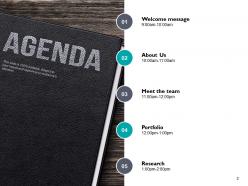
Slide 2: This is an Agenda slide. State your agendas here.
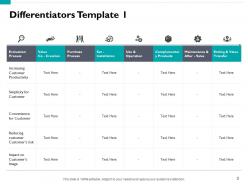
Slide 3: This slide shows Differentiators Template 1 describing- Evaluation Process, Maintenance & After - Sales, Ending & Value Transfer, Complementary Products, Purchase Process, Set - / Installation, Use & Operation, Value Co-Creation.
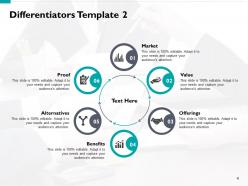
Slide 4: This slide presents Differentiators Template 2 describing- Market, Value, Offerings, Proof, Alternatives, Benefits.
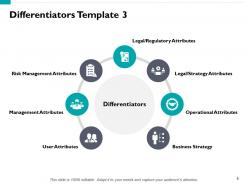
Slide 5: This slide displays Differentiators Template 3 showing- User Attributes, Management Attributes, Risk Management Attributes, Legal/Regulatory Attributes, Legal/Strategy Attributes, Operational Attributes, Business Strategy.
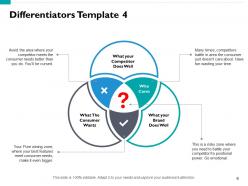
Slide 6: This slide represents Differentiators Template 4. Use as per your requirement.
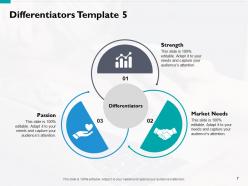
Slide 7: This slide showcases Differentiators Template 5 Passion, Strength, Market Needs.
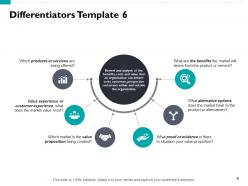
Slide 8: This slide shows Differentiators Template 6. Add relevant data and use it.
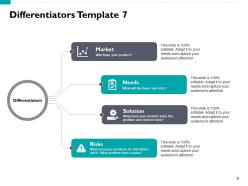
Slide 9: This slide presents Differentiators Template 7 Needs, Market, Solution, Risks.
Slide 10: This slide displays Differentiators Icons.
Slide 11: This slide reminds about a 30 minutes coffee break.
Slide 12: This slide is titled as Additional Slides for moving forward.
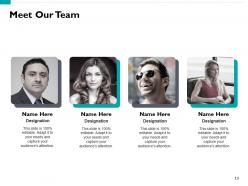
Slide 13: This is Meet Our Team slide with names and designation.
Slide 14: This is Our Mission or Vision slide with related imagery and text.
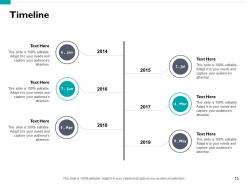
Slide 15: This is a Timeline slide. Show information related with time period here.
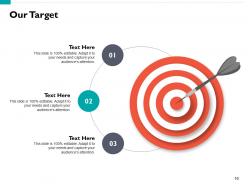
Slide 16: This is Our Target slide. State your targets here.
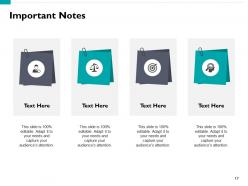
Slide 17: This slide is titled as Important Notes. Post your important notes here.
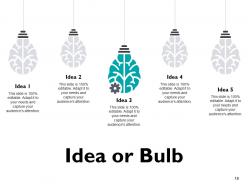
Slide 18: This is an Idea or Bulb slide to state a new idea or highlight information, specifications etc.
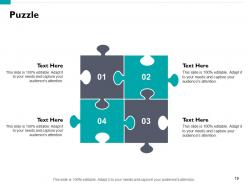
Slide 19: This is a Puzzle slide with additional text boxes.
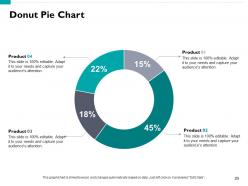
Slide 20: This slide presents Donut Pie Chart with data in percentage.
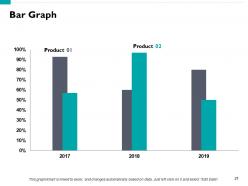
Slide 21: This slide shows Bar Chart with two products comparison.
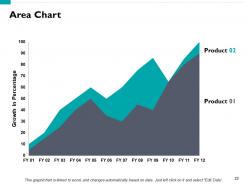
Slide 22: This slide showcases Area Chart with two products comparison.
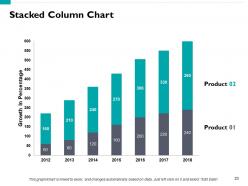
Slide 23: This slide displays Stacked Column Chart with two products comparison.
Slide 24: This is a Thank You slide with address, contact numbers and email address.
Unique Features Powerpoint Presentation Slides with all 24 slides:
Use our Unique Features Powerpoint Presentation Slides to effectively help you save your valuable time. They are readymade to fit into any presentation structure.


FAQs for Unique Features
Dude, you gotta try the interactive stuff in PowerPoint! Polls are a game-changer - I use Microsoft Forms integration and suddenly people actually participate instead of scrolling Instagram. Action buttons let audiences pick their own path through your content, which is pretty cool. Hyperlinks work great too for jumping around based on questions. Oh, and quizzes keep people awake (learned that the hard way after boring everyone to death once). Seriously though, just throw in a quick poll at the start. Gets them hooked right away and you'll know what they actually care about.
Honestly, just match the SmartArt to whatever data you're showing - org charts for company stuff, process flows for step-by-step things. I always start with figuring out my story first, then pick the visual. Don't fall into the trap of choosing something just because it looks cool (been there). The picture category ones are actually pretty solid if you've got lots of images to work with. You can tweak colors and shapes to match your brand, and the best part? Everything auto-adjusts when you add or remove stuff. Oh, and throw in some animation if you want to reveal info bit by bit.
So slide master is basically your template for the whole presentation - set your fonts, colors, logos once and boom, every slide looks the same. Saves you from going crazy trying to format each slide individually (been there, it sucks). When you need to change something later, just tweak the master and it updates everywhere. Way less tedious than I used to do it. Your deck ends up looking actually professional instead of like... well, a mess. Honestly just spend those extra 10 minutes upfront setting it up. Future you will be so grateful.
Honestly, custom animations are a game changer for keeping people awake during presentations. You can reveal text line by line instead of dumping everything at once - way better for building suspense. I've sat through so many boring slides where everything just appears simultaneously and you lose focus immediately. Sequential data points work great too since they walk your audience through your thinking step by step. The entrance and exit effects are clutch for smooth transitions between sections. Start simple though - just try "fade" or "appear" on your main points first and you'll see how much better the flow feels.
Honestly, adding videos or audio clips to your presentations is a game changer. Your audience actually pays attention instead of zoning out on boring text slides. I learned this the hard way after watching people check their phones during my last all-text presentation - ouch. Everything stays in one PowerPoint file too, so you won't get that panic moment when a link breaks mid-presentation. Complex stuff becomes way easier to explain with visuals. Just throw in one video clip next time and you'll see what I mean. It feels completely different.
Honestly, templates are a lifesaver. They lock in your fonts, colors, and layouts so everything looks consistent - no more accidentally mixing random font sizes or colors that make your eyes bleed. I used to spend forever tweaking each slide individually and it was such a waste of time. With templates, you just pick one at the start and you're set. Your audience won't get distracted by messy formatting either, which is huge. They'll actually focus on what you're saying instead of wondering why slide 5 looks completely different from slide 2. Trust me, stick with one template for the whole thing.
Oh man, PowerPoint's actually pretty decent for team stuff now. Multiple people can edit at once and you'll see everyone's cursors in different colors - kinda trippy at first but super helpful. Comments are great for giving feedback without messing up the actual slides. Version history saves your butt when someone accidentally deletes half the deck (happened to us last month, ugh). The Designer thing suggests layouts when you're creatively stuck, which honestly isn't terrible. Just make sure you set up the sharing permissions right from the start so people aren't locked out later.
Oh nice question! So PowerPoint actually has decent accessibility stuff built in. You can add alt text to images for screen readers, plus there's this accessibility checker that'll catch problems before you present. Live captions are pretty cool too - honestly didn't know about those until recently. The design suggestions will even recommend high-contrast colors automatically. Structure your content with proper headings and you're golden. Quick tip though: run that checker multiple times while you're building the deck, especially if it's going to a big audience. Way easier than fixing everything at the end!
Dude, charts in PowerPoint are SO much better when you keep them stupidly simple - like one main point per slide. Red for bad stuff, green for good, that kind of thing. Most people throw everything onto one graph and wonder why everyone looks confused. Pick the data points that actually matter and make them pop with callouts or bold colors. Oh, and try animating things to come in piece by piece - helps people follow along instead of getting overwhelmed. If you can't explain your chart in under 10 seconds, it's probably too complicated.
Oh dude, use PowerPoint's notes section! It's literally below each slide and only you can see it during your presentation. Add your talking points, timing stuff, whatever you need. I swear nobody knows about this but it's so clutch. Print them out beforehand or just glance at your laptop while presenting. Make the font huge too - nobody wants to be squinting at tiny text when they're already nervous. Honestly saved my butt so many times when I'd blank out mid-sentence.
Think of transitions like those smooth camera moves in movies - they stop your slides from feeling choppy and weird. Your brain needs that little buffer to catch up between ideas. I learned this the hard way after bombing a presentation that looked like someone was aggressively flipping through a photo album lol. Don't go crazy with fancy effects though. Pick maybe 2-3 transition styles max and stick with them. Match the vibe too - bouncy animations probably aren't right for quarterly budget reviews. It's such a small thing but honestly makes presentations feel way more polished.
Dude, PowerPoint's cloud stuff is honestly pretty solid for remote work. Real-time editing means everyone can jump in at once without stepping on each other's toes. Comments make feedback way easier too. What I love most? No more emailing massive files back and forth - just share a link. Everything syncs automatically so you won't accidentally work on some old version from last week (been there, done that). You can present straight from the cloud which is super convenient. Oh, and the version history actually saves your butt when someone messes something up. Set up a shared OneDrive folder and you're golden.
Dude, PowerPoint Designer is honestly a game-changer. You just dump your text and images onto a slide, and it automatically suggests these actually decent-looking layouts on the right side. No more staring at blank slides wondering why everything looks terrible. The AI figures out what you're trying to say and offers designs that don't scream "I have zero design skills." I used to spend forever trying to make slides look professional - now I just pick one of their suggestions and I'm done. Seriously wish this existed back in college. Way better than starting from scratch every time.
Oh dude, presenter view is seriously a lifesaver! You get all your notes right there on your screen - plus it shows what slide's coming next so you don't have those awkward "uhh, next we'll talk about..." moments. Your audience just sees the current slide while you're looking at your cheat sheet basically. No more turning around to read off the projector like an amateur (we've all been there). The timer's helpful too so you don't run over. Just run through it once beforehand - the controls can be weird if you've never used them.
Oh man, you'll love Presenter Coach - it gives you feedback on pacing and filler words, which honestly saved me from saying "um" a million times. The real-time collaboration is clutch for group projects too. Students can work together without the usual chaos. There's also this cool thing where you can drop polls and quizzes right into slides using Forms integration. Accessibility checker's handy for making sure everyone can access your stuff. I'd definitely start with Presenter Coach first - made such a difference in my delivery. Way better than just winging it!
-
Graphics are very appealing to eyes.
-
Great designs, Easily Editable.