
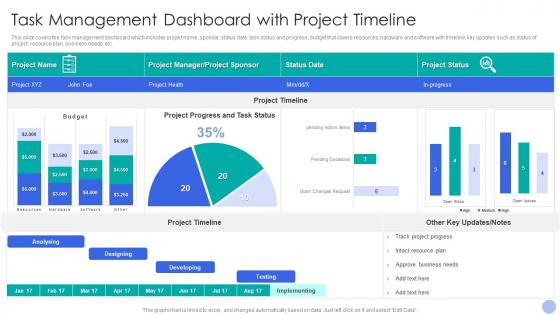
Task Management Dashboard With Project Timeline



Try Before you Buy Download Free Sample Product
 Impress Your
 Audience
 100%
100% Editable
 Save Hours
 of Time


This slide covers the task management dashboard which includes project name, sponsor, status date, task status and progress, budget that covers resources, hardware and software with timeline, key updates such as status of project, resource plan, business needs, etc.
People who downloaded this PowerPoint presentation also viewed the following :
Task Management Dashboard With Project Timeline with all 7 slides:
Use our Task Management Dashboard With Project Timeline to effectively help you save your valuable time. They are readymade to fit into any presentation structure.


FAQs for Task Management Dashboard
Honestly, start with the basics - task prioritization and deadline tracking are must-haves. You'll go crazy without good filtering and search too (trust me on this one). If you're working with others, real-time collaboration saves so much back-and-forth nonsense. Customizable views are clutch because everyone likes seeing their work differently. Oh, and make sure it plays nice with whatever apps you're already using - manually copying stuff between platforms is the worst. Those core features will cover like 90% of what you need. Build out from there once you see what's actually getting used.
Dude, visualization tools are game-changers for dashboards. Charts and color coding help you spot problems instantly instead of digging through boring lists. It's honestly night and day - like looking at a map vs reading directions written out. Progress bars show you what's behind, Kanban boards reveal bottlenecks. Your brain just processes visual stuff way faster. I'd start simple though, maybe timeline views or basic charts that match how you already think about your work. Don't go crazy with fancy widgets right away (I made that mistake once).
Oh totally, customization is huge for dashboards. People won't use something that doesn't fit how they work. Basic stuff like rearranging widgets and picking which metrics show up makes all the difference. A PM needs completely different data than a dev, you know? Personal task views, custom filters, notification settings - that's what keeps people coming back. Honestly, I've seen so many "one-size-fits-all" dashboards just collect digital dust. Start with layout customization at minimum, then add more options as you go.
Look, integrations are a total lifesaver for cutting down all that annoying app-switching. You connect your task dashboard to Slack, email, calendar - whatever you use most - and everything just syncs automatically. New emails turn into tasks, deadlines match your calendar events, team stuff updates without you doing anything. Honestly took me way too long to figure this out, but now I have one place where everything lives instead of juggling like five different apps. I'd start with email and calendar first since you probably live in those anyway, then add other tools as you go. Makes such a difference once it's running.
Don't cram everything onto one screen - that's the fastest way to confuse people. Make sure there's a clear visual hierarchy so users know what to focus on first. Generic labels like "in progress" are useless without context, honestly. Test on mobile since everyone checks stuff on their phones now. I swear half the dashboards I see are just data dumps with zero thought put into what matters most. Use plenty of whitespace and start simple - build your core workflows first, then add the fancy stuff later. Always test with real users before you go live.
Honestly, real-time tracking is a lifesaver - you catch problems right when they happen instead of finding out weeks later that everything's screwed. I can see exactly which tasks are behind and where my team's hitting roadblocks. Way better than those useless monthly meetings where nobody knows what's actually going on. Quick adjustments become possible when you have live updates flowing in. Oh, and definitely start with your most critical stuff first - set up automatic tracking there. You'll spot timeline killers before they wreck your whole project. Trust me on this one.
Start with completion rates and overdue tasks - those are your bread and butter. Cycle time's really important because it shows where things get stuck. Also track how work's distributed across your team, nobody wants to be the person drowning while others coast. Priority breakdowns matter too, though good luck convincing people that not everything is "critical." Oh, and definitely monitor blocked tasks and individual productivity trends. Make it visual with charts and color coding so problems jump out at you. These basics will get you started, then just add whatever else based on the actual issues you're dealing with.
Honestly, task dashboards are game-changers for avoiding those "oh shit, who was supposed to do this?" moments. You get instant visibility into everyone's workload and can spot problems before they blow up. When priorities change (and they always do), reassigning stuff is super easy. The comment features save you from drowning in reply-all emails - thank god. Progress bars might sound cheesy but people actually love checking things off. Oh, and make sure your team keeps their task status updated or the whole thing falls apart. Set up clear project views from the start.
Honestly, start with visual hierarchy - make the important stuff pop with bigger text and better colors. Clean layouts are everything because people hate digging through cluttered interfaces when they're already stressed. Stick with familiar patterns like cards and standard icons so users aren't confused. Search and filters should be super obvious since that's what everyone actually uses. Mobile responsiveness is non-negotiable these days. But here's the thing - you can plan all you want, but real user feedback will totally change your direction. Test early with actual people, not just your team.
Honestly, mobile access is a lifesaver when you're running around. I can update stuff while I'm on the train or quickly reassign tasks if something urgent pops up. Push notifications are clutch – you'll know what's happening without obsessively checking the app every five minutes (which I totally used to do). Everything stays synced too, so you won't miss anything important just because you left your laptop at home. Pro tip though: only turn on notifications for the really important stuff. Trust me, you don't want your phone buzzing every time someone comments on a minor task.
So I'd go with the urgent/important matrix thing, but add columns for "to do," "in progress," "done." Color coding helps too - red for urgent stuff, green for chill tasks. Keep your most critical ones at the top obviously. Honestly, don't overthink it though. I've watched people create these insanely complicated systems with like 10 different categories and it just turns into chaos. Three or four groupings max, trust me. Oh, and if you're working with other people, make sure you can filter by due dates and who's doing what. Start simple first - you can always add more bells and whistles later if you actually need them.
Honestly, color coding is a game changer for dashboards. Your brain picks up colors way faster than reading text, so you'll instantly see what needs attention. I do red for urgent stuff, yellow for medium priority, green for low. Blue works great for "waiting on someone else" tasks - kinda calming when you know it's not on you anymore. You can organize by project, team, or how close deadlines are getting. Just stick with whatever system you pick so your brain gets used to it. After a while you can scan everything in like 2 seconds flat.
Honestly, progress tracking is like magic for keeping people motivated. Your team sees stuff moving from "working on it" to "done" and it just feels good - way better than some boring spreadsheet. People don't want to be the red section everyone's staring at, you know? Plus teammates actually notice when someone crushes a milestone and can jump in if someone's drowning. The trick is setting up automatic updates so you're not that annoying person constantly asking "hey did you finish that thing yet?" Trust me, the visual momentum keeps everyone moving forward without you having to be the taskmaster.
Honestly, the easiest thing is just throwing some quick rating buttons right on your dashboard - thumbs up/down or star ratings after people finish tasks. Weekly pop-ups asking "what sucked this week?" work great too. I'm obsessed with dashboards that actually get smarter over time! Track how long stuff takes and where people get stuck, then turn that into visual reports your team can actually use. But here's the thing - if collecting feedback takes longer than 10 seconds, forget it. Nobody's got time for that. Maybe start with just one simple feedback thing this week and see how it goes?
First thing - check who can see what right now, because I bet way more people have access than they should. Set up role-based controls so sensitive stuff stays with the right team members. Two-factor authentication is annoying but worth it. Encrypt everything, obviously, and don't put confidential details in task titles where everyone scrolls past them. Auto-logout after idle time saves you from people leaving dashboards open on random computers. Security audits sound boring but they catch problems early. Honestly, most teams are way more exposed than they realize until they actually dig into their permissions.
-
Wow, never been this impressed with any online service provider. Really appreciate the customer support all along from the navigation to purchasing the right products.
-
Content of slide is easy to understand and edit.