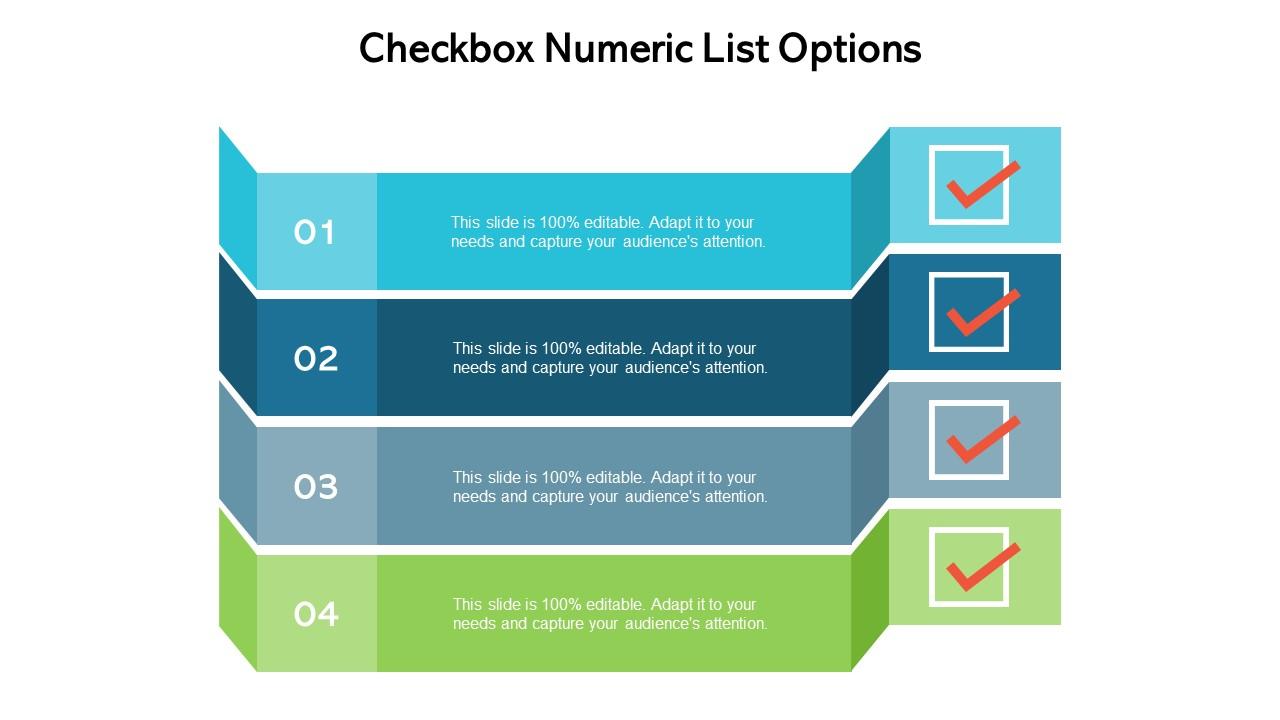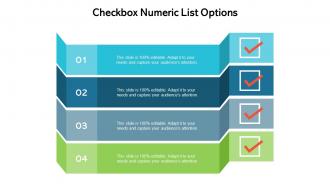
Kontrollkästchen Numerische Listenoptionen

Slide 1 of 5
Favourites Favourites

Try Before you Buy Download Free Sample Product

Audience Impress Your
Audience
Editable 100%
Editable
Time Save Hours
of Time
The Biggest Sale is ending soon in
0
0
:
0
0
:
0
0

Eigenschaften dieser PowerPoint-Präsentationsfolien:

Diesen Foliensatz mit Namen präsentieren - Kontrollkästchen Numerische Listenoptionen. Dies ist ein vierstufiger Prozess. Die Phasen in diesem Prozess sind Checkbox, Tick Box, Ballot Box.

People who downloaded this PowerPoint presentation also viewed the following :

FAQs for Checkbox

Best practices for checkbox options include clear labeling, consistent spacing, logical grouping, appropriate sizing, and intuitive placement within slide layouts. These design elements enhance audience engagement by streamlining information processing, reducing cognitive load, and enabling interactive participation, with many organizations finding that well-structured checkbox formats ultimately deliver improved presentation clarity and stronger audience retention.

Checkbox options enhance audience engagement by creating interactive moments that transform passive viewers into active participants, allowing real-time polling, feedback collection, and decision-making exercises. Through digital presentation tools, presenters can facilitate live surveys, preference selections, and collaborative planning sessions, with many organizations finding that interactive checkboxes increase attention retention and create more memorable, participatory experiences.

Checkboxes enable multiple simultaneous selections, increased user engagement through flexible interaction patterns, enhanced data collection capabilities, and improved survey accuracy in interactive presentations. Unlike radio buttons' single-choice limitation, checkboxes allow audiences to express complex preferences, with many presenters finding that multiple-selection formats generate richer feedback and more comprehensive audience insights during interactive sessions.

Effectively integrating checkbox options into infographics requires strategic placement, visual hierarchy, and consistent design elements that complement your template's color scheme, typography, and overall aesthetic. Position checkboxes near relevant data points, use them to highlight key achievements or milestones, and ensure they're large enough for visibility while maintaining clean spacing that guides the viewer's eye naturally through your infographic content.

Common mistakes include overcrowding slides with too many checkboxes, using inconsistent formatting across presentations, making checkbox text too small to read, and failing to align checkboxes properly with accompanying content. These design errors can confuse audiences, reduce visual appeal, and diminish presentation effectiveness, with many presenters finding that strategic spacing, consistent styling, and clear labeling ultimately enhance audience engagement and comprehension.

Checkbox options facilitate audience feedback by enabling real-time polling, quick preference selections, multi-choice responses, and instant data collection during presentations. Through interactive presentation platforms, presenters can streamline audience engagement, gather diverse perspectives simultaneously, and enhance participation rates, while audiences find these tools intuitive and accessible, ultimately delivering more dynamic presentations and actionable insights.

**INPUT**: What tools can be used to create dynamic presentations with interactive checkbox features? **OUTPUT**: Tools for creating dynamic presentations with interactive checkboxes include PowerPoint with VBA macros, Google Slides with embedded forms, Prezi with clickable elements, H5P interactive content, and specialized platforms like Genially. These technologies streamline audience engagement by enabling real-time polling, progress tracking, and customized content paths, with many educators and corporate trainers finding that interactive elements significantly enhance retention and participation rates. *Word count: 60 words*

Checkbox options can be styled through consistent color schemes, typography matching, custom icons, and strategic sizing that aligns with your presentation's visual hierarchy. By incorporating brand colors, uniform spacing, complementary fonts, and cohesive design elements, organizations ensure seamless integration across slides, ultimately delivering professional presentations that enhance audience engagement and reinforce brand identity throughout the entire deck.

Checkbox options enable presenters to collect multiple simultaneous responses from audiences, allowing participants to select several applicable choices rather than single answers. This interactive approach streamlines real-time feedback collection, enhances audience engagement through participatory decision-making, and delivers comprehensive data insights, with many organizations finding that multi-select capabilities significantly improve presentation effectiveness and strategic decision-making processes.

Presenters can analyze checkbox input by categorizing responses into themes, calculating percentage distributions across options, identifying popular combinations, and tracking demographic patterns within audience segments. Through real-time polling platforms and post-session analytics, speakers can assess engagement levels, measure consensus on key topics, and adjust their messaging accordingly, ultimately delivering more targeted content and improved audience experiences.

Checkbox options can create interactive narrative journeys through sequential reveals, audience participation polls, before-and-after comparisons, and progress tracking for multi-step processes or achievements. These approaches enable presenters to build suspense, demonstrate transformations, and guide audiences through complex storylines, with many business professionals finding that interactive checkboxes significantly enhance engagement and retention during strategic presentations.

Checkbox options streamline decision-making in business presentations by enabling audience polling, priority ranking, feature selection, and consensus building on strategic initiatives. These interactive elements enhance engagement while systematically capturing stakeholder preferences, with many organizations finding that visual selection tools accelerate meeting outcomes and improve collaborative decision processes.

Checkbox accessibility considerations include proper labeling, keyboard navigation support, sufficient color contrast, clear visual focus indicators, and screen reader compatibility. These elements streamline user interactions by ensuring all users can navigate forms efficiently, reducing completion barriers, and enhancing overall usability, with many organizations finding that accessible design ultimately delivers broader audience reach and improved user satisfaction.

Checkbox options support collaboration in team presentations by enabling shared task tracking, assigning responsibilities to specific members, marking completion status, and creating interactive feedback mechanisms. Through digital presentation platforms, teams can collectively manage project milestones, delegate action items, and monitor progress in real-time, ultimately streamlining workflow coordination and ensuring accountability across distributed team environments.

Checkbox options significantly reduce slide clutter by organizing multiple items into scannable, structured lists rather than dense paragraph text, while preventing information overload through clear visual hierarchy. This approach enables audiences to quickly identify key points, process complex information more efficiently, and focus on relevant selections, ultimately delivering cleaner presentations and enhanced comprehension across business communications.

Ratings and Reviews

0% of 100
Review Form
Write a review
Most Relevant Reviews

No Reviews