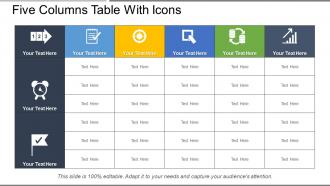
Fünfspaltige Tabelle mit Symbolen

Rating:
100%
Slide 1 of 5
Favourites Favourites

Try Before you Buy Download Free Sample Product

Audience Impress Your
Audience
Editable 100%
Editable
Time Save Hours
of Time
The Biggest Sale is ending soon in
0
0
:
0
0
:
0
0
Rating:
100%

Merkmale dieser PowerPoint-Präsentationsfolien:

Präsentieren einer fünfspaltigen Tabelle mit Symbolen. Dies ist eine fünfspaltige Tabelle mit Symbolen. Dies ist ein fünfstufiger Prozess. Die Phasen in diesem Prozess sind Migrationsplan, Migrationsansatz, Datentransfer.

FAQs for Five columns

Honestly, tables are a game changer for presentations. Your audience can actually scan the info instead of getting lost in dense paragraphs. Numbers line up properly, which looks way cleaner than trying to format bullet points. When you're comparing stuff side by side, tables make it so much easier to follow. They also kinda force you to cut the fluff since there's limited space - which is annoying but makes your content tighter. Pro tip I learned the hard way: throw in some alternating row colors or bold your headers. Makes everything way more readable when you're clicking through slides.

Tables are honestly a game-changer for making data readable. Clear headers are crucial - they tell people what they're looking at right away. Then organize your info logically, left to right, so it flows naturally. Consistent formatting helps too, though I'm personally obsessed with alternating row colors because they make scanning so much easier. Good spacing prevents everything from looking cramped. The trick is sketching out your data's story first. What patterns do you want people to catch? Once you know that, the structure basically builds itself and readers won't get overwhelmed.

Honestly, clean headers and consistent alignment are everything - left for text, right for numbers usually works best. Don't cram stuff together either, white space is your friend. I've seen too many tables that look like spreadsheet nightmares lol. Alternating row colors help people actually follow the data across. Put your most important columns where people look first (usually left side). Also test it on your phone because tables get weird on mobile and nobody thinks about that until it's too late. Just focus on what's most important first, then build around that.

Dark text on light backgrounds - that's your best bet. I made this mistake once where I used gray text thinking it looked "elegant" and literally no one could read my data. Oops. Stick with sans-serif fonts like Arial since they're way cleaner when text gets small. Serif fonts just turn into a blurry mess. Don't go crazy with colors either - maybe one accent color for headers, then just use black for everything else. Honestly? Step back from your screen when you're done. If you can't quickly scan it from a few feet away, neither can anyone else.

Ugh, the worst thing people do is cram their entire Excel sheet onto one slide - I've sat through way too many meetings like that. Also don't use fonts smaller than 18pt unless you want everyone squinting. Weird color combos are another pet peeve of mine. Break up massive data into multiple slides instead. Your headers should actually make sense too. Honestly, if you've got tons of detailed stuff, just throw it in an appendix. People only need the key numbers upfront anyway. Simple tables with clean formatting will save everyone's sanity.

Okay so first thing - line up your data in columns so people can scan down and actually see the patterns. Bold your headers, keep decimals aligned, all that basic stuff. Don't cram everything into one massive table though, that's where everyone screws up. Pick the most important comparisons and maybe highlight those with colors or boxes. Sort your rows in a way that makes sense - highest to lowest usually works. Oh and honestly? Your font size matters more than you think. People shouldn't have to squint to see which number is bigger.

Honestly depends what you're going for. Excel or Google Sheets work fine for basic stuff. But if you want it to actually look decent, Canva's surprisingly good for tables - way better than I expected when I first tried it. Adobe InDesign is solid too if you have it. Figma's nice when you're already designing in there anyway. HTML/CSS gives you total control but obviously requires coding. Oh, and Notion or Airtable are cool for interactive tables where people can actually mess around with the data. I'd just start with whatever you're already using honestly, then switch if it looks terrible.

Your audience gets overwhelmed when you dump all the data at once - so reveal it bit by bit instead. Highlight important rows while you're talking about them, or fade in comparisons between different points. Simple animations honestly work way better than static tables every time. They just feel more engaging, you know? Keep transitions smooth though, not all flashy and distracting. Try showing one row at a time as you walk through your story. Hover effects are pretty cool too since people can explore on their own. Start basic and see what works.

Honestly, there's no magic number but shoot for 320px minimum width so people don't have to scroll sideways on their phones - super annoying when that happens. Desktop gives you way more space to work with obviously. Font size should be at least 14px on mobile, and maybe stack or hide some columns on smaller screens. The biggest thing though? Test on real devices, not just shrinking your browser like we all do out of laziness. I always prioritize the most important columns first, then tuck the extra stuff behind expand buttons or modals when things get cramped.

Okay so first thing - get your semantic HTML right with proper `` tags and scope attributes. Add a caption too. I spent way too long debugging tables that broke because of this basic stuff. Test it by actually tabbing through with your keyboard. Does it make sense? Screen readers follow the same path and they'll get totally lost if your structure is weird. Don't forget about mobile - tables are honestly a pain on small screens. Your color contrast needs to hit WCAG standards, and never use just color to show important info. Honestly? Just test it with a screen reader yourself. You'll spot problems right away that you'd never catch otherwise.

Honestly, think of tables as your backup singers - they're not the main show, but they make everything sound better. Use them for before/after stuff, breaking down complicated data, or showing metrics that actually prove your point. The timing matters though - don't just dump them anywhere. Place them right after you make a claim so they feel like evidence, not random filler. I learned this the hard way in presentations. Keep them simple and only include what supports your story. Nobody wants to decode a messy spreadsheet mid-conversation.

PowerBI and Tableau are solid for interactive tables - they let people filter and sort data themselves. Advanced PowerPoint works too, plus Google Slides has some newer interactive stuff. Don't go overboard though, I've watched presentations crash because someone added too many bells and whistles. Keep it simple at first. Maybe start with basic filtering by date ranges or categories? Test everything multiple times before you present - trust me on this one. The goal is making it actually useful for your audience, not just looking fancy. Oh, and Canva's got some decent options now if you're already using that.

Honestly, icons totally save the day in tables - makes everything way more scannable. Like instead of writing out "High Priority" just throw in a red warning triangle, you know? Way cleaner. Status stuff works great too, green checks for approved items and all that. Plus it breaks up those nightmare tables that are just walls of text. I swear some spreadsheets make my eyes glaze over without any visual breaks. Just don't go crazy with different styles - keep your icons the same size so it doesn't look messy. They should actually mean something though, not just be there for decoration.

For tables, make your key numbers pop with bold or color coding - that's where people look first. I always do minimal borders because thick lines look awful and cluttered. Your headers need darker backgrounds or different fonts so they stand out. Right-align your numbers, it just looks cleaner. Don't stuff everything into one massive table though, people's eyes will glaze over. Group related info together instead. Use white space smartly too. Honestly, figure out your 3 main points first, then format everything else around those. Oh, and alternate row shading helps with readability if you've got lots of data.

So basically use the same colors and fonts for everything - makes it look way more professional. Put your tables right next to the charts so people don't have to hunt around the page. Match up your headers and labels too, otherwise it's confusing as hell. Oh and definitely add little bits of text between them to connect the dots for readers. I actually prefer side-by-side layouts when I can fit them - stacking gets boring. The key thing is making sure someone can follow your data story without getting lost. Trust me, disconnected visuals kill even the best reports.

Ratings and Reviews

100% of 100
Review Form
Write a review
Most Relevant Reviews
  1. 100%

    by Dudley Delgado

    Out of the box and creative design.
  2. 100%

    by Cyrus Ellis

    Presentation Design is very nice, good work with the content as well.

2 Item(s)

per page: