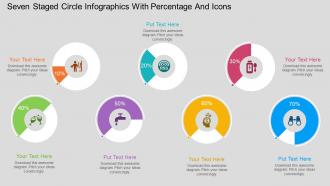
ms Infografía de círculo de siete etapas con porcentaje e iconos Diseño plano de PowerPoint

Rating:
90%
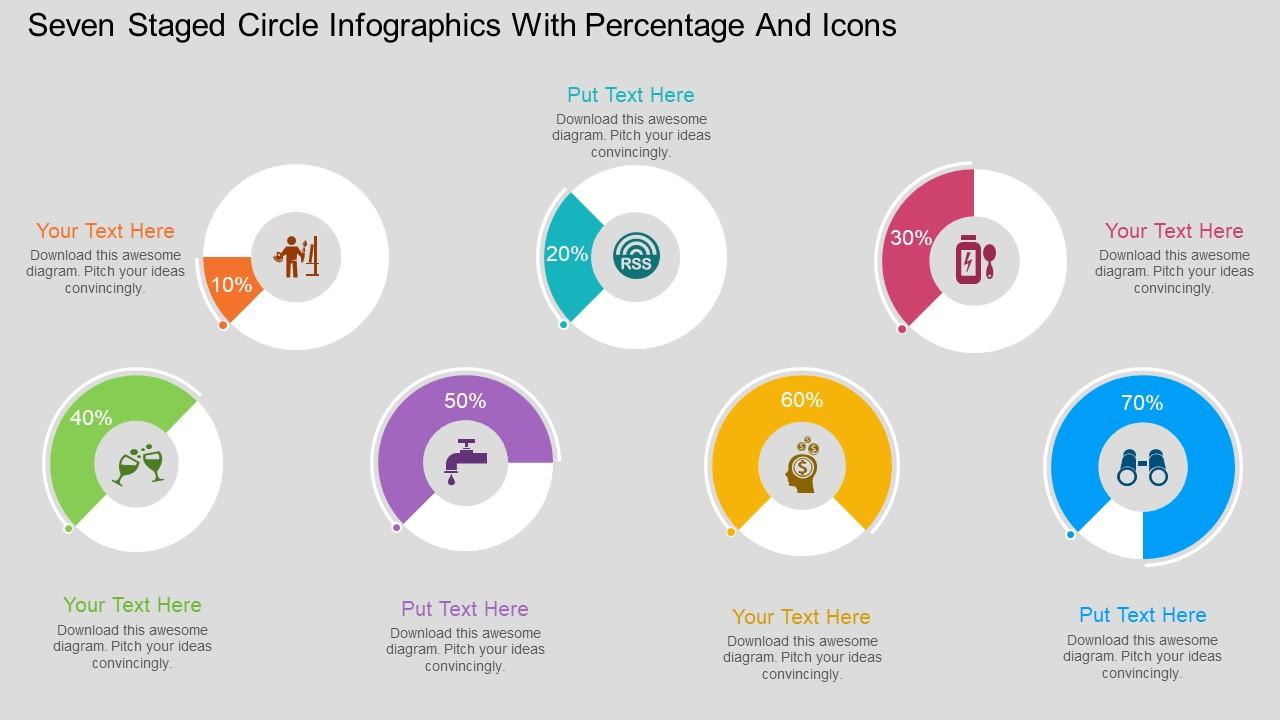
Ms seven staged circle infographics with percentage and icons flat powerpoint design
Slide 1 of 4
Favourites Favourites

Try Before you Buy Download Free Sample Product

Audience Impress Your
Audience
Editable 100%
Editable
Time Save Hours
of Time
The Biggest Sale is ending soon in
0
0
:
0
0
:
0
0
Rating:
90%

Características de estas diapositivas de presentación de PowerPoint:

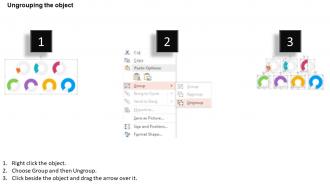
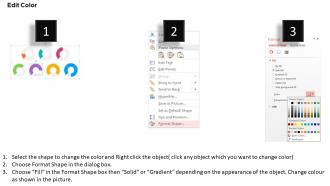
Diapositiva PPT modificable con gráficos circulares con tasa y símbolos. Bueno con varias alternativas de organización como JPEG, JPG o PDF. Da un punto de vista experto a su presentación de PowerPoint. Además, se incluirán símbolos. Personalización de cada PowerPoint realista y contenido según su deseo y necesidad. Accesible también en la estimación de diapositivas de pantalla ancha. Flexibilidad para rehacerlo con el nombre y el logotipo de la organización.

FAQs for Ms seven staged circle infographics with percentage and icons

Honestly, start with sketching your main points first - saves so much headache later. Make each segment roughly match how important that point is, and don't cram everything in there (I've made that mistake before!). Keep your fonts and colors consistent so people's eyes flow naturally around the circle. White space is your friend - cramped infographics look amateur. Short, punchy text works way better than paragraphs. Toss in some simple icons if you can. The visual hierarchy thing sounds fancy but it just means make the important stuff stand out more. Pretty straightforward once you get going.

Okay so color theory can totally save your circle infographics from looking like a hot mess. Pick complementary colors - blue and orange work great - to make important stuff stand out. Or go with colors next to each other on the color wheel if you want things to feel more chill and cohesive. Warm colors scream "pay attention now!" while cool ones feel stable and trustworthy. I'd grab 3-4 colors max, then put your most crucial data in the highest contrast combo. Seriously, half the infographics I see fail just because someone went crazy with random colors. Be picky about it and your data will actually make sense visually.

Honestly, I'd go with Canva first - it's ridiculously easy and has a bunch of circle templates already made. You can literally drag and drop stuff around until it looks decent. If you need something more precise or custom though, Adobe Illustrator is where it's at. Way more control but definitely steeper learning curve. Oh, and Piktochart or Visme work pretty well too if you're doing data stuff with circles. I always end up getting distracted browsing templates for like 30 minutes though lol. Start with Canva to mess around, then upgrade to Illustrator if you hate the limitations.

Honestly, less is way more with circle infographics. I stick to like 3-7 data points tops - otherwise it just turns into this messy pie chart disaster that nobody wants to look at. Start with your main point first, then only pick data that actually backs it up. Each chunk needs to be big enough that people can read the labels without going blind lol. Here's what I do: show someone your draft for literally 10 seconds and ask what they remember. If they can't tell you the key takeaway, you've probably crammed too much stuff in there. Trust me, you'll want to include everything but don't.

Oh man, typography in circle infographics is tricky! You're dealing with curved text and tiny spaces, so readability goes out the window fast. Sans-serif fonts are your best friend here – serif gets super messy when you curve it (learned that the hard way lol). Make sure your text is big enough to actually read, and don't stuff too much into those little sections. I'd stick with maybe 2-3 font weights max so it doesn't look chaotic. Also, definitely check how it looks at real size before you call it done. Nothing worse than something that looks perfect zoomed in but tiny when printed!

Honestly, circle infographics are perfect for this stuff! They show relationships super clearly - way better than boring tables. Pie charts work for percentages, obviously. But you can also do concentric circles for hierarchies, or even circular flowcharts if you're mapping out a process. The thing is, circles force you to actually prioritize what matters most. People just get the "parts of a whole" concept instantly when it's visual like that. I'd start with your main point in the center, then work outward. Oh, and they're just nicer to look at than walls of text - your brain doesn't have to work as hard.

Don't cram a novel's worth of text into each slice - people can't read microscopic labels anyway. Five to seven categories max, trust me on this. Those super thin wedges? Nobody's squinting at those. Use colors that actually contrast instead of fifty shades of blue (learned that one the hard way). Put your most important data at 12 o'clock and go clockwise. Oh, and don't forget a title or legend - I see people skip that constantly. High contrast is your friend here.

So your target audience totally matters for circle infographics. Younger people can handle trendy colors and complex visuals - they're used to processing info fast. But older folks? They need bigger text and clearer contrasts. Professional audiences want clean, business-y color schemes. Kids obviously love bright colors and fun icons (duh). Oh, and education level matters too - determines how much technical stuff you can throw in there. Honestly though, simpler layouts work better for everyone most of the time. You should definitely test it with real people from your target group first. Makes a huge difference.

Oh, circle infographics work great in consulting, marketing, and healthcare mostly. They're perfect when you need to show how things connect or cycle back to each other. Tech companies use them a ton for user journeys - makes way more sense than boring linear charts. Actually, I've been seeing them everywhere lately. There's something about the circular format that just clicks with people, you know? Way more engaging than traditional stuff. Definitely try one if you're showing how different parts of your strategy fit together.

Try adding hover effects first - they're super easy and make a huge difference. Clickable segments work great too, where people can drill down into more detailed data. I'd probably go with Tableau or D3.js since they handle this stuff pretty well (PowerBI works too if you're already using it). Interactive filters are clutch for letting users switch between datasets or time periods. Honestly keeps people way more engaged than boring static charts. You can get fancy later with animated transitions between data layers, but start basic with tooltips and build from there. Don't overwhelm yourself right away.

Honestly, mix surveys with some interviews to get the full picture - numbers are great but you need the story behind them too. Google Analytics is my go-to for web stuff, way more detailed than people think. If you're pressed for time, government databases and industry reports work fine. Just check they're recent and not sketchy sources. Oh, and here's what I learned the hard way - figure out your story first, then hunt for data that supports it. Otherwise you'll end up drowning in random stats that don't actually help your infographic make sense.

Honestly, circle infographics do way better than you'd expect! They get like 15-20% more shares than regular rectangular ones. Your eye just follows that circular flow naturally, so people actually stick around longer. There's something weirdly satisfying about completing the loop - our brains are kinda predictable that way. Linear stuff works fine for step-by-step processes, but circles are perfect when you're showing cycles or want that "full picture" vibe. You should totally A/B test a circular version against your usual format next time.

Progressive reveals work amazingly - animate segments appearing one by one or have the whole circle draw itself out. I've been obsessed with pulse effects lately where circles expand and contract to highlight stuff. Morphing animations are solid too, especially for showing data changes over time. Try rotating the circle while data points fly in, or use clock wipe transitions between states. Timing matters though - usually 0.5-1 second per segment feels about right so people can actually follow what's happening. Oh, and the drawing effect looks way cooler than I expected it would.

Think of each slice as a story chapter! Start with your main theme in the center, then go clockwise through problem → investigation → solution → results. Circles naturally guide people along without being weird about it. Honestly, I'm obsessed with how circles make dense info less overwhelming. Connect your segments with arrows or color flow so it feels like progression. Write labels that actually tell the story instead of just stating boring facts. Oh, and definitely end where you started - brings everything full circle (pun intended) and readers get that nice "aha" moment when it all clicks together.

Check your engagement stuff first - shares, comments, how long people actually look at it. Surveys work great for testing if people get what you're trying to say. Honestly, saves and downloads are probably the best metric because who saves random junk? A/B test different versions if you've got time. Click-through rates matter if it links anywhere. Brand recall surveys are solid too, though kinda boring to set up. Really depends what you were going for originally. Education goal? Focus on comprehension. Brand awareness? Track mentions and reach instead. Pretty straightforward once you match metrics to your actual objective.

Ratings and Reviews

90% of 100
Review Form
Write a review
Most Relevant Reviews
  1. 80%

    by Daryl Silva

    Great experience, I would definitely use your services further.
  2. 100%

    by Dominic Arnold

    Attractive design and informative presentation.

2 Item(s)

per page: