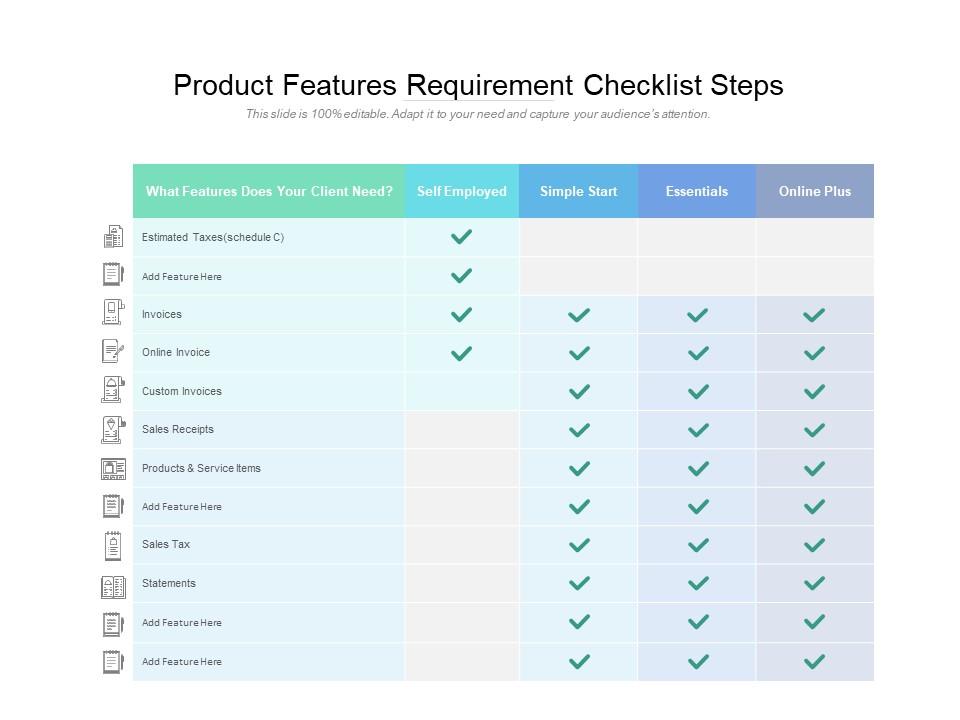
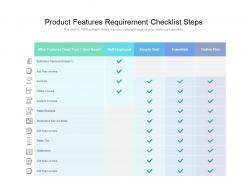
Etapas da lista de verificação dos requisitos dos recursos do produto
Try Before you Buy Download Free Sample Product
Audience
Editable
of Time
Dê a todos uma visão sobre suas decisões com nossas etapas da lista de verificação de requisitos de recursos do produto. Seja capaz de transmitir suas intenções.
Recursos desses slides de apresentação do PowerPoint:
Apresentando este conjunto de slides com o nome Recursos do produto Requisitos e etapas da lista de verificação. Os tópicos discutidos nesses slides são Etapa da lista de verificação, Negócios, Planejamento. Esta é uma apresentação do PowerPoint totalmente editável e está disponível para download imediato. Baixe agora e impressione seu público.
People who downloaded this PowerPoint presentation also viewed the following :
Etapas da lista de verificação dos requisitos dos recursos do produto com todos os 5 slides:
Analise suas intenções com nossas etapas da lista de verificação de requisitos de recursos do produto. Dê às pessoas uma ideia do que a concorrência pode fazer.
FAQs for Product features
Honestly, start with fonts that don't make people squint and colors that won't give anyone a headache. Leave room for images too – walls of text are presentation death. I learned this the hard way lol. Smooth transitions help, but nothing too flashy. You need different layouts for comparisons, timelines, that kind of stuff. White space is your friend here. Cramped slides look awful and people tune out immediately. Templates with these basics already built in save you tons of time, then just tweak whatever doesn't fit your crowd.
You know how those generic templates always look... well, generic? Customizable ones are so much better because you can actually swap in your real data and match your company colors. No more weird placeholder text that makes zero sense for what you're presenting. Your audience definitely picks up on it when everything looks intentional instead of thrown together. The layouts bend to fit your content rather than the other way around - honestly makes such a difference. I'd look for templates with flexible elements before your presentation. Way less awkward than explaining why nothing matches!
Ok so visual hierarchy is like creating a roadmap for where people's eyes should go first. You're using size, color, and spacing to make sure they hit your main points before getting lost in details. Headlines need to be the star of the show, subheads back them up, and body text stays quiet in the background. Honestly, most people try to cram way too much on each slide anyway. Pick your three most important things per slide and make those pop visually - everything else can chill. It's basically like organizing your room so you can actually find stuff when you need it.
Colors are honestly huge for presentations - they set the mood before you even start talking. Warm ones like red/orange feel energetic and urgent. Blues and greens? Way more trustworthy and calm. I've totally seen good content ruined by awful color choices that hurt your eyes or made text unreadable. Match your colors to both your message and brand vibe. Oh, and for feature checklists specifically - keep it clean and professional so people actually focus on the info, not flashy design. Test everything on different screens first because what looks good on your laptop might look terrible projected.
Dude, animations can totally make your templates way more engaging! I'd start with entrance effects - they're perfect for revealing info bit by bit and building up suspense. Motion graphics are clutch for showing your brand's vibe too, like bouncy stuff for fun brands or clean fades for corporate. Transitions keep everything flowing smoothly between sections (honestly feels like directing a mini movie lol). Just don't go crazy with it - animate your main elements first, then add smaller touches. Timing is everything though. Too much and it gets distracting real quick.
So corporate templates are all about covering your ass - compliance boxes, risk stuff, making sure the budget people don't freak out. Educational ones? Totally different vibe. They care about whether students actually learn and can access the content easily. Corporate versions are super formal (shocking, I know), but the education ones have way better collaboration tools and track progress for different learning levels. Oh and corporate templates have tons of legal fine print baked in, while educational focuses on what actually works for teaching. Pick corporate if you need exec approval, educational if people need to learn.
Honestly, data visualization is a game changer - it transforms those nightmare spreadsheets into charts and graphs that actually tell you something useful. Your brain picks up visual patterns way faster than scanning endless rows of numbers. Bar charts show trends, pie charts break down percentages, heat maps flag issues. I used to dread presenting data until I figured this out! Pick 2-3 metrics you really care about first. Then just mess around with different chart types until one makes the story super obvious. Trust me, your meetings will be way less painful.
Make sure you've got good color contrast - at least 4.5:1 ratio. Use simple fonts like Arial or Calibri, 18pt minimum. Those decorative script fonts? Absolute nightmare for screen readers, trust me. Add alt text to images and use proper heading structures. Videos need captions too. Oh, and test the keyboard navigation - content should flow logically when people tab through. PowerPoint has a built-in accessibility checker that's actually pretty decent. Also try to offer materials in different formats if you can swing it.
Honestly, transitions are weirdly important for keeping people focused. I always go with something basic like "fade" - works for pretty much everything. The spinning cube thing? Total disaster waiting to happen lol. Your audience will watch the flashy effects instead of actually listening to what you're saying. Keep it simple and consistent throughout. Maybe use two max if you really want variety. Oh and definitely practice with them beforehand! I learned that the hard way when my transitions took forever to load during an actual presentation. Smooth flow beats fancy graphics every single time.
Dude, those pre-made industry layouts are huge time savers for your users. Restaurant owners get menu templates that actually look professional instead of fumbling around with blank canvases. Same goes for real estate agents, tech startups - whatever. People see something that fits their world right away, so they're way more likely to stick around. The learning curve basically disappears. Oh, and you can totally charge more for the specialized packs. I'd start with your top 3 industries first though - see what your current users are already doing most.
Start with high-contrast colors and readable fonts - trust me, I made the mistake of using fancy transitions that looked awful when printed out. Keep your text at least 24pt for projections. Dark backgrounds are ink killers, so maybe create a simplified print version? Test print a couple slides first because formatting always gets weird somehow. The tricky part is making layouts work for both landscape (screens) and portrait (handouts). Skip complex animations since they obviously don't work on paper. Honestly, designing for both from the beginning saves you so much headache later.
Honestly, good support is what makes people actually stick with templates long-term instead of just buying them and giving up. You want to include solid docs and maybe a quick tutorial - nobody's trying to spend their whole weekend figuring out how to customize something they already paid for. It cuts down on angry support emails too, which is nice. Users who don't get frustrated are way more likely to tell their friends about your stuff. I'd say bare minimum is setup instructions plus one walkthrough example. That alone makes a huge difference in whether people can actually use what you've built.
Honestly, just build feedback into your whole process from the start. Set up surveys after each template drop and keep an eye on support tickets - the angry ones usually tell you what's actually broken. Monthly roadmap meetings should include reviewing all this stuff. Here's the thing though - track what people actually USE, not just what they say they want. Those are totally different things half the time. The loud complainers? Yeah, tackle those issues first. They're annoying but they're pointing to real problems. Make it ongoing, not some quarterly thing you forget about.
Dude, minimalist layouts are everywhere right now - like SO much white space. Bold typography is having a moment too, plus everyone's cramming in interactive stuff like videos and clickable elements. Dark mode templates are popular since we're all stuck presenting over Zoom still. Those gradient overlays? Total trend but some already look kinda cheesy tbh. Make sure your stuff works on mobile since people definitely scroll through decks on their phones later. Consistent brand colors are clutch. You can try animated transitions but keep 'em light - nobody needs to feel dizzy watching your presentation lol.
Honestly, mobile responsiveness isn't optional anymore. People check presentations on their phones constantly - during commutes, between meetings, you name it. I found this out the embarrassing way when a client couldn't see my slides properly during a call (awkward). Templates that don't resize will make your stuff look completely broken. Text becomes tiny and unreadable. Images get chopped off weirdly. Even navigation stops working right. Trust me, test everything on mobile first - it'll save you from looking unprofessional later. Desktop-only thinking is so 2015 at this point.
No Reviews