Diagrama de presentación de productividad Verifique Ppt Iconos Gráficos
Try Before you Buy Download Free Sample Product
Audience
Editable
of Time
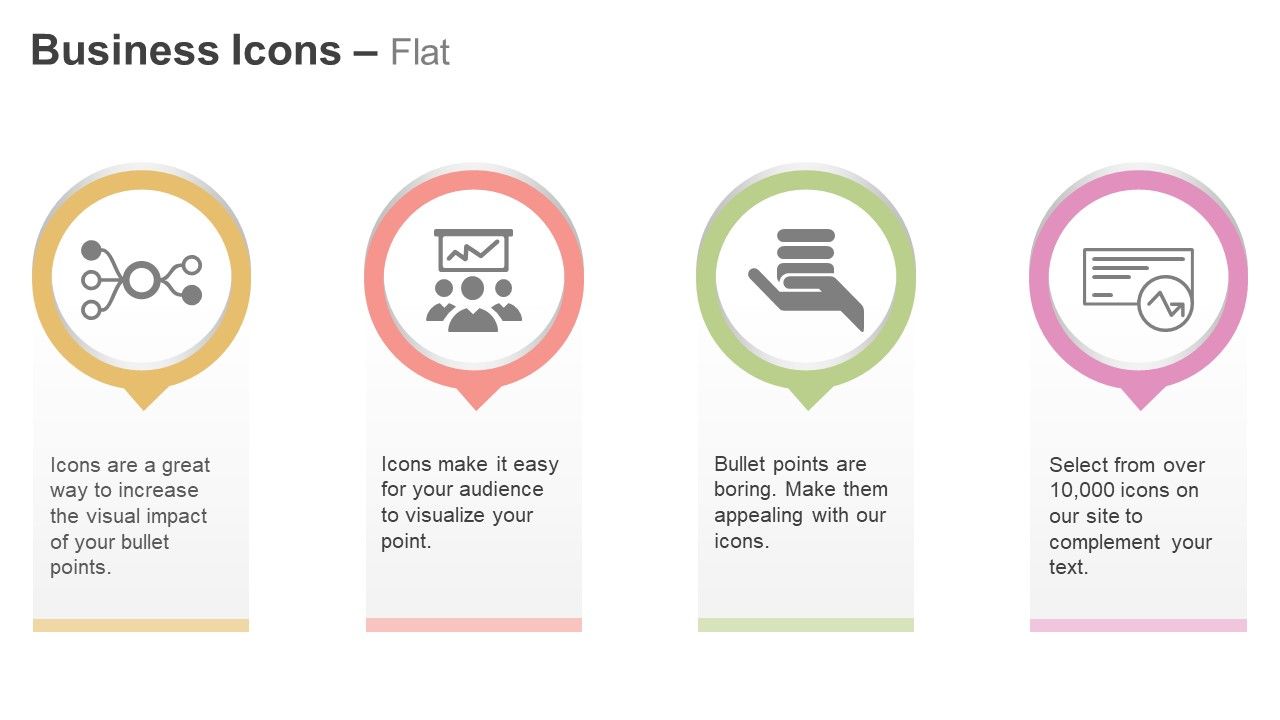
¿Siente la necesidad de visualizar su productividad? Utilice nuestro hermoso diagrama de presentación de productividad, compruebe los gráficos de los iconos de PPT e impresione a sus espectadores. Nuestra diapositiva consta de cuatro íconos completamente editables que pueden ser útiles al preparar sus presentaciones comerciales. Todos estos iconos en la plantilla PPT son editables para que pueda cambiar sus colores, diseño, orden y formas según su elección. Estos iconos se pueden usar individual y colectivamente según el contenido de las diapositivas de su presentación. Para mejorar la productividad de su negocio, debe utilizar estos iconos y mostrar la información relacionada con ellos en la diapositiva. Cuál debería ser la estructura de su equipo, cuánto rendimiento se requiere de cada miembro del equipo, cómo debería ser su programa de capacitación, cuál será el resultado esperado, etc. todos estos factores pueden representarse fácilmente usando nuestro PowerPoint Plantilla de diapositiva. Por lo tanto, utilice la diapositiva y ahorre su valioso tiempo y esfuerzos. Encante a su audiencia con nuestro Diagrama de presentación de productividad Verifique Ppt Iconos Gráficos. Estarán encantados de brindarle una audiencia.
Características de estas diapositivas de presentación de PowerPoint:
Diapositiva modificable para verificar el diagrama de presentación de productividad. Beneficioso para los profesionales de la industria, profesores, estudiantes, estrategas y planificadores de gestión. Imágenes, colores y texto editables. Formato gráfico de información presentable y fácil de comprender. La plantilla de presentación se puede descargar y guardar en cualquier formato deseado. Privilegio de inserción de logo y marcas registradas para mayor personalización. Adaptable a la vista de pantalla ancha sin el problema de la pixelación. Se puede utilizar con diapositivas de Google. Fácil de editar y personalizar según sus necesidades.
People who downloaded this PowerPoint presentation also viewed the following :
Diagrama de presentación de productividad Verifique los gráficos de los iconos de Ppt con las 4 diapositivas:
Nuestros gráficos de íconos de verificación de diagrama de presentación de productividad garantizan una sensación de alegría. La emoción aumentará febrilmente.
FAQs for Productivity presentation diagram check
Honestly, it comes down to three main things. First, you need a proper workspace that puts you in work mode - even if it's just a corner of your kitchen table. Communication with your team matters too; set clear expectations about when you'll respond to messages. But here's what really kills productivity: distractions. I'm talking social media, random household tasks, that laundry pile judging you from across the room. The trick is being super intentional about your "on" vs "off" hours. Oh, and structured routines are a game-changer for focus. Start by figuring out what's actually derailing your day, then fix those specific problems one at a time.
Honestly, templates are a game changer. Your whole team stops wasting time on design stuff and can actually focus on what they're presenting. Everything looks consistent too, which is nice because nobody's using Comic Sans or whatever random font they found. I swear meetings run smoother when people aren't getting distracted by weird formatting choices. Start with maybe 2-3 templates for the presentations you do most often. You'll be shocked how much faster prep gets. Way less "should this be blue or green?" debates happening.
Honestly, time management is what separates people who actually get stuff done from those who just stay busy all day. You know how some days you feel super productive but can't even remember what you accomplished? That's the difference right there. Good time management means you're tackling the important stuff when it matters most, not just reacting to whatever pops up. I'd say pick one method - time blocking works great, or try Pomodoro if you get distracted easily - and stick with it for like a week before you start tweaking everything. It's basically having a plan instead of just winging it and hoping for the best.
So basically people remember way more of what they see vs just hearing stuff - like 65% compared to 10%. Pretty wild difference. Your brain needs something to look at or it'll just zone out completely. Charts, pictures, even basic bullet points help tons. Just don't be that person who reads every slide word for word... we've all suffered through those meetings lol. Make sure whatever you show actually backs up your point though. Oh and try the 6x6 thing - max 6 bullets with 6 words each. Keeps it clean.
Lead with your main point right away - don't make people guess what you're talking about. I always use problem-solution-benefit because it keeps everyone awake. Slides should be super clean, nobody's reading paragraphs anyway. Three key points max, and make sure each section flows naturally into the next one. Time yourself when you practice - there's nothing worse than scrambling through your conclusion. Oh, and definitely run through it out loud once. You'll catch all those sentences that looked fine but sound totally awkward when you say them. End with something actionable, even if it's just "so what questions do you have?"
Dude, templates are honestly a game changer. You get all the formatting and design stuff already done - fonts, layouts, colors, whatever. Just plug in your content and boom, you're done. Way better than staring at a blank slide wondering where to start (been there). PowerPoint and Canva have loads of good ones you can tweak. They make everything look way more professional too. Here's what I do - find like 2 or 3 templates you actually like for different situations and save them somewhere easy to find. Trust me, you'll thank yourself later when you're scrambling to put together a presentation.
Honestly, productivity tools are game-changers for presentations. Project management apps help you track deadlines and work with your team on content. Note-taking tools? Perfect for organizing research before you touch PowerPoint. Time-tracking software will show you the brutal truth about how long design actually takes (hint: way longer than you think). Cloud storage lets everyone access files and give feedback instantly. Oh, and don't try to fix everything at once—that's overwhelming. Pick whatever's bugging you most right now, like collaboration or file chaos, then find one tool that tackles just that problem.
OK so there's this thing called the "primacy effect" - basically people remember what you say first, so put your best stuff upfront. Also stick to three main points max. I know it sounds random but our brains are weirdly wired for threes. I used to jam like 47 slides into every presentation (terrible idea btw). Now I repeat key phrases to make them stick, throw in some relatable examples people can connect with. Oh and always end with ONE clear next step - give people too many choices and they'll just freeze up. Trust me, structure your next one around three points and you'll actually see people paying attention.
Honestly, feedback after presentations is a game changer. You can't see your own blind spots, but your audience definitely can. I used to dread it too - nobody wants to hear what they did wrong, right? But now I actually hunt for it because it stops me from making the same mistakes over and over. Here's the thing though: ask specific questions. Instead of "how'd I do?" try "was my main point clear?" or something like that. You'll get way better insights than just "good job!" Trust me, start asking right after your next presentation and you'll see the difference.
Oh man, don't cram everything onto one slide - people's brains just shut off. Stick to one main point per slide and throw in some visuals instead of text walls. Those cheesy stock photos of business people pointing? Skip 'em, we're all so tired of seeing those. Give them stuff they can actually DO, not fluffy advice like "stay organized" (whatever that means, right?). Never read straight from your slides either. Focus on maybe 3-4 solid strategies they can try right when they get back to their desk.
Honestly, presentations are a game-changer for team productivity. Making progress visible gets everyone motivated - people actually love seeing their work celebrated. Monthly "productivity showcases" work great where team members share their latest efficiency tricks or how they tackled a tricky project. You can introduce new tools, set goals together, or have someone demo a workflow that's been crushing it. The trick is keeping things interactive, not just boring status updates (ugh, nobody wants that). Quick "lessons learned" sessions create real accountability too. It builds momentum when everyone's sharing best practices and learning from each other's wins.
Honestly, start with before/after quizzes to see if people actually absorbed anything. Then watch for real changes - are they using the tools you taught? Adopting new processes? Survey them a few weeks later about engagement because let's be real, nobody changes behavior after a snooze-fest presentation. Track attendance for future sessions too. The money shot though? Actual productivity gains. Time saved, faster task completion, better quality work. I'd set up tracking beforehand so you can prove it worked - or didn't, which happens more than we like to admit.
Your color and font choices totally affect how professional you look. Blues and greens feel trustworthy, reds create urgency but can stress people out. For fonts, go with Arial or Calibri - they're way easier to read on screens than fancy serif ones. Comic Sans though? Just don't. I learned that the hard way in college. Make your text at least 24pt or people will be squinting from the back. Keep everything consistent across slides with good contrast. It's amazing how much this stuff impacts whether people actually take you seriously or zone out completely.
Honestly, wireless screen sharing is a total lifesaver - you just walk in and present from your phone without digging around for cables. Interactive displays are pretty sweet too since you can write directly on them during meetings. The AI presentation tools have gotten way better lately at helping with slide content (though sometimes they're still kinda weird). Oh, and virtual whiteboards are clutch for remote collaboration. Touch screens let you mark stuff up on the spot which looks more professional than frantically trying to circle things with a laser pointer. I'd definitely check if your office already has wireless casting set up first.
Dude, stop dumping data on people - tell them a story instead! Open with something like "imagine if..." and watch how much more they actually pay attention. I've literally seen quarterly reviews go from snooze-fests to people actually leaning in when you frame it as "here's how we tackled this mess." Walk through a real scenario they'd recognize. Give it structure - beginning, middle, end. Use actual characters (anonymous is fine) and real outcomes. Trust me, stories stick way better than bullet points ever will.
-
Excellent Designs.
-
Excellent work done on template design and graphics.