

Table of content ppt diagrams





Try Before you Buy Download Free Sample Product
 Impress Your
 Audience
 100%
100% Editable
 Save Hours
 of Time


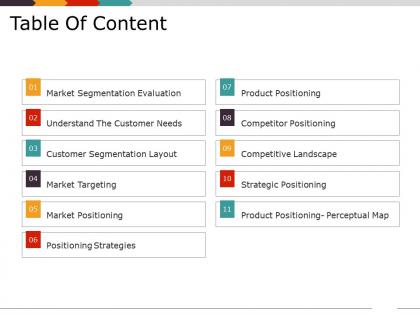
Select our Table Of Content PPT Diagram Slide to give a brief account of all the important topics covered in the presentation. You can capture the attention of your audience with this vibrant and attractive PPT template that allows you to display the content of your presentation in a well-organized manner. Use this PPT layout and create a roadmap for your ideas and concepts and provide clarity to your audience. Grab the opportunity to save your time with this content-ready PPT design that lets you add or edit the text according to your requirements and needs. Use this well-formulated PPT graphic to mention all the topics and concepts covered in a list format to make it well-structured. Download this PPT theme to impress your audience with your skill and tidiness. Additionally, this PPT visual also allows you to choose from a wide range of available and customizable icons, images, tables, and charts to make your presentation eye-catching.
People who downloaded this PowerPoint presentation also viewed the following :
Table of content ppt diagrams with all 5 slides:
Give clear and concise directions to follow with our Table Of Content Ppt Diagrams. You will be the boss of their dreams.
FAQs for Table of
Make sure your chapter titles and page numbers are crystal clear. Indentation really helps show what's a main section vs. a subsection - don't underestimate that visual hierarchy. Some connecting lines or icons can be nice, but honestly I've seen people go way too crazy with the decorative stuff and it just becomes distracting. Keep your main sections bold or larger so they pop more than the smaller parts. For complex docs, maybe try different fonts or colors to separate major chunks. The whole point is letting people scan quickly and jump to whatever they need. Oh, and definitely have someone else test it out - they'll spot confusing parts you missed.
Dude, visual roadmaps are game-changers for presentations. Your audience can actually see how everything connects instead of zoning out during another bullet point list. I learned this the hard way after bombing a presentation last year lol. You'll look way more professional too. Throughout your talk, you can keep pointing back to show "we're here now." Different people learn differently, so the visual aspect helps everyone follow along. Simple boxes with arrows work great, or try a timeline if that fits better. Honestly beats boring text lists every time.
Honestly, I'd go with **Lucidchart** first - their org chart templates are pretty solid and you won't have to start from scratch. **Figma** is awesome if you want something super polished, but fair warning: you'll probably get sucked into tweaking fonts for way too long (speaking from experience lol). **Miro** works great too, especially if your team's already using it. There's also **Draw.io** which is free and does the job fine for basic stuff. Lucidchart's probably your best bet though - looks professional without much effort.
So your TOC design totally depends on who's actually using it. Kids need big fonts and lots of visuals - executives want clean layouts they can scan fast. Age matters too for color choices and tech stuff. Academic folks can handle dense info, but regular people need more breathing room and clear organization. I've honestly watched so many table of contents completely bomb because nobody thought about the actual users (which is kinda wild if you think about it). Just figure out who'll be reading this thing first, then work backwards from what they'd want. Makes the whole process way easier.
Don't cram everything into your diagram - seriously, it'll look like a hot mess and nobody wants to decode that chaos. Focus on main sections plus your most important subsections. Make sure your formatting stays consistent throughout (nothing screams amateur like wonky alignment). Also watch your text size and color contrast - I've seen way too many diagrams where you literally can't read anything. Oh, and keep your hierarchy clear so people can actually follow the connections between levels. Start with your main chapters first, then work your way down to the subsections that actually matter.
Dude, colors totally mess with how people read your table of contents! Red and orange grab attention fast - perfect for the stuff you actually want them to see. Blues and greens? Way more chill, so people assume it's less important. I swear I've watched people completely ignore gray sections like they don't even exist. High contrast between colors helps users scan super quickly, but if everything's the same tone, your hierarchy just disappears. Honestly, it's like you're steering people's eyes around the page. Warm colors for the must-read stuff, cool colors for everything else.
Dude, typography makes or breaks your table of contents. Main chapters need to be bold and bigger - that's your starting point. Then scale down for subsections with lighter weights. I usually stick to maybe 2-3 font variations tops because more than that looks amateur honestly. The whole point is creating a clear hierarchy so people can scan quickly. When someone's flipping through looking for chapter 7 or whatever, they shouldn't have to squint and decode your design choices. Keep it consistent and you're golden.
Yeah, totally doable! I always start with the digital version since it's way more forgiving - you can add clickable links, hover effects, all that good stuff. Print's trickier though. Higher contrast is your friend, and test how it looks in black and white because... well, printing costs. The trick is nailing your main structure first. Once that's solid, you can tweak the visuals for each format. Digital doesn't need to worry about tiny fonts or resolution issues. Print does. Honestly, I've seen too many gorgeous digital designs that look terrible when printed out.
You know how people zone out during presentations? Interactive table of contents changes that completely. Instead of sitting there while you click through slides, your audience can jump straight to what interests them. It's honestly pretty cool - they feel like they're driving instead of just along for the ride. You'll also see which sections get the most clicks, so you know what's actually landing. The visual layout helps people grasp your whole structure upfront too. Oh, and those little progress indicators? Total game changer for keeping people engaged throughout.
Honestly, adding icons to your table of contents is a game changer. People can scan through way faster when they've got visual cues instead of just text everywhere. Short attention spans and all that, you know? Your readers won't have to actually read each line item - they'll just spot the icon they need and jump right to that section. It helps them understand how everything connects too. Just keep the icons simple and make sure they actually make sense for what you're writing about. Trust me, navigation becomes so much smoother.
Start with a design template - it'll be your lifesaver. Pick your fonts, colors, spacing, all that stuff upfront and don't deviate. I made the mistake once of winging it and ended up with diagrams that looked like a hot mess. Same hierarchy rules every time too - identical indentation, bullets, numbering. Write it down somewhere so you don't forget later (because you will). Honestly, the template thing sounds boring but it's worth it. Ten minutes of setup beats spending your whole afternoon fixing inconsistent diagrams. Trust me on this one.
Okay so basically just group things hierarchically with clear headings that actually make sense. Don't go more than 2-3 levels deep or it gets super confusing. When I'm making these, I think about what I'd actually want to find if I was scanning through it quickly - that helps a lot. Keep your labels short but meaningful, and maybe throw in page numbers too. Honestly, the hardest part is finding that sweet spot between being thorough and not overwhelming people. Start with your main themes first, then break those down into smaller pieces that feel natural. Oh and use the same structure for similar items - makes it way easier to follow.
Think of it like those dropdown menus, but way less annoying. Start by showing just your main chapter headings - people can scan the big picture without their eyes glazing over. Then they click to see subsections and page numbers for stuff they actually want. Works great for long documents where dumping everything at once creates total chaos. I mean, nobody wants to stare at a wall of nested bullet points, right? Your readers get the structure first, then dive deeper into whatever they need. Super simple but honestly makes a huge difference for navigation.
So basically you want to pull colors, fonts, and icons straight from your brand guidelines and apply them to your TOC diagrams. I've seen some companies do cool stuff with this - like incorporating their signature patterns or illustration styles. Your layout should match your brand vibe too. Modern brands go clean and minimal, while traditional ones can get more decorative with it. Oh, and don't forget about typography - that's huge for consistency. Start with your main visual elements and just apply them across all your diagrams. It's honestly one of those things that makes a bigger impact than you'd think.
Dude, everyone's ditching those boring bullet point lists for way cooler visual stuff. Like actual roadmaps and interactive flowcharts you can click through. Icons everywhere, progress bars, color coding - the whole nine yards. Nobody wants to stare at numbered lists anymore, they're so 2015. People are adding time estimates for each section too, which is super helpful. Plus showing how topics actually connect instead of just listing random stuff in order. I saw one presentation last week that had this amazing timeline format - made everything so much easier to follow. Trust me, your audience will actually pay attention if you make it visual.
-
Use of icon with content is very relateable, informative and appealing.
-
Use of different colors is good. It's simple and attractive.