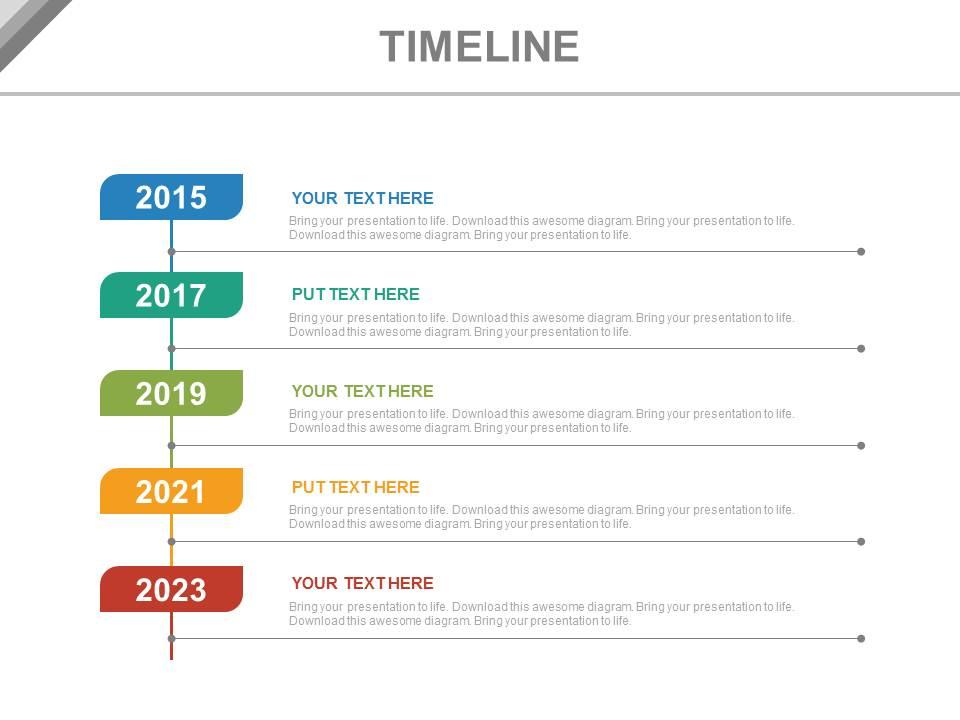
Year based vertical timeline for business powerpoint slides

Rating:
90%
Slide 1 of 4
Favourites Favourites

Try Before you Buy Download Free Sample Product

Audience Impress Your
Audience
Editable 100%
Editable
Time Save Hours
of Time
The Biggest Sale is ending soon in
0
0
:
0
0
:
0
0
Rating:
90%
Plain as day and scholarly PPT slide designs. Utilization of impressive vibrant hues. Staggering picture quality. High determination pictures don't pixelate when anticipated on wide screen. Perfect with various programming and configuration alternatives. 100 percent editable slide outline segments. Suit perfectly with Google slides and PowerPoint versions. Change the PowerPoint template components according to the need of 60 minutes. Customize the PPT with your organization name and logo. Utilized by business visionaries, advertisers, administrative office, partners and understudies.

People who downloaded this PowerPoint presentation also viewed the following :

FAQs for Year based vertical timeline for

Honestly, vertical timelines are a game changer - they save so much space compared to horizontal ones. When you've got more than 3-4 events, horizontal layouts get messy fast and nobody wants to squint at tiny text. The eye naturally follows things downward anyway, so it feels more natural for showing progression. Mobile presentations work better this way too since phone screens are tall. Oh, and definitely use a template! I learned that the hard way after spending like 3 hours trying to make everything line up perfectly. Total waste of time when you can just download one and customize it.

Honestly, vertical timelines are so much better for project stuff. They follow how we naturally read - top to bottom - so people can actually track your progress without getting confused. You get way more room for details too, which is clutch when you're trying to explain complex milestones. Horizontal ones always end up looking cramped and messy IMO. The flow really helps people see how different phases connect and where things might get stuck. Oh, and definitely bold your biggest milestones or throw some color on them - makes a huge difference when you're presenting.

Hey! So for vertical timelines in PowerPoint - spacing is everything. Keep it consistent between points or it'll look messy. I always sketch the content first before getting into the design stuff (saves so much time). Use different font sizes for dates vs descriptions, and pick maybe two colors that work together or do a gradient thing. Icons really help break up text blocks - nobody wants to read a wall of words. Your connecting line should guide the eye but not dominate everything. Oh, and alignment matters more than you think. Keep descriptions short and punchy. Honestly, the visual polish comes way easier once you've got the content nailed down.

Go vertical for sure. Audiences read top to bottom naturally, and it just looks way cleaner on screens. Horizontal timelines are the worst - people end up squinting or tilting their heads like confused dogs. Mobile presentations? Definitely vertical since everyone holds phones that way anyway. You'll also get more space for longer descriptions or photos with vertical layouts. I learned this the hard way after cramming too much text into a horizontal one once. Trust me, readability trumps everything when you're presenting. Vertical's your best bet.

Start with colors and fonts - that's where you'll get the most bang for your buck visually. Swap in your brand colors and company fonts, then replace any generic icons with your logo or branded stuff. Most templates are pretty flexible with spacing and sizing too. Honestly, PowerPoint's color picker drives me nuts sometimes, but you'll figure it out. Don't forget to update text styles and maybe add some borders or shapes that match your brand vibe. The whole thing should feel cohesive when you're done.

Animation Pane is what you need for this! Go to your timeline elements and hit up the Animations tab - I'm partial to "Fly In" or "Fade" effects. Timing makes or breaks it though, so stagger each piece with like 0.5-1 second delays between them. The "Wipe" animation with "From Bottom" setting looks super clean for vertical reveals. Oh, and throw in some emphasis animations on your key dates to make them pop. Honestly, just keep hitting that preview button until it doesn't feel clunky anymore.

Honestly, vertical timelines are so much better than horizontal ones. They flow top to bottom which just makes sense with how we read stuff. I always run into space issues with horizontal layouts - like where do you even put longer descriptions without everything looking cramped? With vertical ones, you've got room to breathe. Plus it's perfect for presentations since you can reveal events one at a time as you go down. Your audience can actually follow the story. Oh, and color coding related events helps too - makes it way easier to spot patterns and see how things connect over time.

Oh man, don't cram a novel into each point - people zone out immediately. I learned this the hard way! Stick to maybe 5-6 key milestones max because anything longer gets messy. Make your dates super clear and visually distinct from the text. Here's something nobody tells you: test it on a projector first. Those skinny connecting lines vanish completely when projected, and you'll look like an idiot. Keep descriptions short and punchy. If you've got more than 8-10 points, you're probably overdoing it.

Vertical timelines are perfect for classrooms! They show how things develop over time - scientific discoveries, historical events, literary movements, whatever. Students love the top-to-bottom flow since it matches how we read naturally. I've seen teachers use them for tracing democracy's evolution, tracking character development in novels, mapping scientific processes. Honestly, they're way better than horizontal ones when you're presenting to a whole class - everyone can follow along without craning their necks. Just start with your earliest point at the top and work down. Super intuitive for kids to grasp.

Honestly, high-contrast colors are your best bet for vertical timelines. Navy/white/gold is such a classic combo, or try dark gray/teal/white - both look super professional and are easy to read. I always go with one bold accent color against neutrals because it stays clean but isn't boring. Don't do rainbow colors though, makes everything look messy and hard to follow. Oh, and here's what works great: save your accent color for the really important milestones or dates you want people to notice. Everything else can just be neutral.

Oh this is actually pretty straightforward! Put your timeline on one side, then add charts or images on the other side. Keeps things balanced without looking cluttered. The trick that really works is using the same colors throughout - makes everything look intentional instead of thrown together. Honestly, I've seen too many presentations where people cram everything onto one slide and it's just chaos. Break longer timelines across multiple slides if you need to. Each section gets its own supporting stuff that way. Just don't go overboard with the content or you'll lose people.

Dude, vertical timelines are so much better! People naturally read top to bottom anyway, so your audience actually follows along instead of getting confused. Horizontal ones always look super cramped to me - like you're trying to squeeze too much into one line. With vertical layouts, each milestone gets its own space, which makes everything way easier to digest. Oh, and they don't get all weird when you print them out or switch between screens. Seriously, try it on your next project update. You'll see people actually pay attention instead of just staring blankly.

So vertical timelines are perfect for project management, construction, healthcare - pretty much anything where you need to show steps in order. Construction crews use them for project phases. Healthcare tracks treatment plans. Legal teams follow case progress. Oh, and manufacturing loves them for production workflows too. When you're presenting to a group, people can actually follow along without craning their necks sideways like they're reading a book. Trust me on this - if you've got more than 5 or 6 major points, go vertical. Nobody wants to squint at cramped horizontal text that looks like it was designed by someone who hates eyeballs.

Honestly, vertical timelines work way better than horizontal ones. People naturally read top to bottom anyway, so you're not fighting their instincts. Makes it easier to follow without bouncing all over the place. I always do the alternating thing where content switches from left side to right side as you go down - keeps it visually interesting but still logical. You can actually fit more details at each point too since you're not squeezed into a horizontal space. There's just something clean about scrolling down through time that feels right, you know?

Oh nice, there's actually a bunch of good spots to find those! Microsoft's template gallery is free and pretty solid. SlideModel and GraphicRiver have amazing professional ones if you don't mind paying a bit. Canva's gotten way better at this stuff lately too - I use them for everything now lol. For free options, try SlidesCarnival or FreePPTTemplates, though they're more limited. Definitely browse around first to see what style you like. Make sure whatever you pick has editable elements so you can change colors and fonts to match your vibe!

Ratings and Reviews

90% of 100
Review Form
Write a review
Most Relevant Reviews
  1. 80%

    by Connie Simmons

    Commendable slides with attractive designs. Extremely pleased with the fact that they are easy to modify. Great work!
  2. 100%

    by Danial Fernandez

    Awesomely designed templates, Easy to understand.

2 Item(s)

per page: