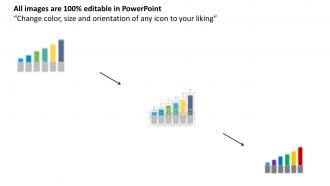
Gráfico de barras para gráfico baseado em ano e design plano de PowerPoint de detalhes financeiros

Rating:
80%
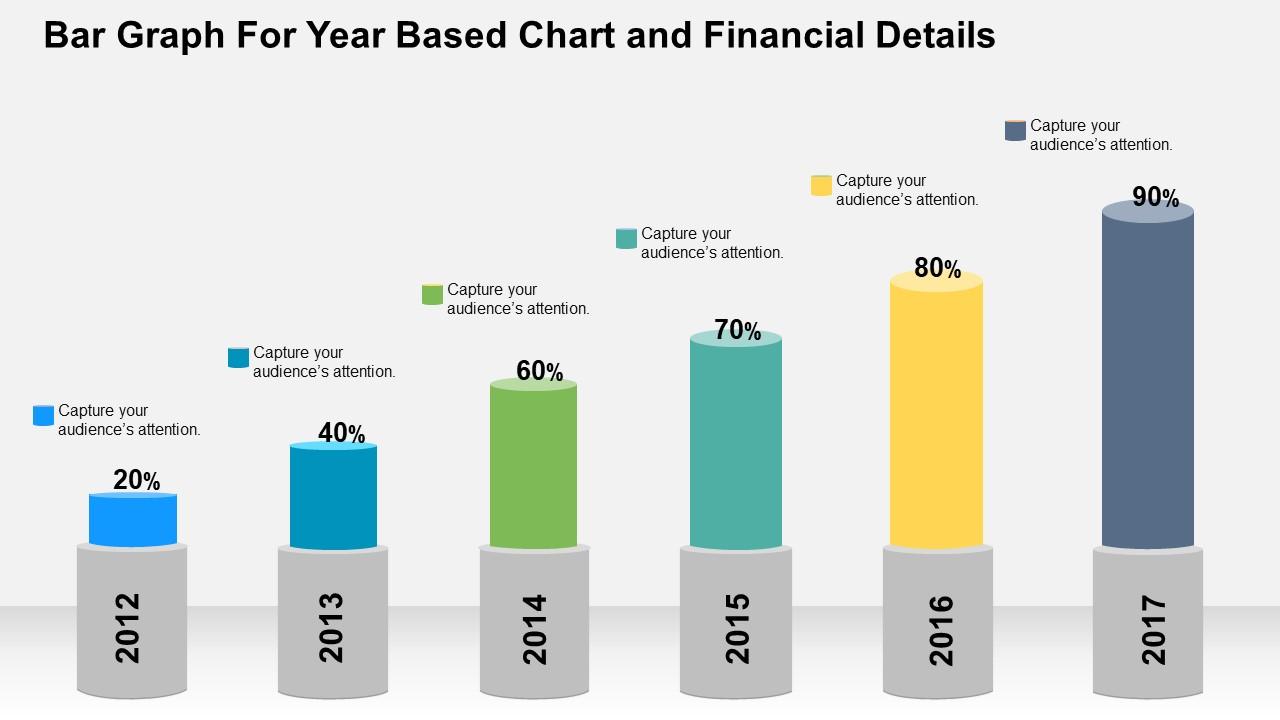
Bar graph for year based chart and financial details flat powerpoint design
Slide 1 of 4
Favourites Favourites

Try Before you Buy Download Free Sample Product

Audience Impress Your
Audience
Editable 100%
Editable
Time Save Hours
of Time
The Biggest Sale is ending soon in
0
0
:
0
0
:
0
0
Rating:
80%

Recursos desses slides de apresentação do PowerPoint:

Desenho visual de diagramas de apresentação do PowerPoint. Carregado com benefícios incomparáveis. Pode ser utilizado para exibir informações simples e complexas. Download instantâneo para economizar seu tempo e esforço. Funciona sem esforço com todos os softwares. Pode ser personalizado adicionando marca registrada, logotipo, marca e símbolos da empresa. Padrões bem organizados para evitar qualquer confusão ou dúvida.

FAQs for Bar graph for year based chart and financial details

Honestly, bar charts seem simple but there's more to them than you'd think. Start with proper scaling and consistent colors - maybe throw in one accent color if you want something to pop. Label your axes clearly (obvious but people mess this up constantly). Spacing between bars is weirdly important too. Too tight looks cramped, too wide kills the visual punch. Keep titles short but descriptive. Here's the thing though - more than 7-8 bars and you're asking for trouble. Just split it up instead. Oh, and do the "back of the room" test. If you can't read it from there, nobody else will either.

Honestly, colors can totally make or break your graph. I've sat through so many presentations where everything just looked like mush because they used similar shades. Go for high contrast - makes comparisons way easier. Stick to your brand colors if you have them, but avoid red/green combos since some people can't distinguish those. Oh, and don't go crazy with like 10 different colors - 3 or 4 max works best. Here's something I learned the hard way: print it in grayscale first to check if you can still tell everything apart.

Don't mess with the y-axis - start it at zero or your data will look way more dramatic than it actually is. Skip the 3D effects and crazy colors too, they're just distracting. I hate when people cram so many categories that the labels overlap and become unreadable. Bar width matters more than you'd think - there's definitely a sweet spot between too chunky and too skinny. Also put units on your axes! Nothing's more annoying than a chart where you can't tell what you're actually looking at. Keep the title clear and let the numbers do the talking.

Grouped bars are usually your best bet - just put the different categories side by side for each dataset. Way easier for people to read than other options. If you're showing parts of a whole, stacked bars work, but honestly they get confusing fast if you have too many segments. You could also just do separate charts next to each other, which sounds basic but sometimes that's cleaner. Just make sure your colors stay consistent and don't mess with different scales or you'll throw people off. I'd stick with grouped bars unless there's a specific reason not to.

Honestly, horizontal bars are lifesavers when your category names are super long - no more tilting your head sideways trying to read "Q3 Marketing Budget Allocation" or whatever. Plus they handle tons of categories way better since you're scrolling down instead of cramming everything horizontally. Vertical bars? They're perfect for simple stuff like years or short labels. There's something satisfying about that upward growth visual too - feels more natural somehow. My rule of thumb: if you've got wordy labels or like 7+ categories, go horizontal. Otherwise vertical just looks cleaner and more familiar to people.

Okay so first thing - don't go crazy with colors like I did once (looked like a Skittles explosion lol). Stick to consistent colors and clean spacing. Make your bars wide enough to read but not chunky looking. Always start your y-axis at zero or you'll accidentally mislead people. Font should be simple and readable - nothing fancy. Keep it to 5-7 categories max because more than that gets messy fast. Put data labels right on the bars if they fit, saves people from having to decode the axis. Oh and make your labels descriptive but short.

Honestly, Excel's probably your best bet - boring but it works and everyone has it. Google Sheets is solid too if you're collaborating with people. Tableau makes beautiful charts but it's kind of a pain to learn unless you really need those fancy features. Oh, and don't sleep on Canva! I used it last month for a presentation and it actually looked way more professional than my usual Excel disasters. PowerPoint can work too if you want everything branded and matching. But real talk? Just use whatever you already have installed. Excel or Google Sheets will cover like 90% of what you need anyway.

Annotations are seriously underrated on bar charts. Most people barely scan graphs anyway, so you want to point them toward the good stuff. Call out weird spikes with labels like "campaign launch" or "holiday boost" right on the bars. Otherwise they're just staring at numbers trying to figure out what happened. Short ones work best - maybe 2-3 max so it doesn't look cluttered. I've seen way too many presentations where people miss the whole point because the chart doesn't tell them what to look at. Add some context and suddenly everyone gets it instantly.

Scale on bar graphs is everything - it totally controls how people read your data. Start your y-axis at zero and small differences look normal. But zoom into a tight range? Those same tiny changes suddenly seem huge. I've watched so many presentations where they started at like 98% instead of 0% just to make boring changes look dramatic (probably on purpose tbh). Your axis choice either shows the real story or completely warps it. Always double-check those ranges - are you giving people the right context to actually understand what's happening?

So stacked bar graphs are great when you want to show the total AND what makes up that total. Like if you're looking at sales by quarter but also want to see which products contributed to each quarter - regular bars would be a nightmare trying to fit all that info. I'll be honest, I use them way too much because they look fancy, but they work best when people need to compare both the big picture and the individual pieces. Oh, and don't make the segments super tiny or nobody can read them. That defeats the whole point.

Honestly, animated bar graphs are *so* much cooler than static ones. Start with bars growing from zero - it's weirdly satisfying to watch. I'm totally obsessed with the ones that pulse or shift colors as they grow! Try having labels slide in after each bar appears. Particle effects work great for highlighting important data too, though don't go crazy with them. The timing matters way more than you'd think - you want that suspense buildup, not visual chaos. Master the basic grow animation first. Once that's solid, then add the fancy stuff.

Honestly, start with who you're presenting to. Executives just want the main takeaways, but analysts can handle way more detail. How familiar are they with your topic? That totally changes how much background you need to give them. Age matters too - older folks might struggle with fancy interactive stuff. Cultural background affects things like color choices (red means different things in different places). The biggest mistake? Making charts too complex for beginners or dumbing things down for people who actually know their stuff. I always ask myself what they already know before I even start designing.

Honestly, interactive bar graphs are a game changer. Your audience can actually explore the data instead of just sitting there while you click through slides. People get way more engaged when they can hover over bars to see exact numbers or click to filter between different data sets. I've seen it turn those glazed-over conference room faces into people who actually ask questions about what they're looking at. Some tools even let you add drill-down features - probably overkill for most presentations though. Start with simple hover tooltips since most presentation software supports that now and it's super quick to set up.

Make your labels super clear so people don't have to guess what they're looking at. X-axis should have short category names - rotate them 45 degrees if they're cramped (looks weird but better than unreadable). Start your y-axis at zero and include units. I'm a bit obsessive about adding descriptive titles above each axis too. Keep fonts readable and formatting consistent. Honestly, the best test is showing it to someone else first. If they squint or look confused, you've got more work to do.

Okay so here's the thing - don't just throw all your data up there at once, it's way too much. Build the story piece by piece instead. Start with your baseline, then animate each bar appearing so people can actually follow what's happening. I always highlight the important bars with color and keep the rest gray or whatever. Your title should basically give away the punchline upfront. Oh and those little callout boxes? Super helpful for explaining why something spiked or dropped. Most presentations I see totally miss this part. End with a clear "here's what this means for you" statement so people know what to do next.

Ratings and Reviews

80% of 100
Review Form
Write a review
Most Relevant Reviews
  1. 80%

    by Demetrius Boyd

    Designs have enough space to add content.
  2. 80%

    by Duane Ray

    Easily Editable.

2 Item(s)

per page: