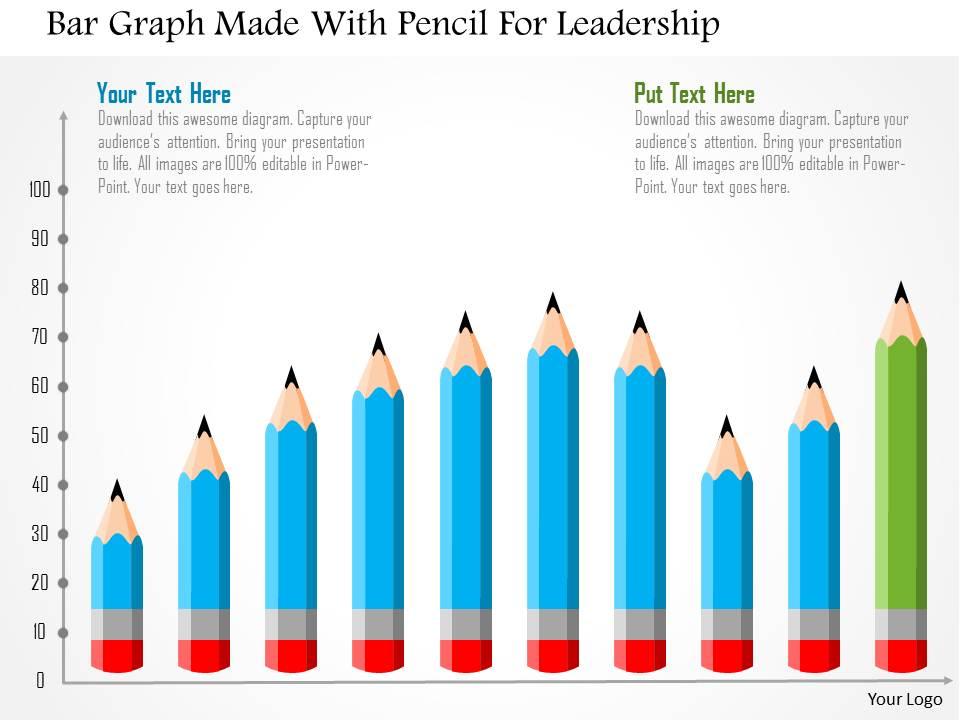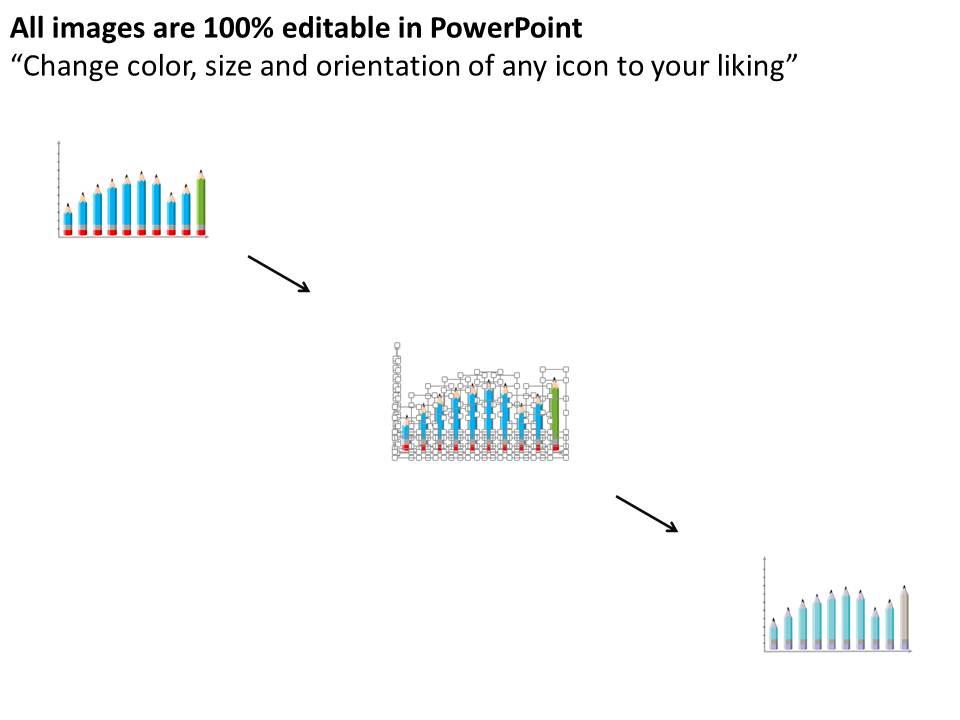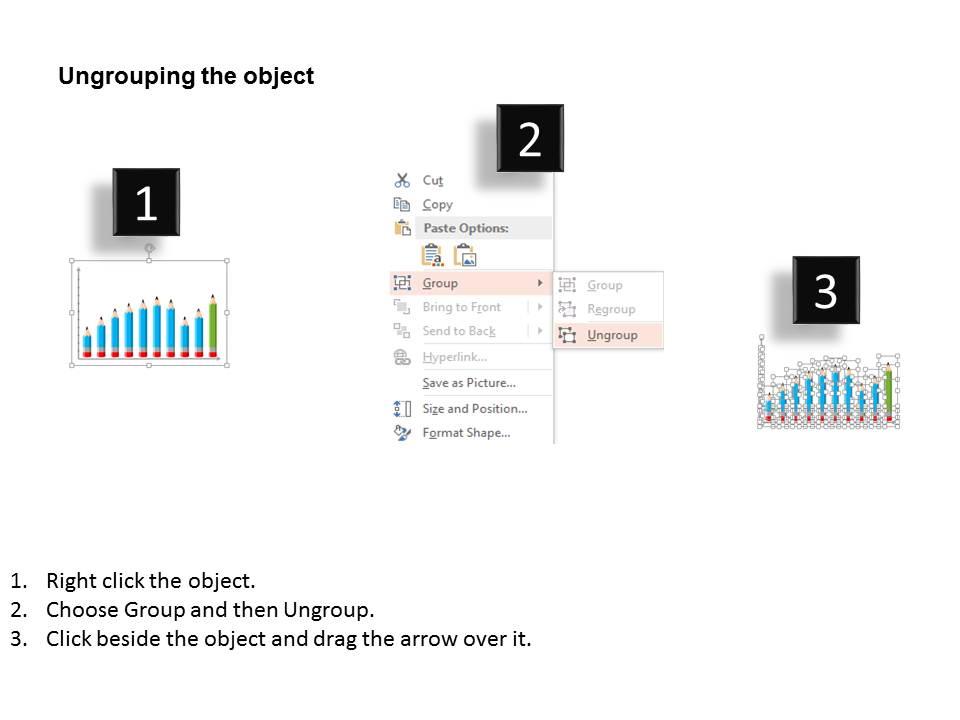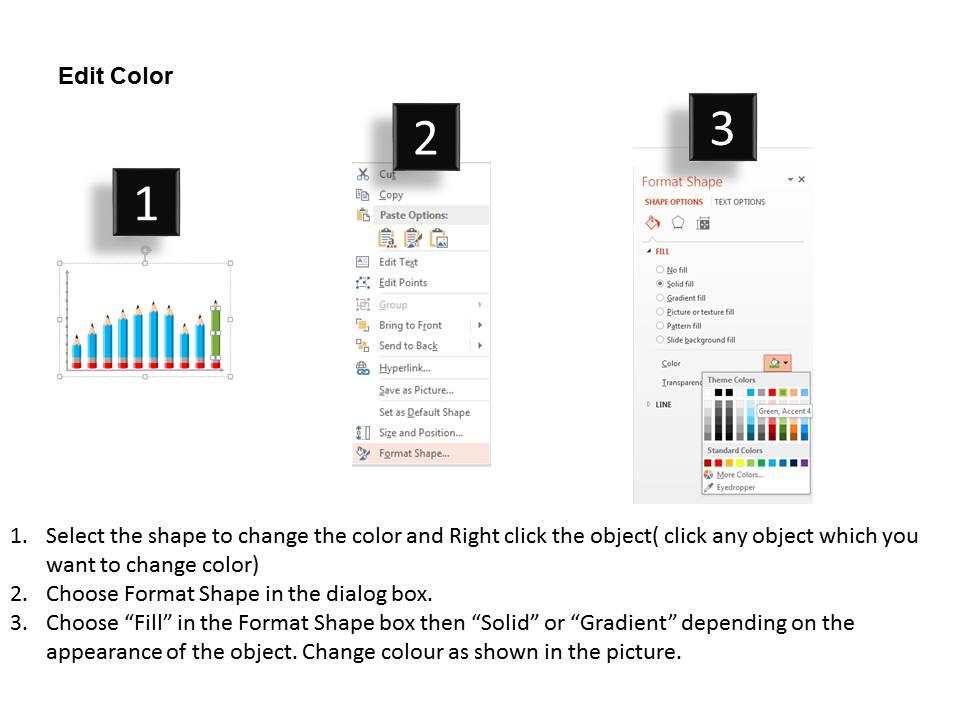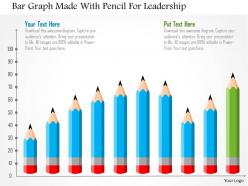
Bar graph made with pencil for leadership flat powerpoint design

Rating:
80%
Bar graph made with pencil for leadership flat powerpoint design
Slide 1 of 5
Favourites Favourites

Try Before you Buy Download Free Sample Product

Audience Impress Your
Audience
Editable 100%
Editable
Time Save Hours
of Time
The Biggest Sale is ending soon in
0
0
:
0
0
:
0
0
Rating:
80%
We are proud to present our bar graph made with pencil for leadership flat powerpoint design. Graphic of bar graph and pencil has been used to design this power point template. This PPT diagram contains the concept of leadership. Use this PPT diagram for business and marketing related presentations.

People who downloaded this PowerPoint presentation also viewed the following :

FAQs for Bar graph made with pencil for leadership

Effective bar graph elements in leadership presentations include clear titles, labeled axes, consistent color schemes, readable fonts, and strategic data comparisons. These visual components enhance executive decision-making by simplifying complex metrics, highlighting performance trends, and enabling quick identification of organizational strengths and opportunities, ultimately delivering clearer insights and more impactful boardroom communications.

Bar graphs illustrate team performance over time by displaying metrics like sales targets, project completions, customer satisfaction scores, and productivity rates across monthly or quarterly periods. Through visual comparison of performance bars, managers can identify trends, recognize top performers, and address declining metrics, while teams gain clear visibility into their progress, ultimately enhancing accountability and driving continuous improvement across departments.

Professional color schemes for leadership bar graphs include navy and gold, charcoal and teal, or burgundy and silver combinations that convey authority and credibility. These strategic palettes enhance data readability while maintaining executive-level sophistication, with many Fortune 500 companies finding that consistent, high-contrast schemes ultimately deliver clearer insights and stronger stakeholder engagement during critical decision-making presentations.

Leaders can utilize bar graphs to compare departmental outcomes by displaying key metrics like revenue, productivity, cost efficiency, customer satisfaction scores, and goal achievement rates in clear visual formats. These comparative visualizations enable executives to quickly identify top-performing departments, allocate resources strategically, and benchmark performance across teams, ultimately delivering data-driven insights that streamline decision-making and enhance organizational accountability.

Bar graphs in PowerPoint effectively represent categorical data, comparative metrics, survey results, sales figures, and performance indicators across different groups or time periods. These visualizations excel at showing revenue comparisons between departments, market share analysis, customer satisfaction scores, and budget allocations, enabling leaders to communicate quantitative insights clearly and drive data-informed strategic decisions.

Animating bar graphs enhances audience engagement by creating visual storytelling, maintaining attention through dynamic reveals, and helping audiences process data sequentially rather than overwhelming them with static information. These animated elements enable presenters to control narrative pacing, highlight key comparisons, and deliver memorable data insights, with many leadership teams finding that animated visualizations significantly improve comprehension and retention rates.

**INPUT**: What best practices should be followed when labeling bar graphs for clarity? **OUTPUT**: Bar graph labeling best practices include clear axis titles, consistent data labels, readable font sizes, descriptive legends, and strategic color coding. These elements enhance comprehension by eliminating ambiguity, reducing interpretation time, and enabling quick decision-making, with many leadership presentations finding that well-labeled visuals significantly improve stakeholder engagement and strategic alignment. [Word count: 54 words]

Bar graphs support decision-making in leadership roles by transforming complex datasets into clear visual comparisons, enabling quick identification of trends, performance gaps, and resource allocation priorities. Through immediate visual clarity, leaders can communicate strategic insights to stakeholders more effectively, accelerate consensus-building in meetings, and make data-driven choices that enhance operational efficiency and competitive positioning.

Common pitfalls include using inappropriate scale ratios, overcrowding data points, choosing poor color contrasts, omitting clear labels, and starting axes at non-zero values that distort comparisons. These mistakes undermine data credibility and audience comprehension, with many presenters finding that simplified designs, consistent scaling, and strategic color choices ultimately deliver clearer insights and stronger leadership communication.

Leaders ensure bar graph accessibility by incorporating high contrast colors, clear labeling, alternative text descriptions, and multiple data representation formats beyond visual elements. These accessibility features enhance comprehension across diverse audiences, with many organizations finding that inclusive design practices ultimately deliver broader engagement and more effective communication outcomes.

Storytelling techniques with bar graphs include sequential data reveals, comparative narratives, trend-focused progressions, problem-solution frameworks, and audience-specific contextual framing. These approaches enhance presentations by guiding viewers through logical data journeys, highlighting key performance shifts, and connecting statistical insights to strategic business outcomes, ultimately delivering more compelling and memorable leadership communications.

Bar graphs communicate financial performance metrics effectively by displaying revenue trends, profit margins, expense breakdowns, quarterly comparisons, and budget variances in visually clear formats. Through strategic color coding and comparative layouts, organizations streamline complex financial data presentation, enabling stakeholders to quickly identify growth patterns, cost inefficiencies, and performance gaps, ultimately delivering enhanced transparency and faster decision-making processes.

**INPUT**: What tools or software can help create dynamic bar graphs for PowerPoint presentations? **OUTPUT**: Tools for creating dynamic bar graphs include PowerPoint's built-in chart features, Excel integration, Tableau, Power BI, and specialized presentation platforms like SlideTeam's templates. These solutions streamline data visualization by offering real-time updates, interactive elements, and professional formatting, with many organizations finding that strategic combinations of these tools ultimately deliver more engaging presentations and enhanced audience comprehension. [Word count: 60 words]

Bar graphs effectively highlight resource allocation disparities by visually displaying budget, staffing, equipment, and time distributions across teams through comparative bar heights that make inequities immediately apparent. This visualization enables leadership to identify underresourced departments, justify strategic reallocations, and demonstrate transparency in resource distribution, with many organizations finding that clear visual data facilitates more informed decision-making and equitable resource planning.

Audience analysis determines bar graph complexity, data granularity, visual styling, and narrative focus, ensuring presentations resonate with viewers' expertise levels, decision-making needs, and time constraints. Through strategic audience consideration, presenters can streamline data visualization, enhance comprehension rates, and deliver more compelling insights, with many organizations finding that tailored bar graphs significantly improve stakeholder engagement and presentation outcomes.

Ratings and Reviews

80% of 100
Write a review
Most Relevant Reviews
  1. 80%

    by Cyril Gibson

    Great experience, I would definitely use your services further.
  2. 80%

    by Delmar Wagner

    Excellent Designs.

2 Item(s)

per page: