

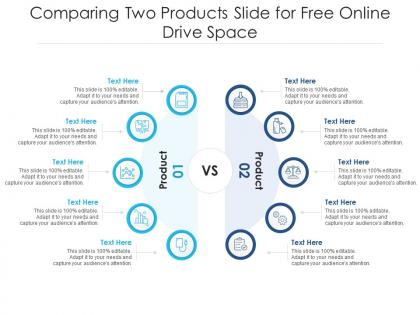
Comparing two products slide for free online drive infographic template




Try Before you Buy Download Free Sample Product
 Impress Your
 Audience
 100%
100% Editable
 Save Hours
 of Time


Give your usual presentation a brand new look by enhancing its aesthetics using this Comparing Two Products Slide For Free Online Drive Infographic Template. This PPT slide is drafted using different vector based icons, graphics, and other visual content that can be used by any industry professional. As such, it can be used to display and share information on any topic. With a combination of invaluable information and visual content, this is a great template to use for impressing your viewers, staff, management, or any other individual. This template is designed in such a way that it will not only help you give clarifiers but also reinforce positive actions by your target audience. The feature of in built editable components further adds to the versatility of this slide. Therefore, download it now.
People who downloaded this PowerPoint presentation also viewed the following :
Comparing two products slide for free online drive infographic template with all 2 slides:
Use our Comparing Two Products Slide For Free Online Drive Infographic Template to effectively help you save your valuable time. They are readymade to fit into any presentation structure.
FAQs for Comparing two products slide for free online
Put the product names and pics right at the top, then add 3-5 main things you're comparing underneath. Price should be super obvious - that's what everyone looks for first anyway. I'd use simple icons for each feature so people can scan fast. Green for "yes" and red for "no" works great, honestly keeps it clean. Don't stuff too much text in there or you'll lose people. Oh, and definitely end with some kind of recommendation section! Like "best for beginners" or whatever. Otherwise people just stare at your chart wondering what they're supposed to pick.
Honestly, colors make or break these comparison graphics. Pick distinct colors for each product and stick with them throughout - I usually match the actual brand colors when I can, but any contrasting combo works. Just make sure people can actually read it! Use brighter shades for the important stuff, muted ones for boring specs. Creates that visual flow you need. Oh and definitely test it on a few people first - what looks obvious to you might be confusing to everyone else. Trust me on that one.
Honestly, comparison charts and side-by-side tables are your best bet - they make differences super obvious. Bar charts work really well for stuff like price or performance ratings. I'm kinda obsessed with those clean side-by-side layouts because people can just scan them quickly. Color coding helps a ton too. Green for good stuff, red for bad, checkmarks vs X's - you know the drill. Oh, and visual icons are clutch. The whole point is making it dead simple so people don't have to think too hard about which option wins for what they need.
Honestly, infographics are a game-changer for product comparisons. Your customers can scan everything at once instead of clicking through a million different pages. There's this crazy stat about people processing visuals like 60,000 times faster than text – which explains why I always skip the fine print, lol. But seriously, when you lay out features and prices side-by-side in a chart or grid format, people actually remember what they saw later. Way better than making them dig through paragraphs of specs. Plus they'll stick around longer on your page instead of bouncing. Worth trying for your next comparison.
Don't cram everything into one chart - it gets messy fast and nobody wants to decode that chaos. Cherry-picking data is tempting but people aren't stupid, they'll call you out. Your fonts need to be readable too (seriously, why do people think tiny text looks fancy?). Keep colors consistent across the whole thing. Oh, and don't compare random stuff like software vs hardware - makes zero sense. Check that your data's actually current because outdated stats make you look lazy. Test it on someone else first. You'll miss things.
Honestly, just throw real customer quotes right into your comparison sections - like actual star ratings and testimonial bits next to each feature. Way more trustworthy that way. People relate to "the battery dies so fast ugh" instead of boring specs like "8-hour battery life." I'd grab maybe 3-5 real reviews for each product you're comparing. Pull out the quotes that made you go "oh totally." Speech bubbles work great for this stuff too. Creates those dedicated feedback spots without looking weird. Trust me, when people see actual complaints and praise from other users, they'll actually read your comparisons instead of just skimming past them.
Okay so typography is literally make-or-break for infographics. Go with clean, readable fonts - sans-serif works best for headings and data. I swear, I've watched people tank amazing content with some weird decorative font that's unreadable on phones. Your font sizes need to create a clear hierarchy so people naturally follow the flow. Don't use more than 2-3 font weights or it gets messy fast. Here's what saved me tons of headaches: test everything at phone size first. If you're squinting at it, your audience definitely can't read it.
Honestly, you've gotta tailor it to whoever's actually looking at the thing. Tech people want all the specs and nitty-gritty details. Regular folks? They just care about what it'll do for them and if it's easy to use. I swear, most infographics bomb because they're way too technical for normal people to get. Try different color schemes too - like green price highlights for bargain hunters, performance badges for the speed demons. Maybe create separate sections that actually speak to each group. Oh, and definitely map out your main audiences first and figure out their top 3 priorities. That'll save you tons of headaches later.
So I'd go with a side-by-side layout - way easier to compare that way. Put the specs that actually matter at the top, not the marketing BS like "premium quality" that literally everyone claims. Group similar stuff together and keep descriptions consistent. If you're doing bullet points for one product, do it for all of them. Color coding works great too, especially for different price ranges. Oh and test it out - show someone for like 10 seconds and see what sticks. You'll be surprised how much people miss when there's too much going on.
Icons are basically visual shortcuts - way faster than making people read everything. Green checkmarks, X's, star ratings, that kind of stuff. People instantly get what you mean without thinking about it. Like, you see a battery icon and immediately know the power level vs reading "battery at 67%" or whatever. Just stick to symbols everyone already knows so you're not confusing anyone. I'd start by swapping out the text you use most often. Oh and don't go overboard - sometimes you actually do need words, but icons work great for the repetitive stuff.
Honestly, start with the manufacturer specs and then hit up Consumer Reports or CNET - they're pretty solid. Customer reviews on Amazon or Best Buy can be helpful too, but take them with a grain of salt sometimes. I learned this the hard way after trusting some sketchy blog post once. Cross-check at least 2-3 sources because specs get outdated or just flat-out wrong on certain sites. Third-party testing labs are amazing if you can find them for whatever you're researching. Skip the random forums though - they'll just confuse you more. Use official sources first, then reviews to see how stuff actually performs in real life.
So basically, create a little story around someone's problem instead of just listing features. Like "Sarah's trying to pick between these two options" - then follow her through the whole decision process. Way more engaging than boring bullet points. Before/after scenarios work great too. Show how the customer goes from frustrated to happy rather than just comparing specs. I actually love using little icons or journey maps for this stuff - makes it way less dry. Oh, and try doing a "day in the life" angle for your next one. People eat that up.
Honestly, Canva's probably your best bet to start - it's dead simple and has a bunch of comparison templates already made. Adobe Illustrator gives you way more creative control but you'll spend forever learning it. If your team needs to collaborate, Figma's clutch since everyone can jump in and edit together. I've actually seen some surprisingly good infographics made in PowerPoint too, though that's definitely the hard way to do it. Start with Canva, get something polished quick, then maybe level up to fancier tools once you know what you need.
Dude, static infographics are so 2019. Add some clickable hotspots that show detailed specs when people tap them. Hover effects for pricing breakdowns work really well too. Interactive charts are money - let users filter by what they actually care about, like price or specific features. Oh, and embedded polls where people vote for their fave option? That stuff keeps them engaged way longer. The whole point is making people feel like they're exploring, not just staring at a boring graphic. I'd start simple with one interactive thing and see how it goes.
Honestly, start with conversion rates - that's what actually matters for sales. Are people buying after seeing your infographic? Then check click-through rates to see if it's compelling enough to get them to your product pages. Social shares are pretty telling too since they show organic reach. Oh, and track how long people spend looking at it - if they're bouncing immediately, that's a red flag. UTM parameters are clutch for following the whole customer journey from view to purchase. But yeah, focus on conversions and CTRs first. Those two will tell you if it's actually driving sales or just looking pretty.
-
Easily Understandable slides.
-
Visually stunning presentation, love the content.
-
Designs have enough space to add content.
-
Great quality product.
-
Excellent template with unique design.