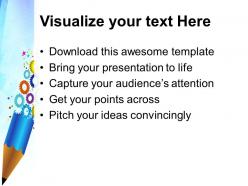
Powerpoint templates for education gears and pencil business ppt backgrounds

Rating:
80%
Powerpoint templates for education gears and pencil business ppt backgrounds
Slide 1 of 3
Favourites Favourites

Try Before you Buy Download Free Sample Product

Audience Impress Your
Audience
Editable 100%
Editable
Time Save Hours
of Time
The Biggest Sale is ending soon in
0
0
:
0
0
:
0
0
Rating:
80%
We are proud to present our powerpoint templates for education gears and pencil business ppt backgrounds. This gears and pencils PPT background is a modern and professional template for PowerPoint and Impress. Perfect for personal, business and corporate use.

People who downloaded this PowerPoint presentation also viewed the following :

FAQs for Powerpoint templates for education gears and pencil

You'll want templates with interactive stuff - clickable buttons, drag-and-drop games, maybe some embedded quizzes. Keeps kids from zoning out completely. Bright colors work way better than boring ones, and honestly? Pack in as many visuals as possible because text-heavy slides are where attention goes to die. Animation triggers are clutch for revealing info bit by bit. Oh, and don't forget accessibility features like high contrast and readable fonts - some templates totally bomb on this. I'd start with ones that already have activity slides built in, then just customize the colors and fonts for whatever subject you're teaching.

So for little kids, go big with fonts and colors - like, really bright stuff that'll grab their attention. Tons of pictures, barely any text per slide. Middle schoolers can handle more content but still need fun visuals to keep them interested. High schoolers and college kids? They're fine with smaller text and more data-heavy slides. The font size thing is honestly game-changing - I learned that the hard way once when half my 3rd graders couldn't read my slides from the back. Oh, and younger kids need way more interactive stuff and transitions or they'll zone out. Test your templates first though!

Honestly, white space is your friend with complex stuff - students get overwhelmed fast. I always color-code everything: blue for definitions, green for examples, you get it. Make your main points big and bold, then bullet the smaller details underneath. Skip the text walls! Use simple icons and diagrams instead (way more engaging anyway). Oh, and don't get cute with fonts - Calibri or Arial work fine. You don't want kids squinting at some fancy typeface when they should be learning. Create like 3-4 slide templates you can just reuse. Saves time too.

Oh totally - colors and fonts make a huge difference! Dark text on light backgrounds is way easier to read, and blues/greens actually help kids focus better. I'd stick with simple fonts too, nothing fancy. Learned that lesson when I made these awful yellow slides once... students couldn't see anything lol. Font size should be big - like 24pt minimum. Don't go crazy with colors either, maybe 2-3 max or it gets overwhelming. Honestly wish more teachers knew this stuff because squinting at presentations sucks for everyone.

Honestly, go like 70% visuals, 30% text max. Pick your main image or diagram first, then sprinkle in just enough words to back it up. Students zone out if there's too much reading anyway - I learned this the hard way lol. Short bullet points work way better than paragraphs. Your pictures should do the heavy lifting while text just fills in gaps. Don't make them compete with each other. I always think of it like this: if someone glanced at your slide for 3 seconds, would they get it from the visual alone? That's your goal right there.

Go with templates that have lots of white space - your pencils need room to breathe visually. Clean backgrounds are key so people can actually see the product details without squinting. I'd add slides for specs, different uses (students, artists, whatever), and throw in some customer reviews if you have them. The education angle is honestly pretty solid since pencils scream "school supplies." Just make sure your photos don't look like garbage - good lighting makes or breaks everything. Oh, and maybe show them in action? Like actual classroom shots or someone sketching. Keep it simple though.

Go for clean, professional templates that show off your product features and market data well. You'll need solid chart sections for market trends and competitive analysis. Timeline layouts are perfect for your go-to-market strategy. Stick with blue, gray, or white - anything too flashy will hurt you in such a traditional industry. Search "business pitch" or "investor presentation" templates first, then add your pencil imagery. Honestly, I'd avoid the super creative stuff even though it's tempting. The pencil world values reliability over pizzazz.

Honestly, just bake the story structure right into your slides - problem, journey, solution works every time. Create character placeholders (historical figures, scientists, whatever fits) and build in those story beats like conflict/resolution. Visual stuff helps too - timelines, before/after slides, step-by-step journey maps. Students actually watch those instead of zoning out. Oh, and definitely start with a hook slide template - it'll force you away from the boring info-dump approach. The whole point is guiding teachers toward narrative flow instead of just cramming facts together. Trust me, it changes how you plan lessons completely.

Dude, you've gotta try interactive PowerPoint templates! Kids can actually click stuff, drag things around, answer polls - way better than just staring at boring slides. They'll remember more because they're doing something instead of zoning out (which, let's be real, happens ALL the time with regular presentations). The templates basically do half your prep work too. You get instant feedback on whether they're getting it or completely lost. Oh, and start with those click-to-reveal ones if you're just beginning - trust me, total game changer for keeping their attention.

Honestly, templates are a lifesaver for showcasing your eco stuff without reinventing the wheel each time. You can highlight sustainable wood sourcing, recycled materials, carbon-neutral manufacturing - all with consistent visuals that don't look thrown together. Most companies just dump their green initiatives into boring bullet points (ugh). Templates fix that. Get one with infographic elements so your sustainability stats actually pop. The best ones have dedicated sections for metrics and certifications you can swap out easily. Oh, and make sure there's space for environmental impact data - that's what people actually want to see these days.

Keep your slide layouts simple and make fonts way bigger - everyone's squinting at laptop screens now. Go with dark backgrounds too, trust me on this one. Your eyes get fried staring at bright slides all day on Zoom. Add spaces for polls and breakout instructions since you'll probably use those. Don't forget slide numbers! Students always ask "which slide was that?" later. Just grab your regular education templates and ditch the fancy graphics - they look terrible once video compression gets to them anyway. Sometimes less really is more with online stuff.

Oh man, culture stuff is SO important for educational design! Colors are tricky - red screams "danger" to some people but means good luck to others. That'll mess with how kids react to your templates. Don't forget about reading direction either (some go right-to-left), and honestly? Even pencil imagery can feel weird if that's not what they actually use in school. Authority figures are another thing - teacher-student dynamics aren't the same everywhere. I'd definitely research your target area's educational norms first. Also look into their color psychology before you start designing anything.

Honestly, just go with the basics that everyone can actually see from the back row. Bar charts are your best friend for comparing stuff - like test scores or how many kids are in each grade. Line graphs work perfectly when you're showing progress over time, like reading levels throughout the year. I'd skip pie charts unless you have like 3-4 segments max - they get messy fast and kids squint trying to figure them out. Make your fonts huge and use colors that actually contrast. Oh, and definitely sit in the worst seat in your room beforehand to test if you can read everything. Trust me on that one.

Honestly, less is more with presentation templates. Stick to 2-3 colors tops - you want people listening to you, not staring at some crazy design. Clean layouts with lots of white space are your best bet, especially for education stuff. I've sat through way too many presentations where the template was more interesting than what the person was actually saying! Pick one font and stick with it. Avoid those templates with busy backgrounds or weird animations - they're just distracting. Oh, and don't switch templates halfway through. That looks super unprofessional.

Just swap out the placeholder text with your actual learning objectives first. Then mess with the colors - I always do green for science, blue for math, that kind of thing. Replace those generic stock photos with something that actually relates to what you're teaching. Most templates let you add or delete slides pretty easily too. Oh, and edit the slide masters before you do anything else - saves you so much time since changes apply to everything automatically. Font changes are totally doable too (and honestly, Comic Sans isn't that bad for elementary stuff). Save your customized version as a new template when you're done. You'll thank yourself later.

Ratings and Reviews

80% of 100
Write a review
Most Relevant Reviews
  1. 80%

    by Donte Duncan

    Great experience, I would definitely use your services further.
  2. 80%

    by Cody Bell

    Designs have enough space to add content.

2 Item(s)

per page: