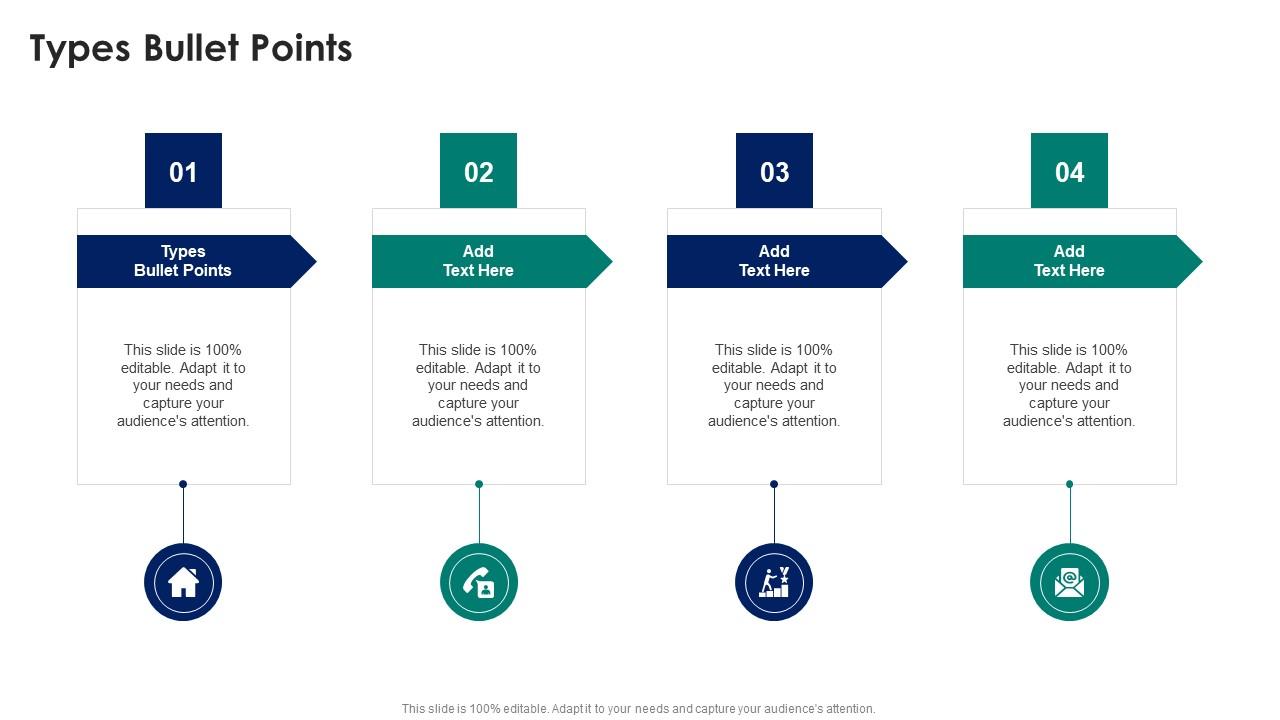
Types Bullet Points In Powerpoint And Google Slides Cpb
Try Before you Buy Download Free Sample Product
Audience
Editable
of Time
Our Types Bullet Points In Powerpoint And Google Slides Cpb are topically designed to provide an attractive backdrop to any subject. Use them to look like a presentation pro.
People who downloaded this PowerPoint presentation also viewed the following :
Types Bullet Points In Powerpoint And Google Slides Cpb with all 9 slides:
Use our Types Bullet Points In Powerpoint And Google Slides Cpb to effectively help you save your valuable time. They are readymade to fit into any presentation structure.
FAQs for Types Bullet Points In Powerpoint And
PowerPoint and Google Slides offer various bullet point styles including standard dots, arrows, checkmarks, numbered lists, custom symbols, and geometric shapes like squares or diamonds. These presentation platforms enable users to enhance visual hierarchy, improve readability, and maintain audience engagement through strategic formatting choices, with many professionals finding that varied bullet styles significantly streamline information delivery and create more dynamic, visually appealing slide presentations.
You can customize bullet point shapes by accessing Format menu options, selecting custom symbols from wingdings or character maps, uploading brand-specific icons, or using shape tools to create unique geometric designs. Through strategic customization, presentations achieve stronger visual cohesion, enhanced brand alignment, and improved audience engagement, with many professionals finding that themed bullets significantly elevate their content's perceived quality and memorability.
Bullet points significantly enhance audience engagement by improving information retention, creating visual breathing space, and enabling presenters to maintain eye contact rather than reading dense text blocks. When strategically implemented across industries like consulting, education, and corporate training, bullet points help audiences follow complex arguments more easily, process key takeaways faster, and stay focused throughout longer presentations, ultimately delivering higher comprehension rates and more interactive discussions.
You can adjust bullet point indentation by using the ruler tool, paragraph formatting options, or the Increase/Decrease Indent buttons in both PowerPoint and Google Slides. These formatting controls enable you to create hierarchical information structures, improve visual flow, and enhance readability through consistent spacing, with many presenters finding that proper indentation delivers clearer messaging and more professional-looking slides.
Yes, both PowerPoint and Google Slides allow you to replace standard bullet points with custom images, icons, or symbols through their bullet formatting options. In PowerPoint, select your text, go to the bullet dropdown, choose "Bullets and Numbering," then "Picture" to upload custom images, while Google Slides offers similar functionality through Format > Bullets & Numbering > List Options, enabling organizations to create branded, visually engaging presentations that enhance audience retention and reinforce corporate identity.
**INPUT**: What are the best practices for using bullet points to emphasize key information? **OUTPUT**: Best practices for emphasizing key information with bullet points include maintaining consistent formatting, limiting items to 5-7 per slide, using parallel structure, and selecting appropriate bullet styles that align with your presentation's tone. These approaches enhance audience comprehension by creating visual hierarchy, reducing cognitive load, and directing attention to critical messages, with many organizations finding that strategic bullet point design significantly improves information retention and presentation effectiveness.
Multi-level bullet points organize complex information by creating hierarchical structures that break down main topics into subtopics, supporting details, and specific examples. This approach enables presenters to guide audiences through layered content systematically, with many organizations finding that strategic indentation and consistent formatting enhance comprehension, reduce cognitive overload, and ultimately deliver clearer communication outcomes.
PowerPoint offers more extensive bullet customization options including custom symbols, picture bullets, advanced formatting controls, and detailed spacing adjustments, while Google Slides provides basic bullet styles, colors, and standard symbols with simpler formatting tools. While PowerPoint delivers comprehensive design flexibility for complex presentations, Google Slides streamlines the process with intuitive options, with many organizations finding that both platforms effectively enhance content organization and visual appeal.
Ensuring consistency in bullet points requires establishing uniform formatting standards for font, size, color, and indentation levels, then applying these systematically across all slides. Through PowerPoint's slide master feature or Google Slides' theme editor, presenters can create standardized bullet styles that automatically maintain visual cohesion, while template libraries and style guides help teams deliver professional presentations with consistent hierarchy and spacing throughout.
In PowerPoint, use Ctrl+Shift+L to add bullet points, Tab to increase indent levels, and Shift+Tab to decrease them, while Google Slides uses Ctrl+Shift+8 for bullets with the same Tab functions. These shortcuts streamline presentation creation by enabling rapid formatting adjustments, consistent hierarchy structuring, and seamless content organization, with many professionals finding that mastering these commands significantly accelerates their workflow and enhances presentation development efficiency.
Visual elements significantly impact bullet point readability by influencing audience comprehension, attention, and information processing speed. Strategic color choices enhance hierarchy and emphasis, while appropriate font selection ensures clarity across different viewing distances and screen sizes, with many presenters finding that consistent visual formatting reduces cognitive load, ultimately delivering more engaging presentations and better audience retention in professional settings.
Common mistakes include overcrowding slides with excessive text, using inconsistent formatting across bullet levels, choosing distracting or overly decorative bullet styles, and failing to maintain parallel structure in content. These presentation pitfalls reduce audience engagement by creating visual clutter, diminishing readability, and overwhelming viewers, with many organizations finding that streamlined, consistently formatted bullet points significantly enhance message clarity and audience retention.
Effective bullet points complement visual aids by providing context, highlighting key insights, and guiding audience attention through strategic placement and concise language. When combined with charts, use bullets to emphasize critical data trends or implications, while pairing them with images to reinforce messaging through brief explanatory text, ultimately creating cohesive presentations that enhance comprehension and retention.
Audience demographics significantly influence bullet point selection through age preferences, professional expectations, cultural considerations, and industry standards. Younger audiences often prefer modern, minimalist symbols, while traditional sectors like banking or legal services favor classic styles, and international presentations require culturally neutral designs that enhance comprehension and engagement across diverse groups.
Bullet points enhance presentation storytelling by organizing key narrative elements, highlighting crucial plot points, and creating visual rhythm that guides audiences through complex information seamlessly. They enable presenters to build tension, reveal insights progressively, and maintain engagement across sectors like financial services and healthcare, ultimately delivering clearer communication and stronger audience retention.
-
“You have the structure in place that are easy to explore new opportunities.I will be recommending your services to other people.”
-
Loved the collection. Editing the presentation was seamless with their templates.