Business powerpoint templates design of confused emoticon sales ppt slides

Rating:
100%
Business powerpoint templates design of confused emoticon sales ppt slides
Slide 1 of 6

You must be logged in to download this presentation.

Favourites Favourites

Try Before you Buy Download Free Sample Product

Audience Impress Your
Audience
Editable 100%
Editable
Time Save Hours
of Time
The Biggest Sale is ending soon in
0
0
:
0
0
:
0
0
Rating:
100%
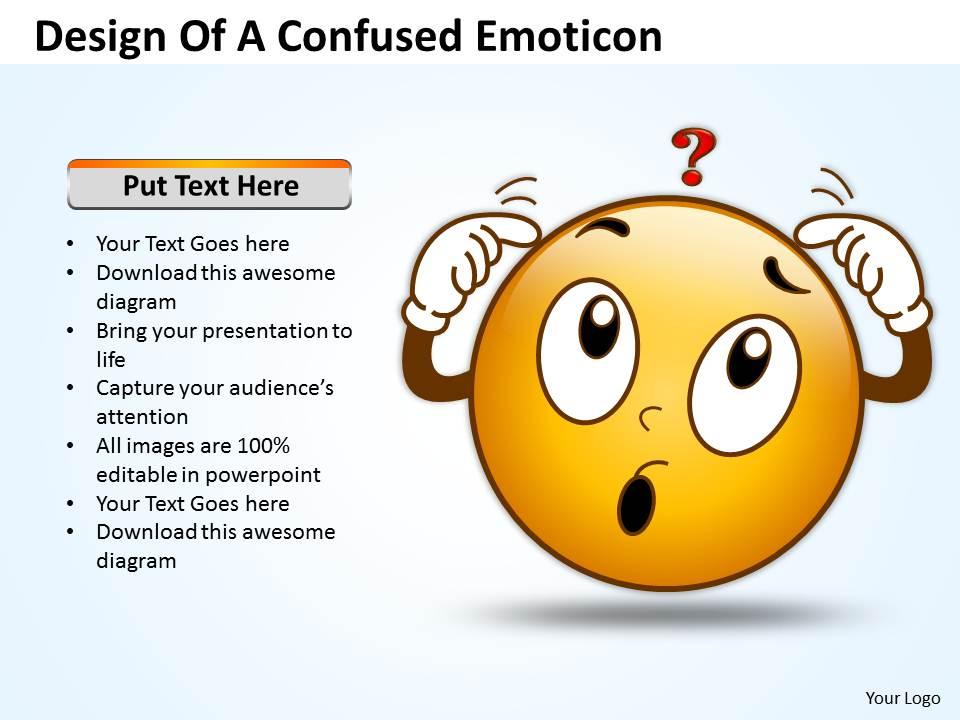
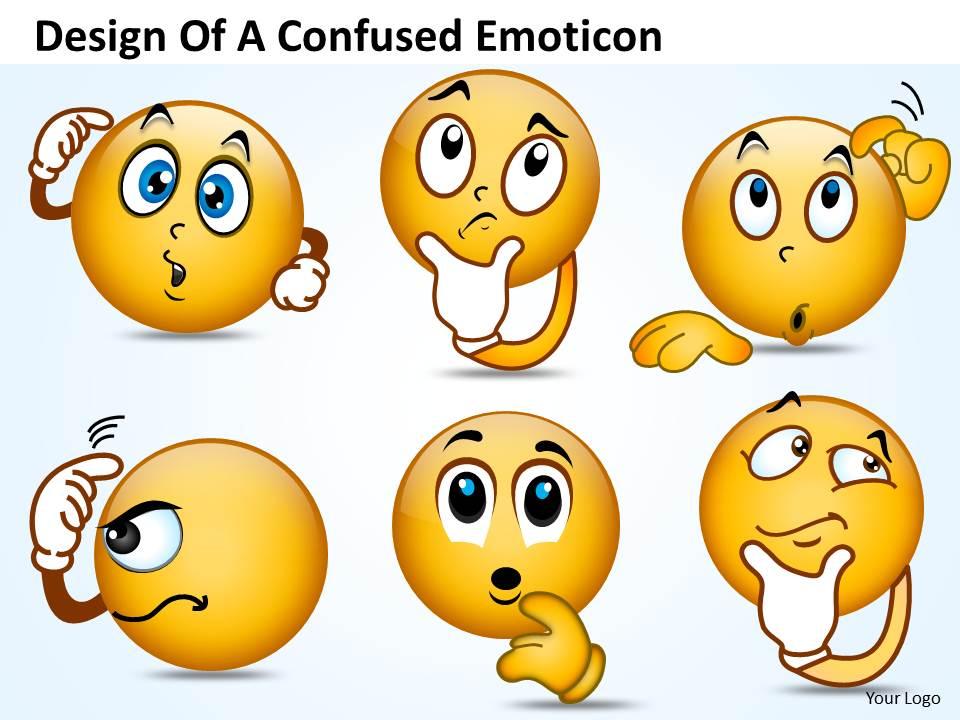
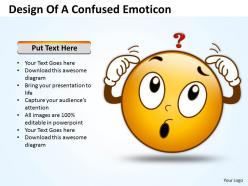
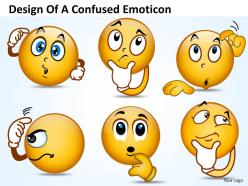
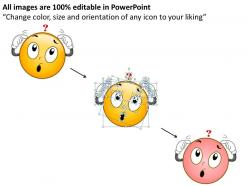
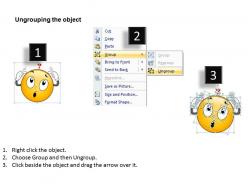
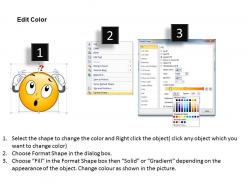
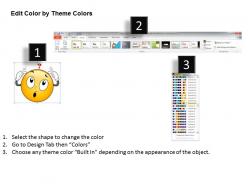
This PowerPoint Diagram shows you the Designs of Confused emoticons expressing their Situation. This Diagram signifies the concept of frustration, fuddle, mess up, mislead, mortify, muddle, mystify, obscure, perplex, perturb, puzzle, shame, stir up, trouble, unhinge, unsettle, upset, and worry.

People who downloaded this PowerPoint presentation also viewed the following :

FAQs for Business powerpoint templates design of confused emoticon

Make sure your fonts and colors stay consistent - that's like 90% of looking professional. Throw in your logo and brand colors obviously. I'd set up different layouts for title slides, bullet points, charts, whatever you usually need. White space is your friend here, don't cram everything together like you're running out of room. High contrast colors so people can actually read it. Oh and definitely add placeholder spots for text and images - makes it way easier when someone else needs to use the template. Trust me, you don't want every presentation looking like a different person made it from scratch.

Colors can totally make or break your presentation - they tap into emotions people don't even realize they have. Blue's your best friend for building trust, especially with financial stuff. Red grabs attention but use it sparingly for urgent points. Green works great for growth numbers. I once made the mistake of using bright orange for a budget deck... let's just say it didn't go over well lol. Stick with blues and grays for business presentations - they look professional. You'll want to test your colors beforehand too, make sure everyone can actually see them properly.

For presentations, just go with the boring classics - Calibri, Arial, Helvetica. Trust me on this one. Clean fonts won't make people squint or get distracted while you're talking through quarterly numbers. Two fonts max. Headers get one, body text gets another. Skip anything fancy or script-y because it looks amateur and nobody in the back row can read it anyway. Size-wise, 24pt minimum for regular text, 36pt+ for titles. I learned this the hard way after watching people struggle to read my tiny text from across the room. Keep it simple and readable - that's literally all that matters.

Your audience won't get confused if you keep things consistent - same colors, fonts, layouts throughout. Makes the whole thing flow smoothly instead of looking like you cobbled together random templates (which honestly drives me crazy when I see it). People can focus on what you're actually saying rather than getting distracted by design chaos. They'll know where to look for info on each slide too. I'd stick with maybe 2-3 templates tops. Oh, and definitely flip through the whole deck beforehand to catch any weird inconsistencies - nothing worse than realizing mid-presentation that slide 12 looks totally off.

Stick with clean charts that actually make sense - bar graphs for comparing stuff, line charts when you're showing trends over time. Pie charts work but honestly they get weird if you have too many pieces. Throw in some simple icons and flowcharts to break up all that text, nobody wants to read walls of words. Basic data tables are clutch when people need the exact numbers. The whole point is making it super scannable. If someone can't get your main idea in like 3 seconds of looking at a slide, you're doing too much.

Oh yeah, this is super doable! First thing - hit up the slide master view since that'll change everything at once instead of doing slides one by one. Swap out their logo for yours, change the colors to match your brand palette, and pick fonts that fit your style guide. Honestly, the font part makes such a huge difference in how professional it looks. Once you've got it how you want, save it as a new template so your teammates can grab it too. Way better than everyone making their own random versions, you know?

Dude, animations totally make presentations way more engaging. Your audience can actually follow complex stuff when you reveal data bit by bit instead of dumping everything at once. Smooth transitions keep people focused too - honestly, I've sat through way too many boring static slides that made me want to check my phone. Keep it simple though! Think fade-ins or clean slide movements, not crazy spinning effects that scream "I just discovered PowerPoint." You'll be shocked how much more professional it looks. Even basic animations make a huge difference.

Hyperlinks and clickable menus are your best friends here. PowerPoint's action buttons make slide transitions super smooth too. Most people totally sleep on these features, which is honestly their loss. Try embedding polls or Q&A sections - they work really well. Videos are obvious but effective. Oh, and trigger animations that respond to clicks? Those are pretty slick for interactive charts where people can dig into different data views. Just don't go crazy with it. I've seen presentations that were basically circus acts and nobody remembered the actual content afterward.

Honestly, infographics saved my butt in so many presentations. Your audience will actually pay attention instead of zoning out when you show them a visual story rather than boring spreadsheets. Charts and icons make complex stuff way easier to digest - executives especially love this since they want the big picture fast. People remember visuals way better than text too (learned this after way too many glazed-over faces during quarterly meetings, ugh). Try swapping out one data-heavy slide with an infographic next time. You'll see the difference immediately.

Dude, you gotta switch up your templates based on your audience. Investors want data charts and clean layouts - they need to see you know your stuff financially. Customer presentations? Go warmer with colors and tell more of a story instead of showing spreadsheets. For employees, add progress trackers and familiar company branding so it feels collaborative. I swear, most people just use the same boring template for everything then act surprised when nobody's engaged. Figure out what each group actually cares about first. Then work backwards from there - makes everything way more effective.

PowerPoint's built-in stuff is honestly better than most people think - just mess around with the Slide Master view to customize templates or make your own. Canva's super user-friendly if design isn't your thing, plus it exports to PowerPoint no problem. Google Slides works too and plays well with PowerPoint files. If you're feeling fancy, Adobe Creative Suite (Illustrator, InDesign) lets you create custom elements to import later. I'd probably start with PowerPoint first though - way easier than jumping into Adobe right away. Oh, and don't sleep on just tweaking existing templates instead of starting completely from scratch.

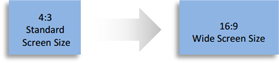
Definitely bump your font to at least 24pt - people are squinting at laptops and phones. Light backgrounds work way better since webcams wash everything out anyway. Keep text minimal because honestly, everyone's multitasking during virtual meetings even if they won't admit it. Animations can get super choppy over video calls, so keep them simple. Use 16:9 aspect ratio and actually test your slides in presentation mode first - I learned that one the hard way when half my content got cut off during a client call. High contrast colors are your friend here.

Oh man, biggest thing is cramming way too much text on each slide. Nobody wants to read paragraphs while you're talking. Also skip the crazy animations - spinning text just makes you look amateur, trust me. Use decent quality images that won't look terrible when projected, and definitely check that you removed all the "insert company name here" placeholder stuff (I've totally seen this happen). Font size needs to be big enough for people in back to read. Stick with maybe 2 fonts max? And honestly, test everything beforehand on their actual setup because your laptop might display things differently.

Honestly, just think of your slides like chapters in a story. Problem first, then the messy middle where you're figuring stuff out, then boom - your solution. Most presentations are drowning in data anyway (drives me crazy). Throw in some visuals - timelines work great, or those satisfying before/after shots. Make your transitions smooth so it doesn't feel choppy. Here's what I'd do: actually map out "story beats" in your template. Like, slide 3 is always the "oh shit" moment, slide 7 is the breakthrough. Way better than another boring bullet point nightmare that puts everyone to sleep.

Honestly, track three things and you'll know if your template actually works. Time yourself building presentations - good templates should make this way faster, not slower. Then watch your audience during the actual presentation. Are they engaged or doom-scrolling on their phones? I always cringe when I see everyone staring at their devices. The third thing is trickier but worth it: follow up afterward to see what people actually remembered. Yeah, it's extra work, but you'll quickly figure out if your template just looks nice or if it's genuinely helping you communicate better.

Ratings and Reviews

100% of 100
Write a review
Most Relevant Reviews
  1. 100%

    by Dexter Weaver

    Very unique and reliable designs.
  2. 100%

    by Cyrus Ellis

    Informative presentations that are easily editable.

2 Item(s)

per page: