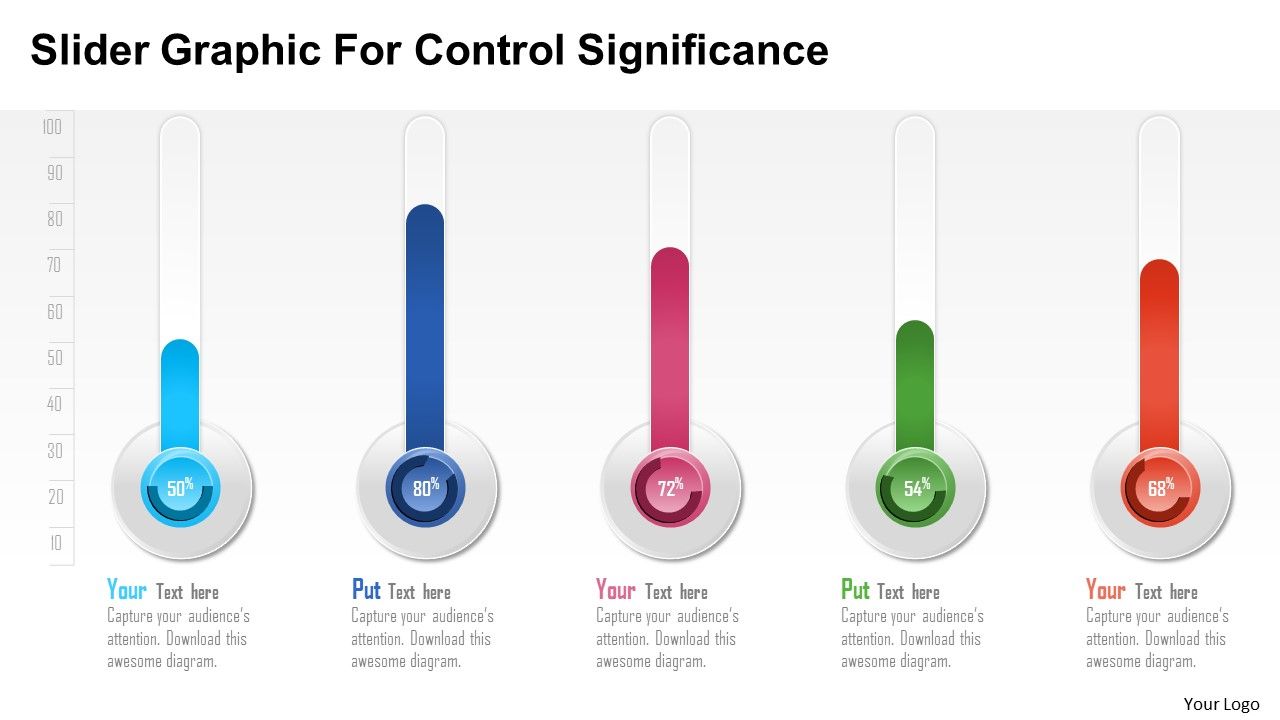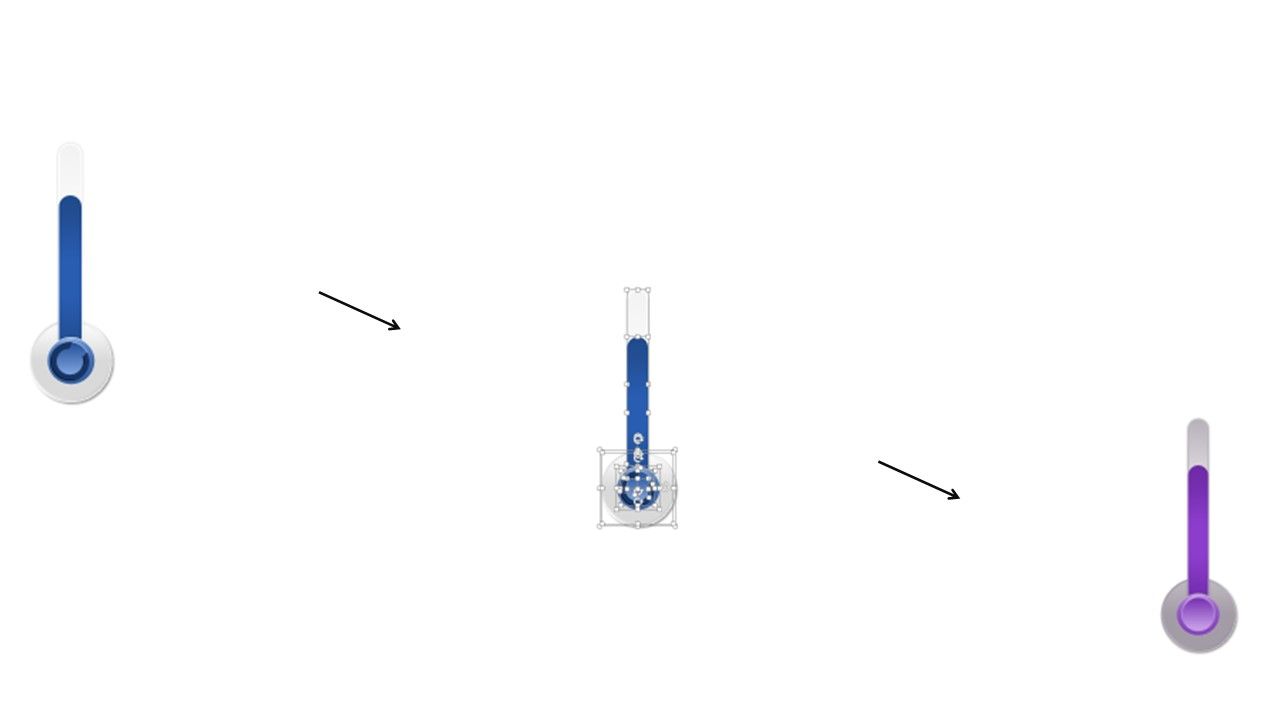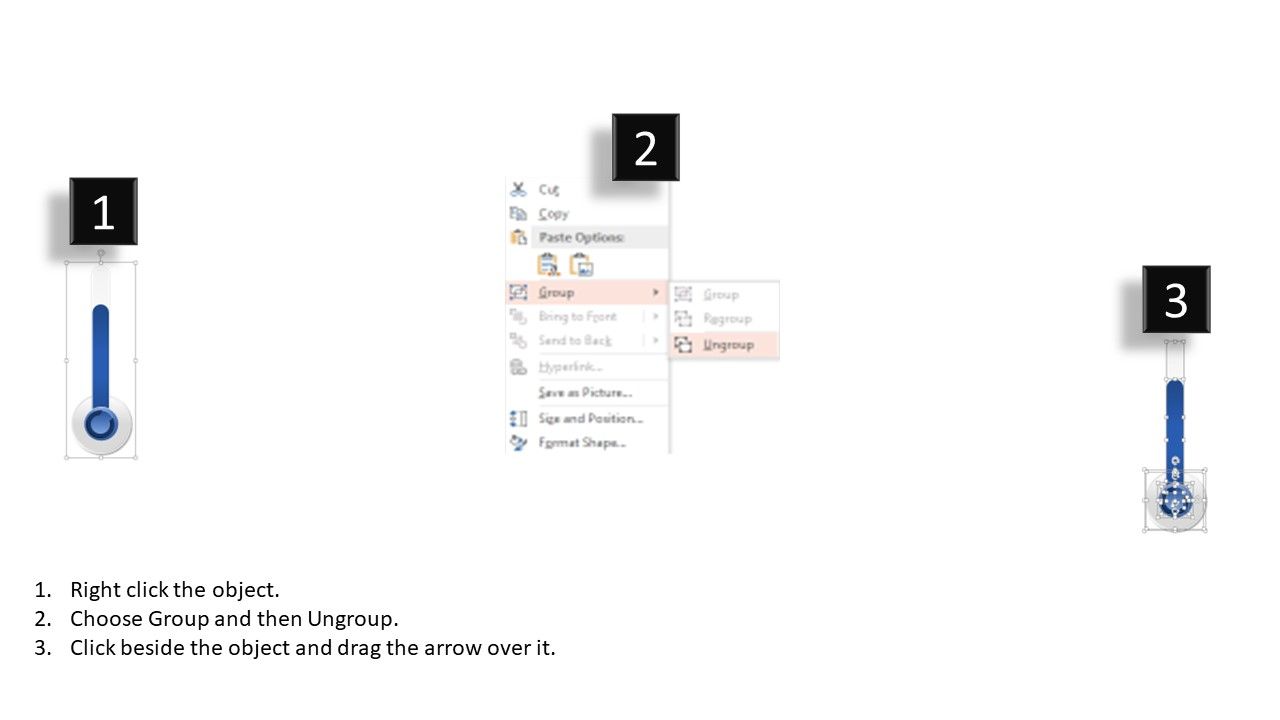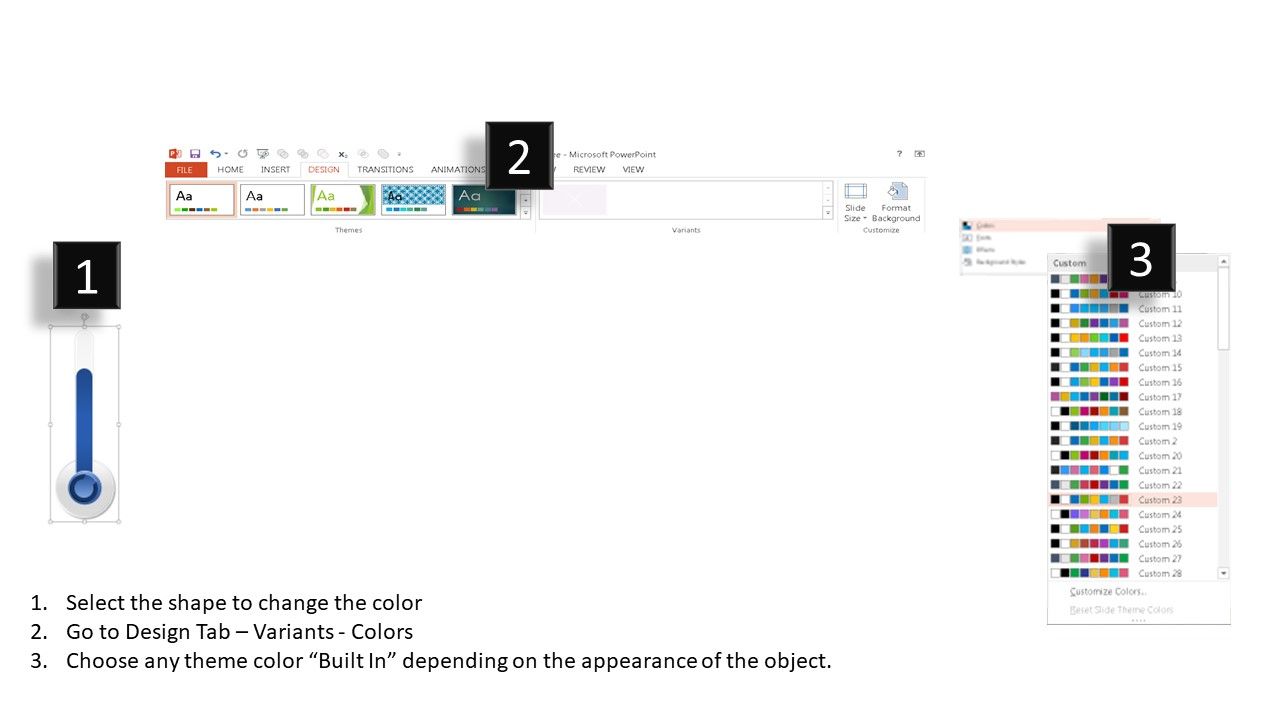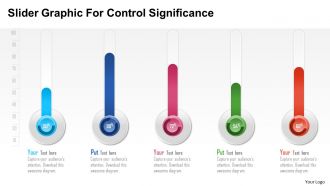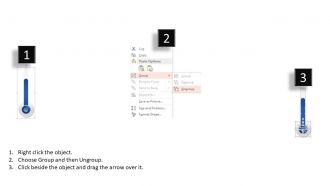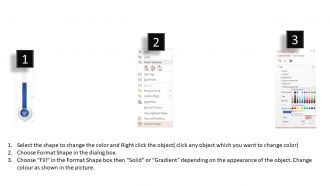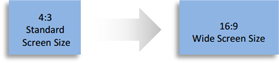
Slider graphic for control significance powerpoint template
Try Before you Buy Download Free Sample Product
Audience
Editable
of Time
Fulfill consumer aspirations with our Slider Graphic For Control Significance Powerpoint Template. Build their consciousness about your brand.
People who downloaded this PowerPoint presentation also viewed the following :
Slider graphic for control significance powerpoint template with all 5 slides:
Have a bash with our Slider Graphic For Control Significance Powerpoint Template. Get the gang dancing to your tune.
FAQs for Slider graphic for control
Honestly, the biggest thing is keeping your visual hierarchy clean and your branding consistent throughout. Bold headlines work great, and don't be afraid of white space - it's your friend. Pick visuals that actually support what you're saying instead of random pretty stock photos (we've all been guilty of this). Your color scheme should match your brand but not overwhelm people. Less text per slide is usually better. Make sure fonts are readable from the back row, and each slide should flow naturally to the next one. Start with a template that fits your presentation's vibe, then tweak it for your specific content.
Colors can totally make or break your slider graphics, honestly. Warm stuff like reds and oranges grab attention fast and create that urgency feeling. Blues and greens? Way more calming and trustworthy. I've watched sliders with awful color combos get completely ignored - it's brutal. You want your palette matching your vibe, right? Bright, high-contrast works amazing for sales and promotions. Professional content needs softer tones though. Oh, and definitely test how your colors look on different backgrounds so your text doesn't disappear and buttons actually stand out.
Start with consistency - same fonts, colors, spacing throughout so it doesn't feel choppy. Make your text big enough to read fast (people scroll through these things like they're late for something). Don't stuff too much on each slide. White space actually makes things look way better than cramming everything in. One main thing should grab attention per slide. Oh, and definitely check how it looks on phones first - that's where most people see sliders anyway. I learned this the hard way when mine looked great on desktop but was tiny and unreadable on mobile.
Honestly, animations make a huge difference for sliders. They guide people's eyes and create these smooth transitions instead of jarring jumps between sections. Way better than static slides - those are just boring to look at. You can tell your story piece by piece with gentle fade-ins or subtle movements that don't feel forced. I always start simple with basic entrance effects, then maybe add some slide transitions. The trick is not going overboard (I've seen some presentations that made me dizzy lol). Keep it purposeful so it actually supports what you're saying rather than being distracting eye candy.
So static sliders are like old-school PowerPoint - you manually swap out text and images whenever you need changes. Dynamic ones automatically grab fresh content from spreadsheets, databases, whatever data source you're using. Honestly? Dynamic is where it's at if your content changes a lot. Sales figures, social media metrics, that kind of stuff. You'll save yourself tons of time not having to manually update everything. But if it's just a one-time presentation or campaign that won't change much, static works fine. Really depends on whether you need those constant updates or not.
Honestly, just check it on your phone first - that'll show you the biggest issues right away. Size everything bigger since mobile screens are tiny. Your nav buttons need to be thumb-friendly, not made for precise mouse clicks. Keep text short because reading paragraphs on mobile is annoying. Test that swiping actually works smoothly - nothing's worse than janky gestures. Auto-advancing slides might help too since people scroll fast on their phones. Also portrait mode changes everything, so don't assume it'll look the same as desktop.
Honestly, I'd just use Canva or Figma. Canva's ridiculously easy - they've got slider templates already made, so you can just swap out colors and text. Perfect if design isn't really your thing. Figma's where I'd go if you need more control though. Way better for web stuff and the collaboration features are solid. I mean, Adobe works too but feels excessive unless you're already a Photoshop person. Oh, and both export properly sized files which saves you the headache later. Try Canva first for speed, then maybe check out Figma if you want to get fancier with it.
For sliders, stick with fonts that look good small since everyone's on mobile these days. Sans-serif is your friend here—Montserrat and Roboto are honestly pretty bulletproof for headlines. Keep it to 2-3 font families max or things get messy fast. Body text needs to be super readable since people scroll through slides quickly. Oh, and make sure there's good contrast between text and background colors. I always forget this part, but definitely test how it looks on different screen sizes before you call it done. Trust me on that one.
Don't cram everything onto one slide - seriously, less is more here. Small fonts are the worst, especially if people might view this on their phones. Make sure your colors actually contrast or nobody will be able to read anything. Inconsistent spacing always screams "amateur hour" to me. White space is your friend! Give your main message room to breathe. One focal point per slide keeps things clean. Oh, and definitely check how it looks on different screen sizes first - learned that one the hard way.
Honestly, slider templates are game-changers for presentations. They keep everything looking clean and consistent, so your audience doesn't get distracted by random formatting. Breaking down complex stuff into bite-sized pieces? Your brain will thank you for it. People can actually follow what you're saying instead of checking their phones. I love how you can reveal points one by one – builds up this nice momentum instead of overwhelming everyone with a wall of text. My coworker swears by the subtle animation ones. Next time you're presenting, try it out and see if people seem more engaged.
Dude, it's all about speed honestly. You'll save yourself like hours or days compared to starting from nothing. Templates already have layouts that work - they look good and function properly on phones, computers, whatever. Unless you're some design wizard or have super specific brand stuff, why make your life harder? Plus you get that consistent look without stressing over every little design choice. Sure, you lose some customization but most templates are pretty flexible for your branding anyway. My advice? Start with a template and just tweak it. Way easier than the alternative.
Honestly, slider templates are like the Swiss Army knife of presentations - they work everywhere. Retail folks use them for product showcases and seasonal sales. Healthcare breaks down treatment steps with them. Tech companies? They're obsessed with sliders because they can't fit all their features on one slide (and let's be real, they usually have way too many features anyway). Schools love them for course previews and testimonials. The trick is figuring out how your audience actually digests info. Take your main point, chop it into 3-5 bite-sized pieces, and you're golden.
Bold typography is everywhere right now, and honestly I'm here for it. Minimalist layouts with tons of white space look so much cleaner than the chaotic stuff we used to see. Gradients are back in a big way too - both vibrant ones and those subtle monochromatic schemes. Oh, and glassmorphism! Those frosted glass effects look pretty sleek. Dark mode's basically expected now since every platform supports it. My take? Don't go crazy trying to use everything at once. Pick maybe two trends that actually match your vibe and run with those consistently.
Honestly, just throw up some surveys and track what people actually do with your sliders - the data always surprises me. Users never behave how you think they will! Check completion rates, where they're clicking, and when they bail out. Button placement makes a huge difference too. Don't just collect feedback once though - that's pointless. Set up regular check-ins so you can keep tweaking based on real behavior instead of whatever looked cool in the mockups. Analytics will show you way more than any design meeting ever could.
Honestly, Pinterest is my go-to for slider inspo – you'll find endless creative layouts there. Dribbble's got the polished stuff if that's more your vibe. I always end up checking out template sites like Envato too, just to see what's popular right now. Oh, and definitely stalk websites you think look cool. Instagram carousels are weirdly helpful for transition ideas – didn't expect that when I first started looking. Save maybe 10-15 designs that grab you, then figure out why they actually work.
-
Excellent work done on template design and graphics.
-
Wonderful templates design to use in business meetings.